











How to use Configuration Tables in SOLIDWORKS
Written by: Solid Solutions Marketing
Published: Feb 15, 2022
| View All Blogs
Configuration tables in SOLIDWORKS allow for the creation and modification of configurations all within one clear and simple interface.
Learn how to add, manage, and control features between configurations with configuration tables in SOLIDWORKS, and find out what useful feature is new and improved in SOLIDWORKS 2022!
Types of SOLIDWORKS Tables
SOLIDWORKS utilises a few different types of tables to help speed up the modelling process. Within the part and assembly environments we have tables to drive patterns, model sheet metal parts, show tolerances, BOMs, and create different configurations with Design Tables and Configuration Tables in SOLIDWORKS.
Design tables are Microsoft Excel spreadsheets and can be used to create multiple configurations with a few clicks.
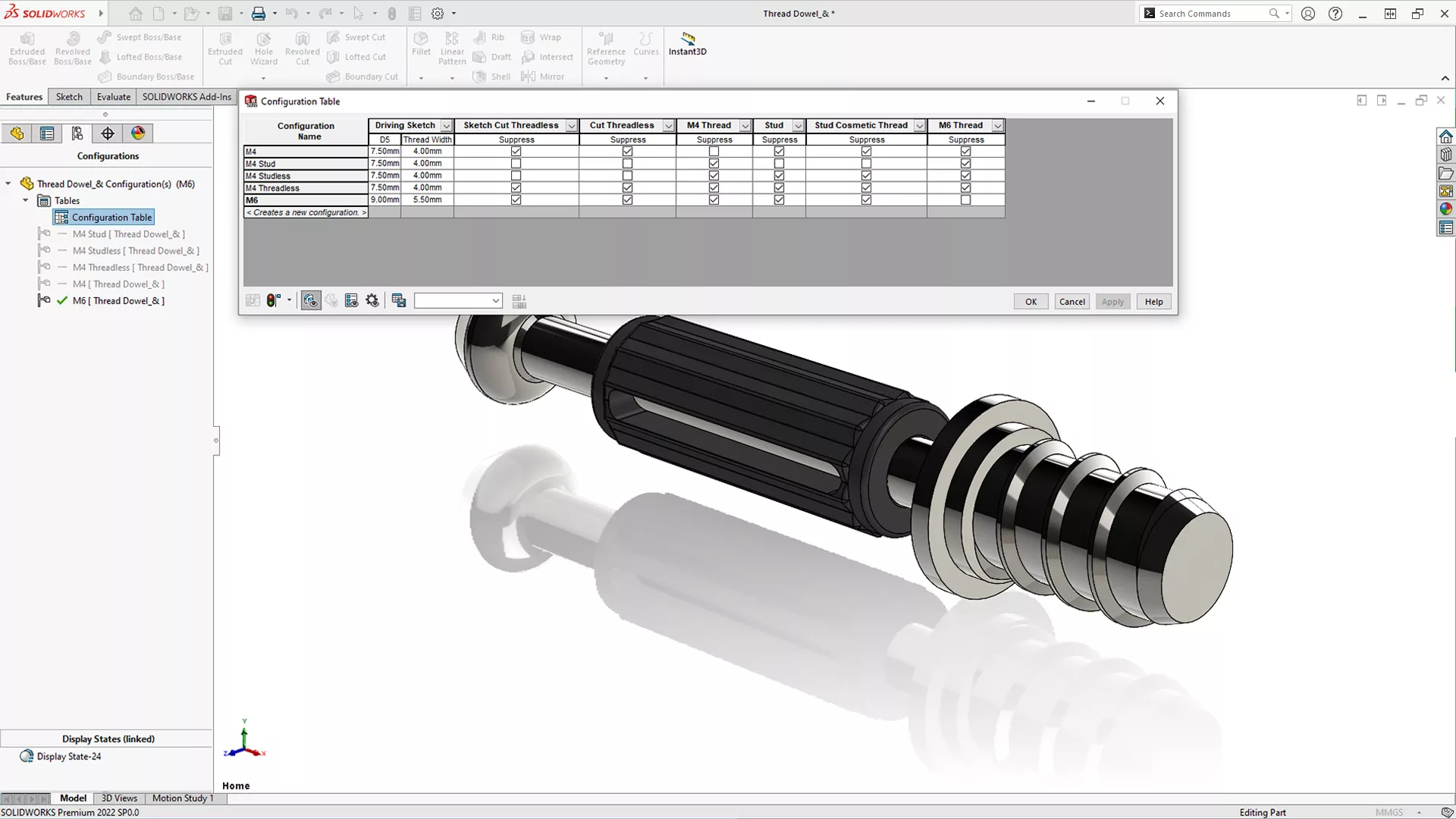
Configuration tables in SOLIDWORKS are essentially an expanded Configuration Manager. They show configured features and sketches within a part or assembly and help to lay out individual settings for each configuration within one handy table.
How to use Configuration Tables in SOLIDWORKS
Configurations allow us to subtly change features and dimensions of a part without having to create a whole new file and our configuration tables allow us to manage these easily.
Within a configuration table, features can be suppressed and unsuppressed and dimensions can be altered in both sketches and features. Additionally, configuration and feature names can be changed to help aid the design process.
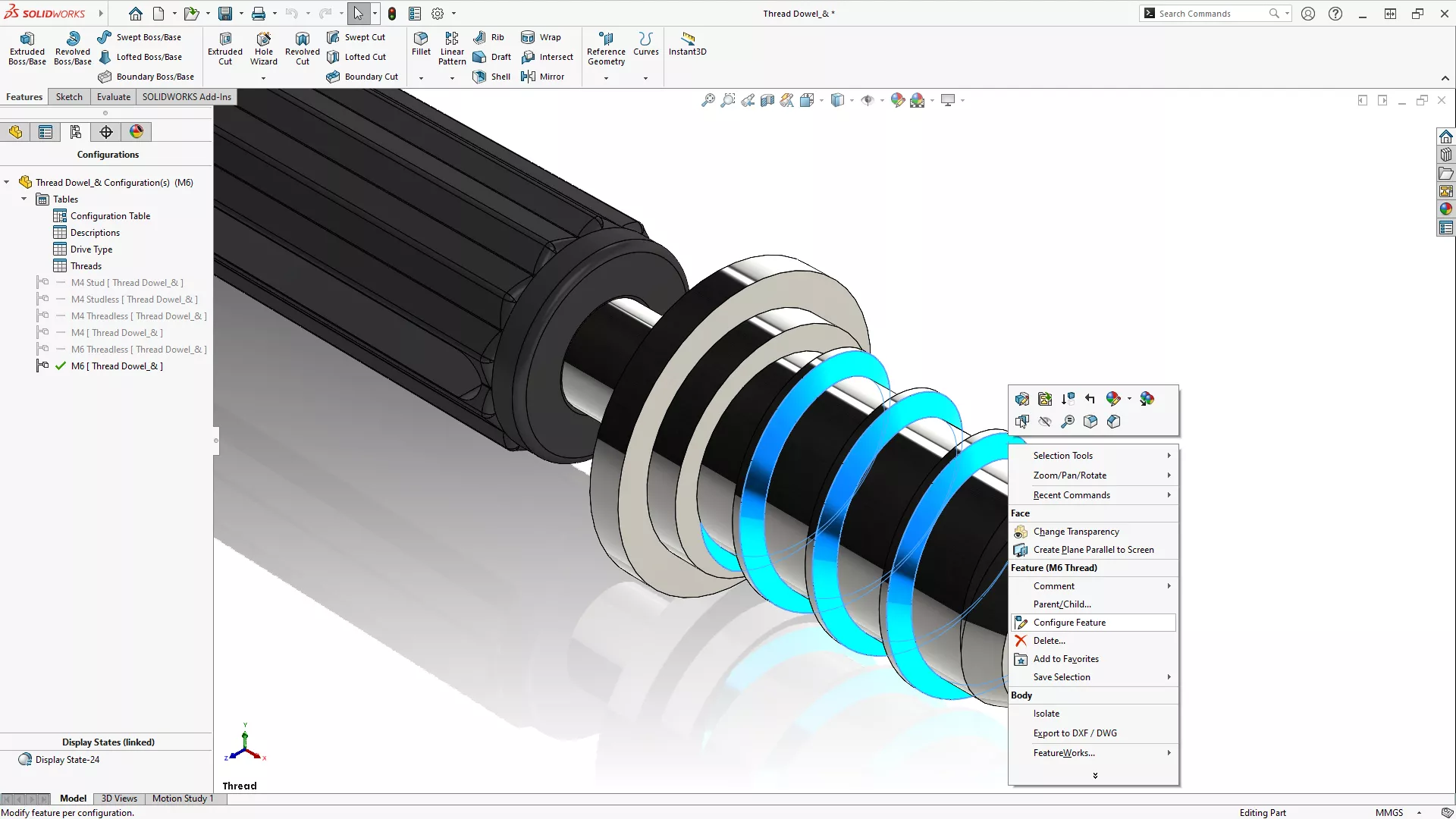
To create a configuration table, simply right click on a feature, dimension, mate, or component that you wish to configure and click Configure Feature, Configure Dimension, or Configure Component. This will bring up the interface above.
Values can be changed, features can be suppressed by ticking the checkboxes, and custom properties like descriptions can be added for each configuration, while viewing all the configurations that exist in a model.
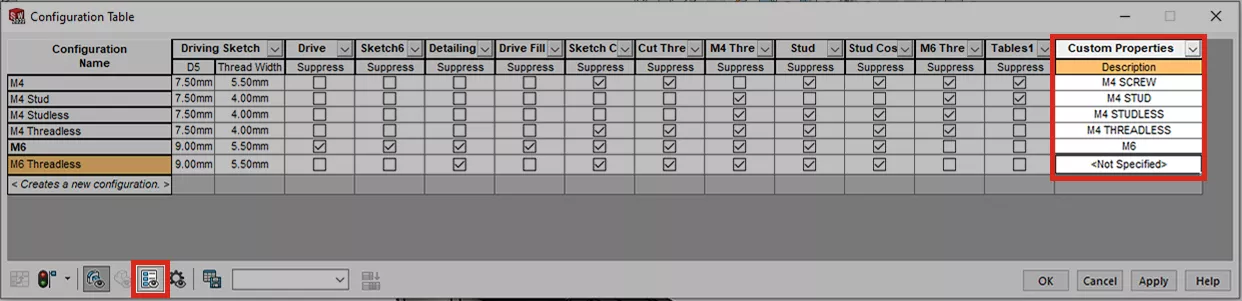
Use the Hide/Show Custom Properties button to see and control all custom properties assigned to different configurations.
To configure additional features and dimensions, double click on the feature or dimension while the configuration table is open to add it to the table.
Additional configurations can be created by typing in a new name over
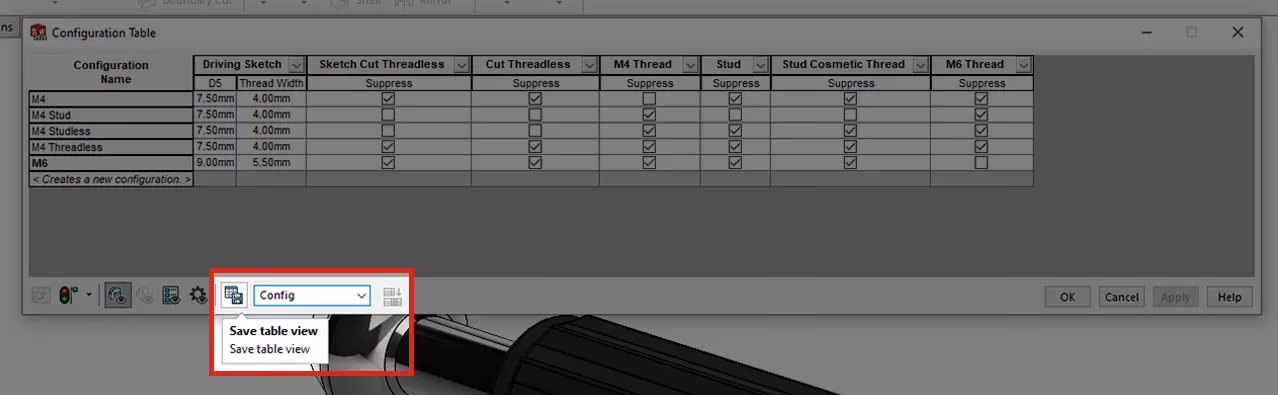
Always name and save a configuration table in SOLIDWORKS to populate the tables folder in the Configuration Manager. Multiple configuration tables can be created to manage different features and sketches, and keep your designs organised.
Configuration Tables vs Add Configuration
Configuration tables give an added level of control over the manual way of creating configurations.
Being able to see all the differences between configurations within one interface makes the process of creating and editing configurations much quicker and reduces opportunities for mistakes.
The conventional way of creating new configurations by right clicking a configuration and selecting Add Configuration allows only for individual changes to be made one by one.
Configuration tables in SOLIDWORKS can also be more intuitive and user-friendly than their sibling design tables, and act as a springboard for getting to grips with the raw Excel-based method of design tables.
What’s New in SOLIDWORKS 2022?
Configuration tables have seen a useful upgrade in SOLIDWORKS 2022.
Under System Options > General, enable the setting to ‘Create configuration tables on open’. This will automatically create a configuration table inside parts and assemblies when adding new configurations.
Look in your tables folder in the Configuration Manager to find it.
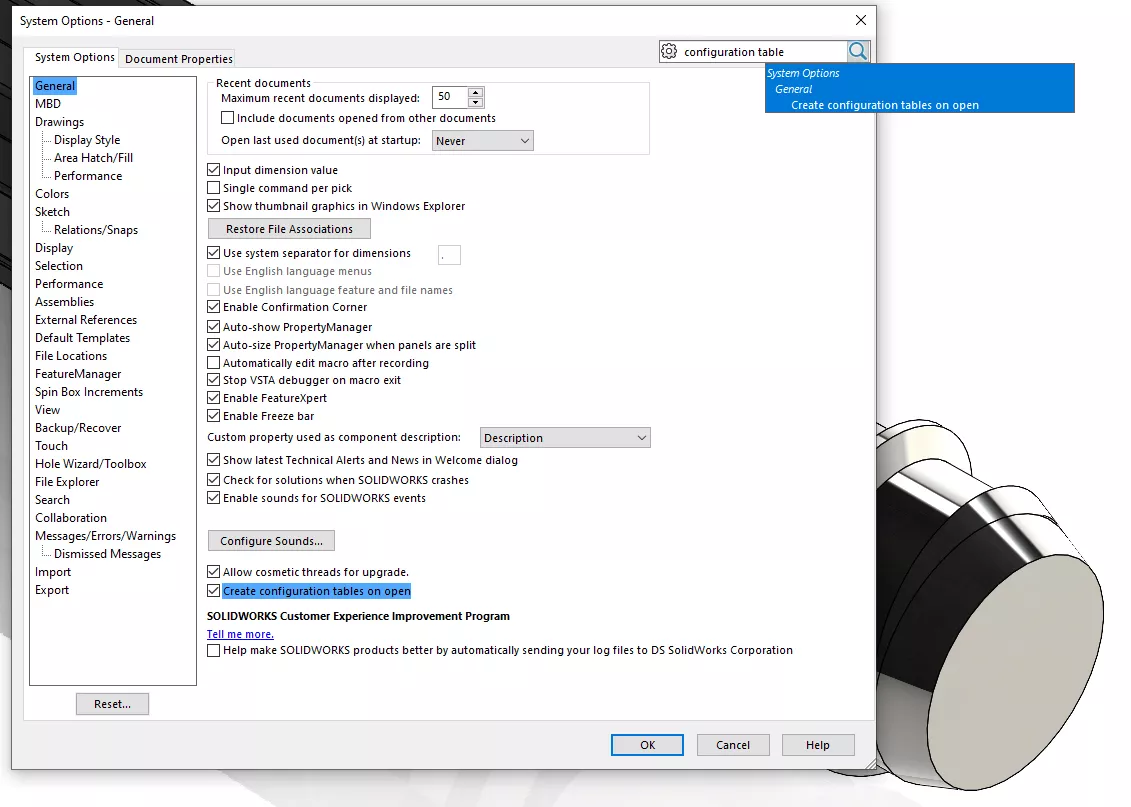
In previous versions, tables need to be manually saved on creation to show and be accessed from the tables folder.
Want to see what else is new in SOLIDWORKS? Check out our What’s New page.
Categorised as: SOLIDWORKS Design | Tutorials
Get a SOLIDWORKS Quote
Interested in SOLIDWORKS? Contact us for questions, trials, or demos by clicking the button below or call 01926 333777. Our experts will help you find the perfect solution.

Related Posts

How to Find Reaction Forces in SOLIDWORKS Simulation
SOLIDWORKS helps us to find resultant forces through simulation studies. These virtual tests reduce the need for physical prototypes and give us an accurate answer.

Setting number of decimal places in a table on a drawing
When creating an equation in a drawing general table, is it possible to define the…

SOLIDWORKS Smart Fasteners
SOLIDWORKS Smart Fasteners is a really useful time saving tool, allowing you to automatically insert toolbox fasteners such as bolts and screws into an assembly providing there is a standard hole.

Why is my Flat Pattern not showing in SOLIDWORKS Drawings?
This may be linked to how the drawing is saved or it can be related to how sheet metal parts are displayed in drawings, read on to find out how to fix it.

SOLIDWORKS Tips: Are you Making this Common Mistake in Fatigue Analysis?
Simulation is a vital and complex engineering need. Fortunately, SOLIDWORKS makes it easy to test, correct mistakes and obtain accurate results.

Series 1 Land Rover Pedal Car – Made Easy with Solidworks!
The Series1 began production in 1948 designed to help get Britain farming after the war effort. It grew extremely popular and today enthusiasts are prepared to throw their life savings at restoring originals from that period.

How to Recover SOLIDWORKS Files After a Crash
SOLIDWORKS has two different methods to help you recover from an unexpected crash or loss of data in the form of auto-recovery and back-up settings.

Redesigning Santa’s Sleigh in SOLIDWORKS
Every year Father Christmas has to fly in his sleigh to deliver presents to boys and girls all over the world in just one night. To put this into perspective, it takes a little under 24 hours to fly from London (UK) to Sydney (Australia) in a streamlined Boeing 747, whereas Father Christmas’ mode of transport is believed to be a rather non-aerodynamic sleigh.

SOLIDWORKS Grid Systems – hidden away, but very useful!
Rory Niles provides an insight into the uses for Grid Systems within SOLIDWORKS 2018

Furniture Design Made Easy with SOLIDWORKS
Calling all furniture and interior designers: the days of creating square cabinets are over. What if we told you there’s a much easier way to bring your products to life?
Here’s 10 reasons why we feel SOLIDWORKS is better than any other software, especially if you’re designing furniture: