











How to Calculate Wire Lengths in SOLIDWORKS Electrical Routing
Written by: Stefano Bigazzi
Published: Feb 2, 2023
| View All Blogs
SOLIDWORKS Electrical Routing can automatically size wire and cable length. Occasionally, we may need to override the value that SOLIDWORKS reports.
Read on to learn how to override the reported values, how wire length is calculated in SOLIDWORKS Electrical Routing and what values influence the result.
SPLINE LENGTH VS ROUTE LENGTH
The main value taken into consideration is the Spline Length.
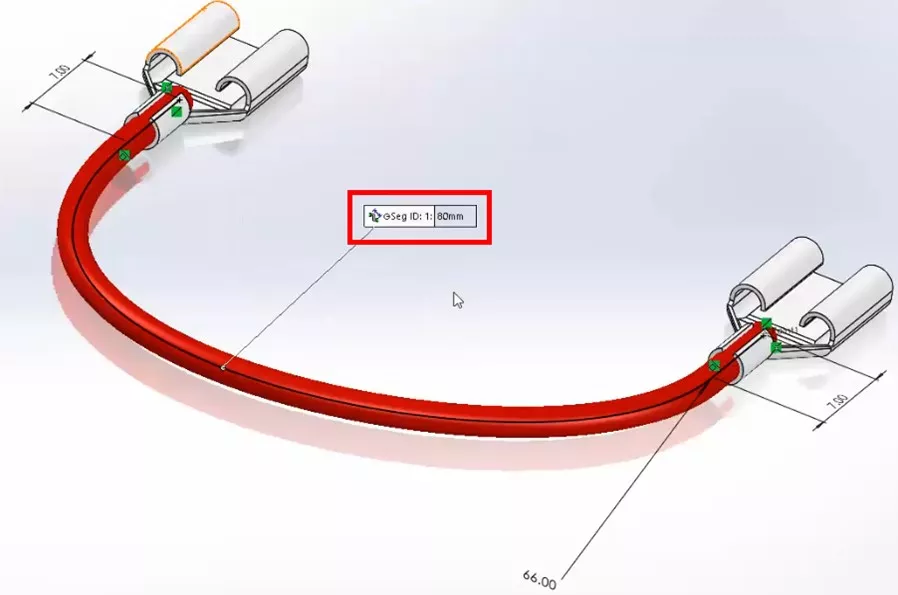
In the above picture, this value is 80 mm, but this might not be the only factor used to calculate the final length displayed in the BOM.
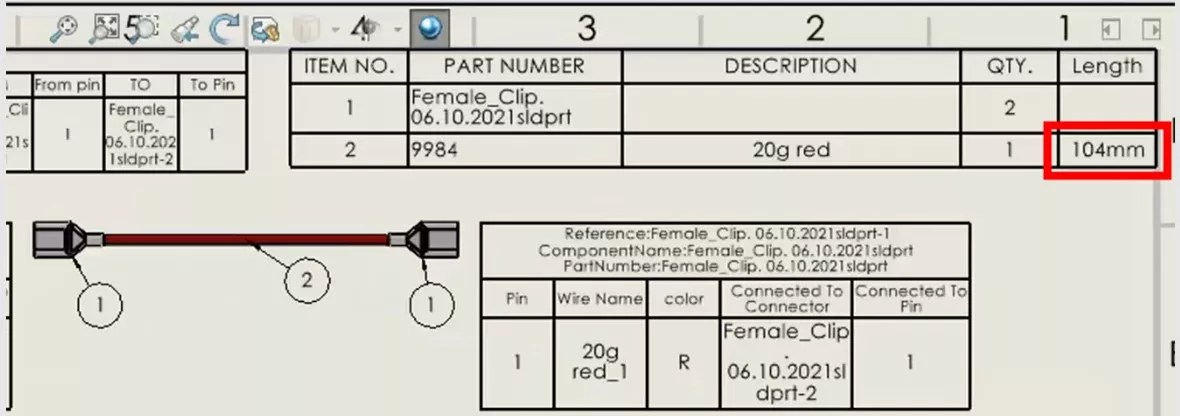
To demonstrate this, we can see in the associated BOM table below there is a discrepancy between the defined length of 80 mm and the final value of 104 mm.
While 80 mm may be the correct Spline Length, the BOM actually reports a different value: the Electrical Route Length.
This is calculated through the formula:
( Spline Length x Slack Percentage ) + Additional Internal Wire = Electrical Route Length
( 80 mm x 1.05 ) + 10 + 10 mm = Electrical Route Length
The Spline Length/strong> is the total length of the 3D sketch spline.
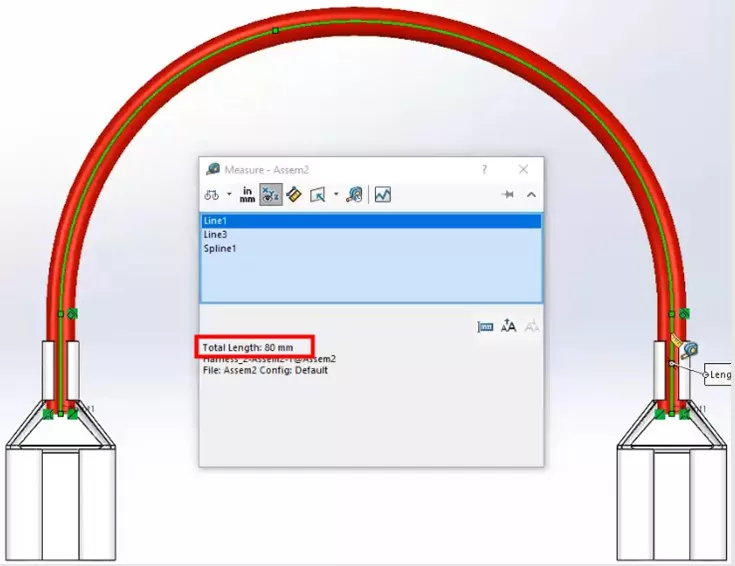
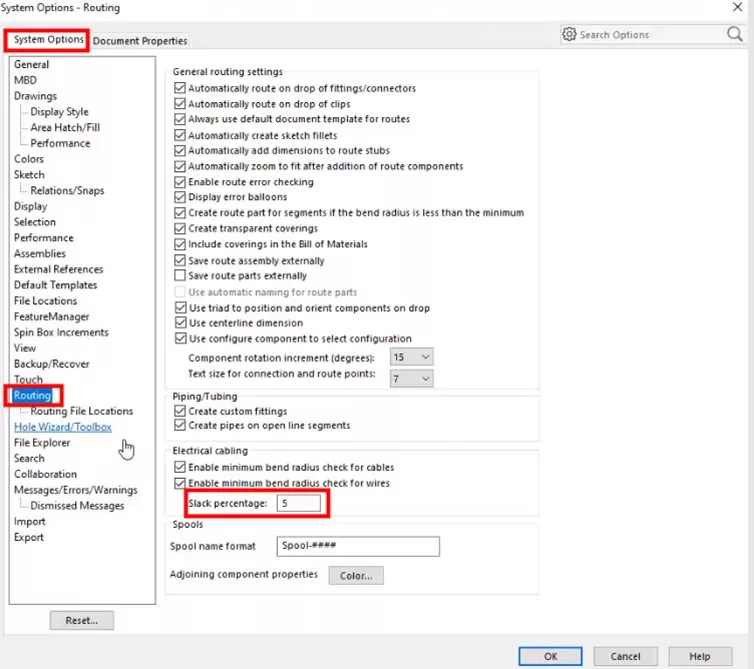
The Slack Percentage is a precautionary measure that allows for oversizing wire lengths. SOLIDWORKS increases the calculated cutting length of the wire to account for sagging, kinking and so on, which can occur in real life installations. This value is set to 0 by default.
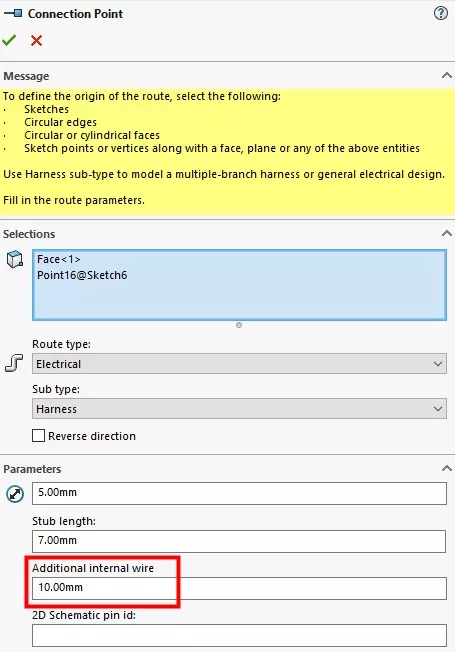
The Additional Internal Wire Length is a property that belongs to the Connection Point. It specifies a value to add to the cut length of the cable to allow the wire stripping.
WHY BOMS SHOW A DIFFERENT VALUE FOR LENGTH
Combining each of those parameters through the equation above gives us the Electrical Route Length, and explains why lengths may appear differently when measuring the length of wires and checking them against the length displayed in the BOM.
Our BOMs are helpfully accounting for real world scenarios, rather than the ideal world that exists within our SOLIDWORKS models.
Take the Next Steps…
Enhance your SOLIDWORKS Electrical skills with our CPD-accredited training courses.
Whether you’re a beginner or are intimately familiar with CAD, our friendly and expert trainers are ready to help you get the most out of SOLIDWORKS, either online or in a classroom local to you.
Categorised as: SOLIDWORKS Electrical | Tutorials
Get a SOLIDWORKS Quote
Interested in SOLIDWORKS? Contact us for questions, trials, or demos by clicking the button below or call 01926 333777. Our experts will help you find the perfect solution.

Related Posts

Series 1 Land Rover Pedal Car – Made Easy with Solidworks!
The Series1 began production in 1948 designed to help get Britain farming after the war effort. It grew extremely popular and today enthusiasts are prepared to throw their life savings at restoring originals from that period.
Creating Interactive Animations with SOLIDWORKS Visualize
Interactive Images are a great export option within Visualize Professional, allowing you to view the model in a series of 360 orbital spins within a web browser.
However, what happens if I want to use this interactive method to demonstrate a mechanism or animation instead?

How to Find & Activate SOLIDWORKS Xpress Products
Find & activate SOLIDWORKS Xpress products in five simple steps. Xpress tools come with every seat of SOLIDWORKS and unlock additional functionality.

How to Create 360VR Video using SOLIDWORKS Visualize
Virtual Reality(VR) videos provide one of the most immersive methods of viewing a design concept and can be used to bring your product showcases to the next level. Recently VR has become a valuable tool for many companies when it comes to design reviews and interactive product training. Check out this short blog to learn how to export 360VR videos using SOLIDWORKS Visualize.
Modelling an Archimedes’ Screw with SOLIDWORKS
Archimedean screws are often referred to as “water screws” since they are commonly used to transport water between different heights. We often see some of our customers do screw feeders and we thought it may be beneficial to create a blog documenting an effective modelling workflow to create your very own Archimedean screw.

How to come up with ideas for your design or engineering project – some helpful tips
We know coming up with an interesting and creative design or engineering project can be…

DesignSpark Electrical
Do you use DesignSpark Electrical? If so, you will want to know the DesignSpark Electrical…
Connection Detailing in SOLIDWORKS 2022
With SOLIDWORKS 2022 you can add connection detailing to your structural members. Learn how to create and add structural connections to your SOLIDWORKS models quickly and easily.

How to use Configuration Tables in SOLIDWORKS
Learn how to add, manage, and control features between configurations with configuration tables and find out what’s new in SOLIDWORKS 2022.
How to Create Animations in SOLIDWORKS
3D animations are a great way to display your designs, no matter what stage of the design process you are at and can provide companies of almost any industry with huge leverage in improving their operational efficiency. Animated marketing videos are a fantastic way to communicate a message that may be difficult or costly to explain other than by using conceptual animations. They are very flexible with the only limitation being your imagination.
Below is an example of a marketing video of an GoPro gimbal.