











Rendering and Animation Software
SOLIDWORKS Visualize
With SOLIDWORKS Visualize you can create professional photo-quality images, animations, and other 3D content in the fastest and easiest way possible. This can help users and stakeholders select, validate, improve, and sell the best and most robust design concepts.
Promote your digital sales and display your products at their best without committing expensive prototyping resources to your projects.
See What’s Possible
SOLIDWORKS Visualize in Action
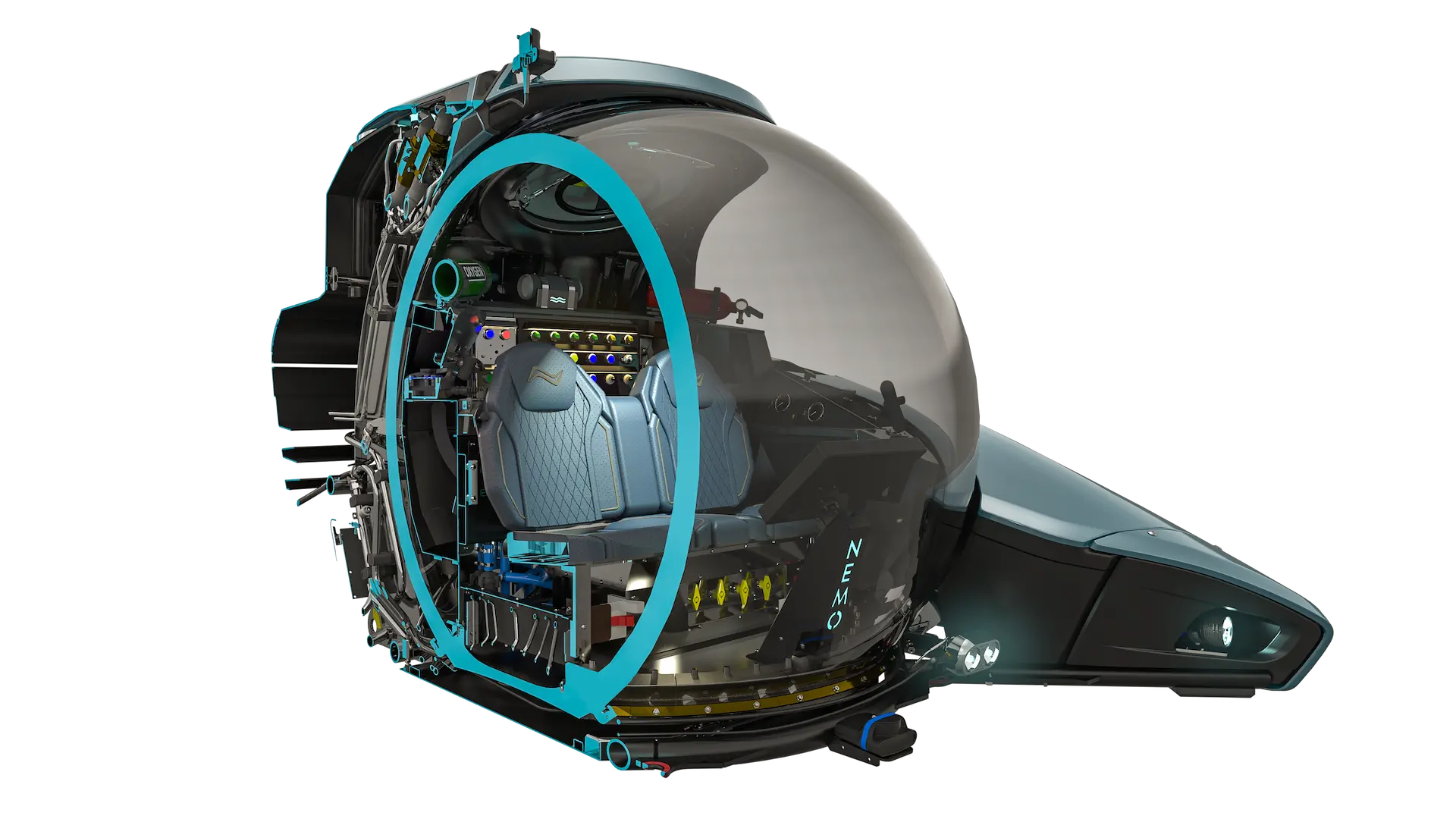
SOLIDWORKS Visualize is used across many industries and is capable of creating realistic rendered images of a wide range of products.
Why SOLIDWORKS Visualize
Photorealistic Rendering
Create stunning, lifelike images directly from your SOLIDWORKS data without complex setups.
Artificial Intelligence (AI) Tools
AI can eliminate noise from your Visualize renders in one click, dramatically boosting your render speed on average by 10x!
CAD Integration
Seamlessly import SOLIDWORKS and over 25 different CAD file types, for instant rendering.
Fast Rendering Performance
Leverage GPU acceleration for a dramatic increase in rendering speed and high-quality outputs utilising NVIDIA® graphics cards.
Intuitive Workflow
With a simple 'photo studio style' interface, engineers and designers can utilise the tool, even those without a 3D background.
Cost-Effective Visualization
Even with the SOLIDWORKS Visualize Standard, you are accessing premium level rendering without the need of expensive third-party tools.
SOLIDWORKS Visualize in Action
Key Benefits of SOLIDWORKS Visualize
Transform CAD models into realistic visuals that look like photographs, helping stakeholders visualize the final product before manufacturing.
Unlock the power of realistic visuals with SOLIDWORKS Visualize's advanced lighting options! Lighting is the key to capturing your audience's attention and making your images truly photorealistic.
Pro / Connected Feature
Unlock the power of animation and bring your designs to life with SOLIDWORKS Visualize! Animations of your products offer an unparalleled way to fully convey your design stories from multiple angles.
Pro / Connected Feature
Immerse clients and teams in interactive VR experiences for better engagement and faster approvals. With Visualize Professional and you can now create mind-blowing 360 Virtual Reality Cameras that allow you to immerse yourself within your designs.
Pro / Connected Feature
Discover how Visualize Professional enhance your workflow, handling configurations and different models effortlessly. Render queue capabilities allow you to maximize render time and minimize downtime. Visualize Boost enables offloading renders to more powerful machines, ideal for remote work setups. Plus, advanced post-processing tools simplify tweaking and editing right within Visualize.
Pro / Connected Feature
Master SOLIDWORKS Visualize today!
Explore our range of SOLIDWORKS Visualize training courses and become certified in creating stunning photorealistic renders. Start your expert-led journey today!
Which SOLIDWORKS Visualize package do you need?
Essential Animation and Images
£2,544/ 12 month term
Includes:
- Hybrid Render Mode
- Physically-Based Raytracing
- CAD and Graphic File Support
- Surface/Part Splitter
- Interactive Depth of Field
- Artificial Intelligence (AI) Denoiser
What is Visualize Standard
SOLIDWORKS Visualize Standard provides foundational design capabilities, and is the fastest and easiest way to photorealistic imagery.
SOLIDWORKS VISUALIZE
Standard
Pro.
Connected
- SOLIDWORKS Visualize is hardware-agnostic and can leverage one or many GPUs in a single machine or across a network, which dramatically increases rendering performance over CPU hardware. Utilizing NVIDIA® graphics card(s) for rendering is much faster than competitor CPU technology and helps to speed up your daily workflow, generating more content. This feature alone provides dramatic acceleration of the design and engineering process.
- SOLIDWORKS Visualize performs faster on all hardware, including entry-level laptops (using new Fast Render mode).
- SOLIDWORKS Visualize can also leverage emerging GPU technology from NVIDIA, such as the NVIDIA Quadro® VCA, for linear boosts in render speeds, resulting in a more efficient and productive 3D visualization experience.
- In addition to leveraging one or many GPUs or CPUs, SOLIDWORKS Visualize can leverage both GPU and CPU simultaneously (Hybrid mode) in a single machine or across a network, which dramatically increases rendering performance. This render mode allows entry-level machines to have increased performance to generate content faster
- Using NVIDIA’s Iray® render engine inside of SOLIDWORKS Visualize, you view a precise and physically correct representation of your CAD model, as if you had physically produced it.
- Lighting, materials, and form all come together realistically without sacrificing visual quality and not taking shortcuts to increase render speeds.
- Physically-based raytracing is more than just pretty pictures—it’s critical digital accuracy that shows what your design will look like in the real world.
- SOLIDWORKS Visualize lets you work like you would in a photo studio, moving the camera around your product easily “taking pictures” of your CAD data.
- The SOLIDWORKS Visualize user interface (UI), with integrated Viewport and lack of complex node-based materials, is designed for users who don’t have time to learn a complex new tool. The SOLIDWORKS Visualize UI can be further simplified to just five buttons at the bottom of the screen in Easy Mode. This mode is designed for users who have no 3D background and just need a simple visualization tool. Enjoy the new sub-tabs in the Palette, simplified Import and Render windows, and much more. Dark and light themes are available for the interface.
- SOLIDWORKS Visualize imports over 25 different CAD file types, including common generic formats such as IGES, STEP, and OBJ.
- SOLIDWORKS Visualize outputs include JPG, BMP, PNG, TIFF, HDR, and PSD.
- Already been working on your Visualize file and need to import some design changes? As your design evolves, simply save over the existing file and Visualize will update only the parts that have been changed. Visualize will even remember if you changed the colour and keep that change on the newly updated part. You can always re-link the file if the name changes or the location moves.
- Split out parts, surfaces, and faces with this handy integrated Part Splitter. Easily separate geometry to apply a different material or texture. No need to go back to your CAD package to make this change.
- Add that extra touch of photorealism to your Visualize content with Depth of Field. This feature allows you to interactively select the point of focus by simply clicking on your model, and then adjust the amount of desired blur. You can even enter physical camera settings like F-Stop and Aperture.
- Uses Artificial Intelligence to decipher and eliminate noise from your Visualize renders with a single checkbox, dramatically boosting your render speed on average by 10x!
- Reuse your existing database of measured materials directly within Visualize, by scanning real-world materials and import them via MDL or PBR Appearance Types. Explore online libraries of materials and textures and easily re-create them in Visualize using these new industry-standard Appearance Types.
- Easily place logos, graphics and more with simple and intuitive to use Decals. All Decal Mapping types are supported from SOLIDWORKS CAD and now you can choose from multiple mapping modes directly within Visualize, giving you even more flexibility and control.
- Use the new Visualize add-in for SOLIDWORKS CAD to easily bring your existing animations and motion studies to life in SOLIDWORKS Visualize Professional. CAD Live-Update works with these animations as well, so as your movements and keyframes change in SOLIDWORKS CAD, they will be updated in Visualize.
- Tell a deeper story with your CAD data using the full Animation suite in SOLIDWORKS Visualize Professional. Animate exploded views, part opacity, cameras, and much more with ease to create photo-quality videos to describe even the most complex projects.
- This unique feature provides a 3D representation of how your camera or parts are moving throughout your scene while setting up an animation.
- The Animation Ribbon is coloured to show the speed of moving objects, and shows the actual keyframes, making editing complex animations easy.
- Create amazing Visualize content faster than ever before. SOLIDWORKS Visualize Boost is a new add-on product to SOLIDWORKS Visualize Professional that instantly increases render speeds and content productivity. Similar to a printer queue in your office, SOLIDWORKS Visualize Boost allows SOLIDWORKS Visualize Professional users to send jobs to other machine(s), freeing up your machine to keep using Visualize, CAD, or other demanding applications.
- A new render mode in Visualize Professional, PowerBoost lets you connect NVIDIA VCA(s) or any other GPU/CPU render farm to stream the raytracing directly to your Visualize Viewport. PowerBoost grants you direct access to loads more hardware than can fit in your local machine, producing extremely fast render speeds while working on your project.
- Easily create interactive web content to drop into your website or spice up your internal presentations with these two eye-catching outputs. Make your CAD files come to life and create an emotional connection with your target audience. The Interactive Image stitches the desired number of still images together to create an interactive experience of tumbling your model. Panoramic outputs teleport you inside your CAD data for and interactive 360 experiences.
- Act like a professional photographer and add some “pop” to your Visualize content. No need to use post-production applications to adjust the exposure, brightness, colour balance, contrast, and other frequently used settings. All this can be achieved directly inside Visualize Professional. You can also animate these camera filters!
- Instantly increase productivity with the integrated Render Queue by stacking up multiple jobs and letting them complete while you're away. Never wait for a render to finish again!
- Rapidly generate colourways, product variations, and other design choices using Configurations. Present in real time using Visualize and make important design and engineering decisions by flipping through your Configurations. You can even render all Configurations in a single click!
- Render complex interior scenes faster than ever before using new Area Lights, which are also supported in Fast mode. These Area Lights produce picture-perfect shadows and render up to 8x faster than using traditional lights and Accurate mode. This new update also comes with an even easier way to interactively place your lights. No longer struggle manually setting up lights in your scene; now only a single click places the light exactly where you want it—allowing you to dial in the perfect shot.
- Take advantage of the photorealism of SOLIDWORKS Visualize Professional to explore/review beautiful immersive images and animations at 1:1 scale. Easily set up your camera where you want to look around and click a single button in Visualize to create amazing VR content with 360 stereo images and even animations in VR! Support for any VR device, including HTC® Vive®, Oculus Rift™, Samsung® Gear VR, Google® Daydream, and Google Cardboard™.
- Enable Physics with a few simple clicks and watch your items collide and fall, just like they would in real life. After Physics is setup, use the Earthquake tool to randomize or jitter the selected elements. This helps to add a natural touch to stacked plates, or pens in a cup, without having to manually move each one individually, saving loads of scene set up time.
- Create beautiful, photo-quality driving images and animations of your vehicle that doesn’t even exist yet, with accurate real-time physics. The new Physics system supports driving a car alongside a predefined path as well as steering via the keyboard or a connected game controller. Adjust several Car Driving settings, like Suspension, Wheel Friction, Ride Height and many others, all calculated in Real-time. Then record the vehicle driving with a single click for life-like driving footage.
- Import videos or image sequences directly into Visualize, creating vivid animations of products with LED screens (ie: laptop, car navigation screen, airline headset). Spice up your animations as the camera is panning across your product or throughout an exploded animation with a video sequence playing on the screen.
Visualize Standard and Professional run separately to the 3DEXPERIENCE Platform but can be connected to take advantage of the collaboration features, centralised data management and other platform benefits.
Fully integrated within the 3DEXPERIENCE platform for cloud-based data management and collaboration. Launches from the Platform and benefits from automatic updates and seamless platform access.
Advanced visualization tools
£3,156/ 12 month term
All of SOLIDWORKS Visualize Standard plus:
- Import SOLIDWORKS Animations and Motion Studies
- Full Animation Suite
- Visualize Boost Support
- Area Lights and Light Placement
- Create VR Content
- Interactive Content
What is Visualize Professional
SOLIDWORKS Professional extends the feature set offered by SOLIDWORKS Standard. SOLIDWORKS Visualize Professional is a powerful rendering tool that produces photorealistic images, animations, and interactive content from 3D CAD data.
SOLIDWORKS VISUALIZE
Standard
Pro.
Connected
- SOLIDWORKS Visualize is hardware-agnostic and can leverage one or many GPUs in a single machine or across a network, which dramatically increases rendering performance over CPU hardware. Utilizing NVIDIA® graphics card(s) for rendering is much faster than competitor CPU technology and helps to speed up your daily workflow, generating more content. This feature alone provides dramatic acceleration of the design and engineering process.
- SOLIDWORKS Visualize performs faster on all hardware, including entry-level laptops (using new Fast Render mode).
- SOLIDWORKS Visualize can also leverage emerging GPU technology from NVIDIA, such as the NVIDIA Quadro® VCA, for linear boosts in render speeds, resulting in a more efficient and productive 3D visualization experience.
- In addition to leveraging one or many GPUs or CPUs, SOLIDWORKS Visualize can leverage both GPU and CPU simultaneously (Hybrid mode) in a single machine or across a network, which dramatically increases rendering performance. This render mode allows entry-level machines to have increased performance to generate content faster
- Using NVIDIA’s Iray® render engine inside of SOLIDWORKS Visualize, you view a precise and physically correct representation of your CAD model, as if you had physically produced it.
- Lighting, materials, and form all come together realistically without sacrificing visual quality and not taking shortcuts to increase render speeds.
- Physically-based raytracing is more than just pretty pictures—it’s critical digital accuracy that shows what your design will look like in the real world.
- SOLIDWORKS Visualize lets you work like you would in a photo studio, moving the camera around your product easily “taking pictures” of your CAD data.
- The SOLIDWORKS Visualize user interface (UI), with integrated Viewport and lack of complex node-based materials, is designed for users who don’t have time to learn a complex new tool. The SOLIDWORKS Visualize UI can be further simplified to just five buttons at the bottom of the screen in Easy Mode. This mode is designed for users who have no 3D background and just need a simple visualization tool. Enjoy the new sub-tabs in the Palette, simplified Import and Render windows, and much more. Dark and light themes are available for the interface.
- SOLIDWORKS Visualize imports over 25 different CAD file types, including common generic formats such as IGES, STEP, and OBJ.
- SOLIDWORKS Visualize outputs include JPG, BMP, PNG, TIFF, HDR, and PSD.
- Already been working on your Visualize file and need to import some design changes? As your design evolves, simply save over the existing file and Visualize will update only the parts that have been changed. Visualize will even remember if you changed the colour and keep that change on the newly updated part. You can always re-link the file if the name changes or the location moves.
- Split out parts, surfaces, and faces with this handy integrated Part Splitter. Easily separate geometry to apply a different material or texture. No need to go back to your CAD package to make this change.
- Add that extra touch of photorealism to your Visualize content with Depth of Field. This feature allows you to interactively select the point of focus by simply clicking on your model, and then adjust the amount of desired blur. You can even enter physical camera settings like F-Stop and Aperture.
- Uses Artificial Intelligence to decipher and eliminate noise from your Visualize renders with a single checkbox, dramatically boosting your render speed on average by 10x!
- Reuse your existing database of measured materials directly within Visualize, by scanning real-world materials and import them via MDL or PBR Appearance Types. Explore online libraries of materials and textures and easily re-create them in Visualize using these new industry-standard Appearance Types.
- Easily place logos, graphics and more with simple and intuitive to use Decals. All Decal Mapping types are supported from SOLIDWORKS CAD and now you can choose from multiple mapping modes directly within Visualize, giving you even more flexibility and control.
- Use the new Visualize add-in for SOLIDWORKS CAD to easily bring your existing animations and motion studies to life in SOLIDWORKS Visualize Professional. CAD Live-Update works with these animations as well, so as your movements and keyframes change in SOLIDWORKS CAD, they will be updated in Visualize.
- Tell a deeper story with your CAD data using the full Animation suite in SOLIDWORKS Visualize Professional. Animate exploded views, part opacity, cameras, and much more with ease to create photo-quality videos to describe even the most complex projects.
- This unique feature provides a 3D representation of how your camera or parts are moving throughout your scene while setting up an animation.
- The Animation Ribbon is coloured to show the speed of moving objects, and shows the actual keyframes, making editing complex animations easy.
- Create amazing Visualize content faster than ever before. SOLIDWORKS Visualize Boost is a new add-on product to SOLIDWORKS Visualize Professional that instantly increases render speeds and content productivity. Similar to a printer queue in your office, SOLIDWORKS Visualize Boost allows SOLIDWORKS Visualize Professional users to send jobs to other machine(s), freeing up your machine to keep using Visualize, CAD, or other demanding applications.
- A new render mode in Visualize Professional, PowerBoost lets you connect NVIDIA VCA(s) or any other GPU/CPU render farm to stream the raytracing directly to your Visualize Viewport. PowerBoost grants you direct access to loads more hardware than can fit in your local machine, producing extremely fast render speeds while working on your project.
- Easily create interactive web content to drop into your website or spice up your internal presentations with these two eye-catching outputs. Make your CAD files come to life and create an emotional connection with your target audience. The Interactive Image stitches the desired number of still images together to create an interactive experience of tumbling your model. Panoramic outputs teleport you inside your CAD data for and interactive 360 experiences.
- Act like a professional photographer and add some “pop” to your Visualize content. No need to use post-production applications to adjust the exposure, brightness, colour balance, contrast, and other frequently used settings. All this can be achieved directly inside Visualize Professional. You can also animate these camera filters!
- Instantly increase productivity with the integrated Render Queue by stacking up multiple jobs and letting them complete while you're away. Never wait for a render to finish again!
- Rapidly generate colourways, product variations, and other design choices using Configurations. Present in real time using Visualize and make important design and engineering decisions by flipping through your Configurations. You can even render all Configurations in a single click!
- Render complex interior scenes faster than ever before using new Area Lights, which are also supported in Fast mode. These Area Lights produce picture-perfect shadows and render up to 8x faster than using traditional lights and Accurate mode. This new update also comes with an even easier way to interactively place your lights. No longer struggle manually setting up lights in your scene; now only a single click places the light exactly where you want it—allowing you to dial in the perfect shot.
- Take advantage of the photorealism of SOLIDWORKS Visualize Professional to explore/review beautiful immersive images and animations at 1:1 scale. Easily set up your camera where you want to look around and click a single button in Visualize to create amazing VR content with 360 stereo images and even animations in VR! Support for any VR device, including HTC® Vive®, Oculus Rift™, Samsung® Gear VR, Google® Daydream, and Google Cardboard™.
- Enable Physics with a few simple clicks and watch your items collide and fall, just like they would in real life. After Physics is setup, use the Earthquake tool to randomize or jitter the selected elements. This helps to add a natural touch to stacked plates, or pens in a cup, without having to manually move each one individually, saving loads of scene set up time.
- Create beautiful, photo-quality driving images and animations of your vehicle that doesn’t even exist yet, with accurate real-time physics. The new Physics system supports driving a car alongside a predefined path as well as steering via the keyboard or a connected game controller. Adjust several Car Driving settings, like Suspension, Wheel Friction, Ride Height and many others, all calculated in Real-time. Then record the vehicle driving with a single click for life-like driving footage.
- Import videos or image sequences directly into Visualize, creating vivid animations of products with LED screens (ie: laptop, car navigation screen, airline headset). Spice up your animations as the camera is panning across your product or throughout an exploded animation with a video sequence playing on the screen.
Visualize Standard and Professional run separately to the 3DEXPERIENCE Platform but can be connected to take advantage of the collaboration features, centralised data management and other platform benefits.
Fully integrated within the 3DEXPERIENCE platform for cloud-based data management and collaboration. Launches from the Platform and benefits from automatic updates and seamless platform access.
Frequently Asked Questions
SOLIDWORKS Visualize Standard provides foundational rendering capabilities, while SOLIDWORKS Visualize Professional and SOLIDWORKS Visualize Connected builds upon this, allowing the creation of animations, walkthroughs, interactive content and Virtual Reality.
Visualize Connected provides all the same features as Professional but is fully integrated within the 3DEXPERIENCE platform for cloud-based data management and collaboration. Visualize Standard and Pro can be connected to the platform to take advantage of the benefits, but can also be ran separately.
All products help you showcase products in true-to-life environments without the need for physical prototypes, ideal for marketing or product visualization.
If you are unsure which one is right for you, you can contact our friendly sales team to make the best choice.
No. SOLIDWORKS Visualize can be used as a standalone application. It supports a wide range of CAD formats including SOLIDWORKS, STEP, IGES, CATIA, Autodesk files, and more.
For best performance, a modern NVIDIA GPU is recommended since Visualize uses GPU-accelerated rendering. A minimum of 16GB RAM and a multi-core CPU is also ideal for a smooth workflow.
Solid Solutions sell a range of DELL hardware solutions that can allow your CAD tools to work with great efficiency. Take a look at our full range of hardware options.
Visualize is designed to be intuitive, even for beginners. The workflow is similar to real-world photography. You can set up your model, lighting, materials, and camera angles. Within a short time, most users can create professional-quality renders.
However, if you require more support, we offer training comprehensive training courses SOLIDWORKS Visualize Standard, SOLIDWORKS Visualize Professional and SOLIDWORKS Animations. Designed to get comfortable using the software and ready to implement your skills for both personal and professional use.
Yes. Learn how SOLIDWORKS Visualize’s advanced visualization, viewing, and publishing capabilities create powerful connections between designers, clients, and consumers. Download the white paper here.
Yes. Visualize's Cloud library (accessed from within the software) is full of free additional downloads. If you're looking for even more textures, backgrounds or models for SOLIDWORKS Visualize then please contact us for advice.
SOLIDWORKS Visualize enables anyone to create professional, photo-quality images, animations and other 3D content in the fastest and easiest way possible, enabling designers, engineers and content creators to enhance their 3D decision making experience. Download the datasheet.
Related Content

SOLIDWORKS Visualize. Why go pro? – 6 Post Processing
In this blog we will be look at the post-processing options that can be found in SOLIDWORKS Visualize

Learn more about SOLIDWORKS Visualize. Why go pro? – 6 Post ProcessingSOLIDWORKS Visualize. Why go pro? – 7 Lighting
SOLIDWORKS Visualize uses a non-biased rendering engine, which allows for physically accurate lighting within a scene. It generates images with high amount of realism and correct set up can replicate photo studio lighting.

Learn more about SOLIDWORKS Visualize. Why go pro? – 7 LightingHow to Get Your Serial Number for SOLIDWORKS Visualize Standard
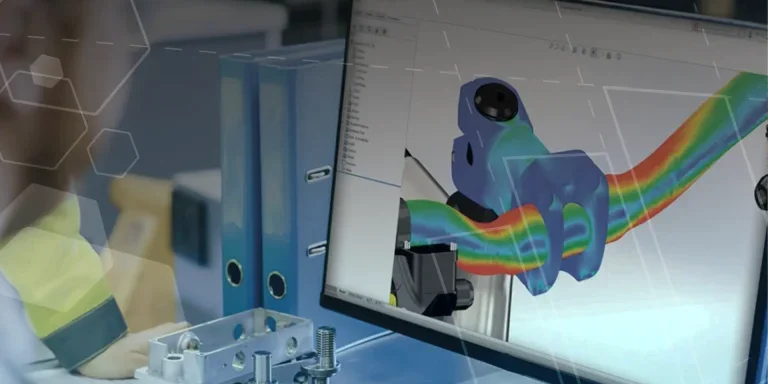
Want to download Visualize to make photorealistic renders? Follow this guide for accessing your Visualize serial number that comes bundled in with SolidWorks Professional and Premium.
Learn more about How to Get Your Serial Number for SOLIDWORKS Visualize StandardCreating Interactive Animations with SOLIDWORKS Visualize
Interactive Images are a great export option within Visualize Professional, allowing you to view the model in a series of 360 orbital spins within a web browser.
However, what happens if I want to use this interactive method to demonstrate a mechanism or animation instead?

How to Create 360VR Video using SOLIDWORKS Visualize
Virtual Reality(VR) videos provide one of the most immersive methods of viewing a design concept and can be used to bring your product showcases to the next level. Recently VR has become a valuable tool for many companies when it comes to design reviews and interactive product training. Check out this short blog to learn how to export 360VR videos using SOLIDWORKS Visualize.

Learn more about How to Create 360VR Video using SOLIDWORKS VisualizeCreating a Kicking Tee for the Rugby Lions Series – Modelling Walkthrough
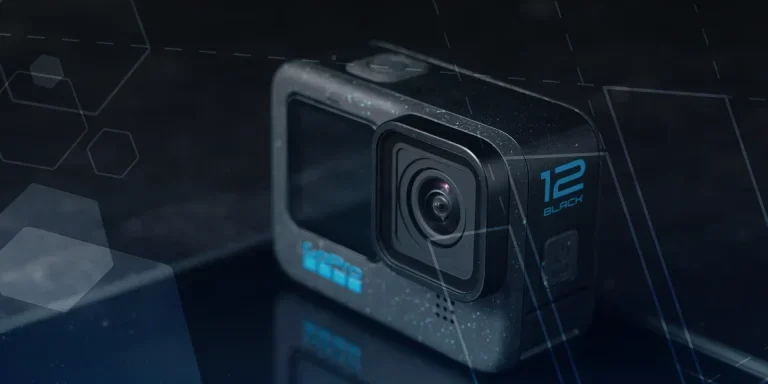
As the Rugby Lions Series continues Solid Solutions and MECAD are continuing to compete off the pitch using SOLIDWORKS. Our second challenge was to create a Kicking Tee, a small yet key piece of equipment that is used almost every game. Various designs exist but we decided to model an adjustable kicking tee. Read on for some SOLIDWORKS tips and an overview of our modelling process.
Learn more about Creating a Kicking Tee for the Rugby Lions Series – Modelling WalkthroughHow to Create Animations in SOLIDWORKS
3D animations are a great way to display your designs, no matter what stage of the design process you are at and can provide companies of almost any industry with huge leverage in improving their operational efficiency. Animated marketing videos are a fantastic way to communicate a message that may be difficult or costly to explain other than by using conceptual animations. They are very flexible with the only limitation being your imagination.
Below is an example of a marketing video of an GoPro gimbal.

SOLIDWORKS Visualize Import Modes – Updated for 2022
If you have been using SOLIDWORKS Visualize 2022 you may have noticed some subtle changes on the import geometry tab from previous versions. These changes weren’t listed in the What’s New documentation and were introduced a little under the radar. In this blog we’ll explain what has changed and how it can save you time.

Learn more about SOLIDWORKS Visualize Import Modes – Updated for 2022How to Create Realistic Lighting in SOLIDWORKS Visualize
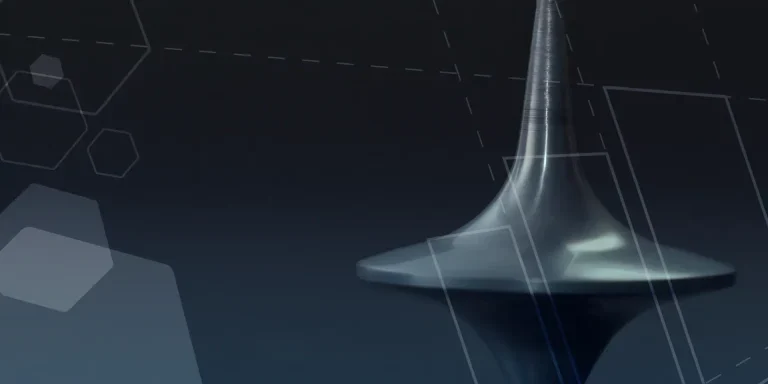
SOLIDWORKS Visualize is equipped with some simple tools to help you get realistic lighting for your product renders.
Learn more about How to Create Realistic Lighting in SOLIDWORKS VisualizeSOLIDWORKS Tips: How to Animate Rotations in SOLIDWORKS Visualize
Pivot points hold the key to unlocking awesome animations in SOLIDWORKS Visualize. Check out this walkthrough to learn how to create them easily!
Learn more about SOLIDWORKS Tips: How to Animate Rotations in SOLIDWORKS Visualize


