











How to Download and Install SOLIDWORKS 2024

Written by: Terry O'Reilly
Published: Dec 7, 2023
| View All Blogs
When upgrading or installing SOLIDWORKS 2024, you have a couple of options for how to install the software.
The two main methods for installing standalone licenses of SOLIDWORKS are clean installation and parallel installation (the process is different for network licensing and administrative image models).
Before continuing, please ensure you have Administrator privileges on the account through which you are attempting the installation.
The following guide takes you through the process of cleanly installing SOLIDWORKS 2024.
WHAT IS A CLEAN INSTALLATION?
A clean installation is a safe and reliable way of installing SOLIDWORKS and also frees up storage space on your hard drive.
It requires removing all traces of previous SOLIDWORKS versions from your machine before installing the new version or reinstalling.
This will be done through the SOLIDWORKS Installation Manager. Follow this complete guide to perform a clean installation of SOLIDWORKS.
Ready to Upgrade?
Make sure you’re ready to upgrade! Have you checked off these 10 things to do before installing SOLIDWORKS?
Read the full blog to get prepared and find out everything you need to do before installing SOLIDWORKS.
WHAT IS A PARALLEL INSTALLATION?
A parallel installation is needed when you want to keep multiple versions of SOLIDWORKS on a single machine.
If you don’t need to uninstall SOLIDWORKS, please install SOLIDWORKS 2024 alongside other previous versions of SOLIDWORKS.
HOW TO UNINSTALL SOLIDWORKS
To begin a clean SOLIDWORKS install, we need to first uninstall any existing SOLIDWORKS versions.
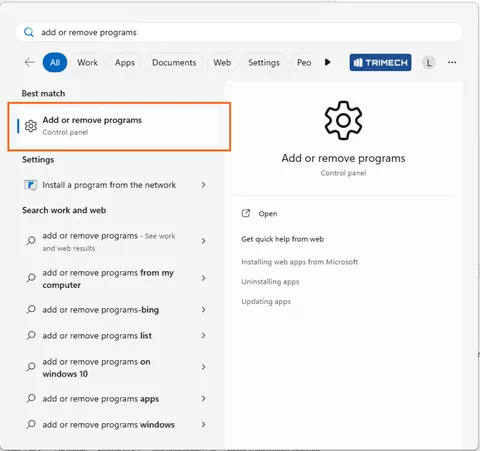
Search for ‘add or remove programs’ in Windows.
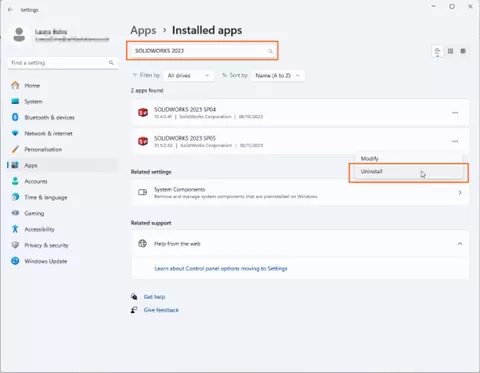
Then search for SOLIDWORKS and select ‘uninstall’.
Select ‘yes’ to run the installation manager as Administrator.
You may be warned that a reboot is pending, click OK to close this dialog. The uninstallation can be completed without rebooting.
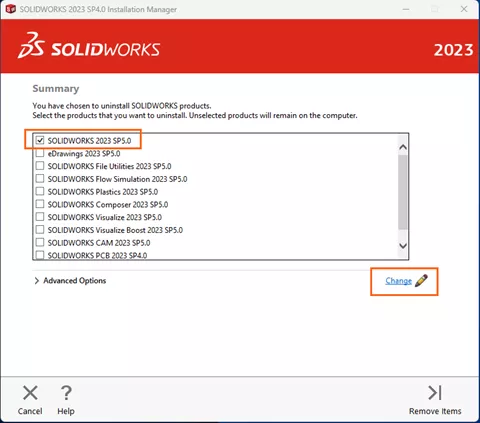
Select the products which need to be uninstalled and click ‘Change’. Selecting all products will perform a completely clean installation.
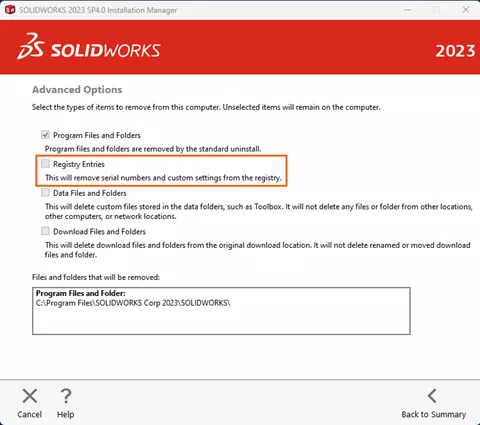
We recommended that you select to only remove registry entries, if data files and folders are removed, you may delete templates which are stored in default folders.
If you need to remove all traces of SOLIDWORKS including the Toolbox and other data folders, then select the option to remove ‘Data Files and Folders’.
CAUTION – Make sure you have backed up any custom templates or files before proceeding as this change is irreversible.
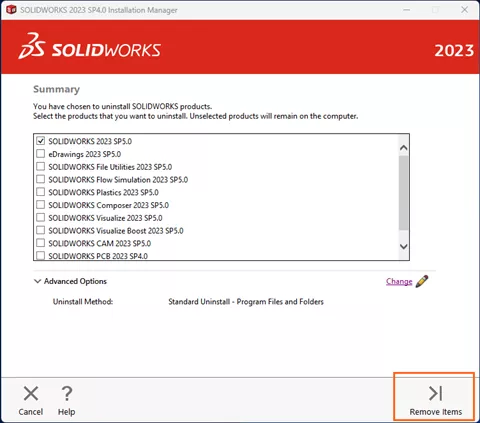
Click ‘Back to Summary’. Then ‘Remove Items’.
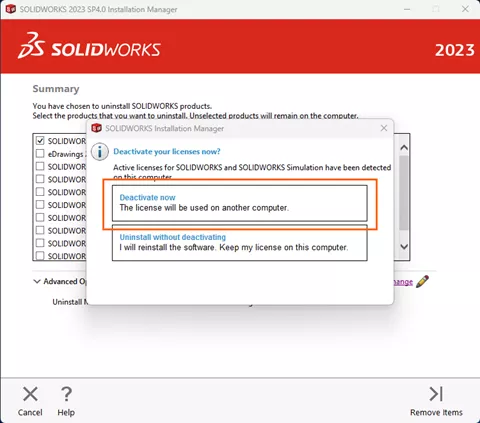
When prompted, select ‘Deactivate Licenses’.
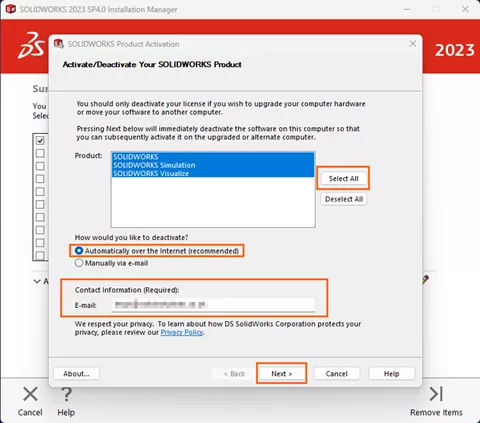
Choose ‘Select All’ in the product activation window to select your licenses.
Choose to activate ‘Automatically over the internet’ and enter your email address.
Click Next to deactivate the license on this machine.
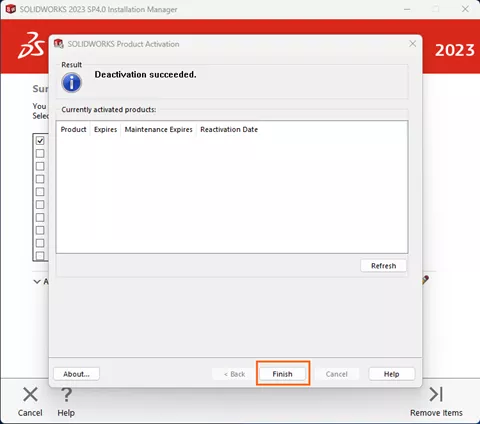
Once the deactivation process completes, you should receive a ‘success’ message.
Select ‘Finish’ to complete the deactivation.
As we are including registry entries, we will be prompted for a check.
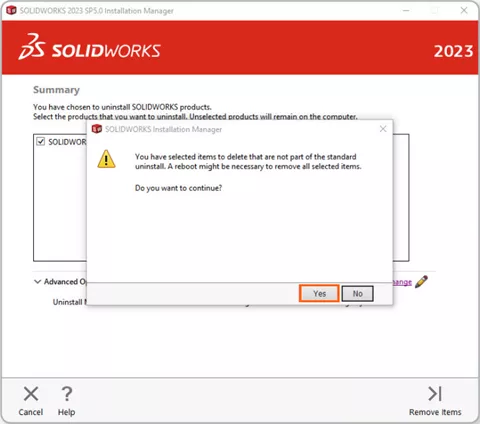
Select ‘Yes’ to confirm.
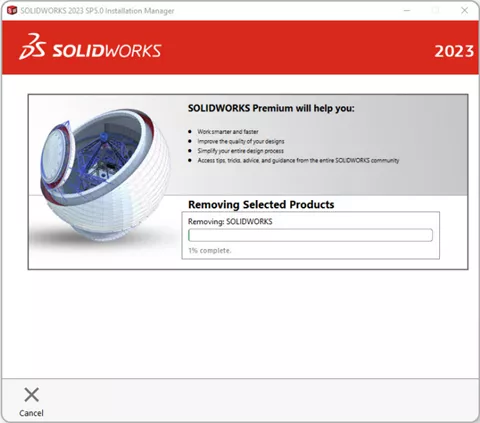
The uninstallation process should run through.
Once finished, restart your computer to complete the uninstallation.
HOW TO DOWNLOAD SOLIDWORKS 2024
You can find the latest SOLIDWORKS downloads from within SOLIDWORKS by opening the Help menu and choosing “Check for Updates”.
Alternatively, you can access our SOLIDWORKS Download page, which will require you to log into your MySolidSolutions Account.
HOW TO INSTALL SOLIDWORKS 2024
Before upgrading any piece of software, it’s best practise to make sure previous versions are first deactivated.
Make sure you’ve followed our 10 Things to Do Before Upgrading SOLIDWORKS checklist and ensure any previous versions of SOLIDWORKS have been deactivated before continuing.
Once you have downloaded SOLIDWORKS, open the Installation Manager from the setup .exe file.
You will need Administrator privileges to install SOLIDWORKS 2024.

Start by running the setup application from within your SOLIDWORKS 2024 installation files folder.
This folder will typically be found under SOLIDWORKS Downloads in your documents folder.
When prompted, select ‘Yes’ to run the installation as administrator.
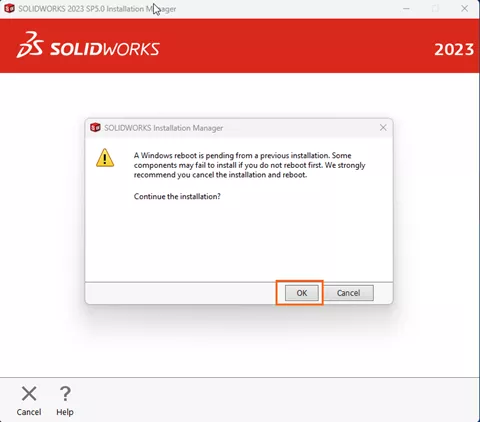
If prompted to reboot, select OK.
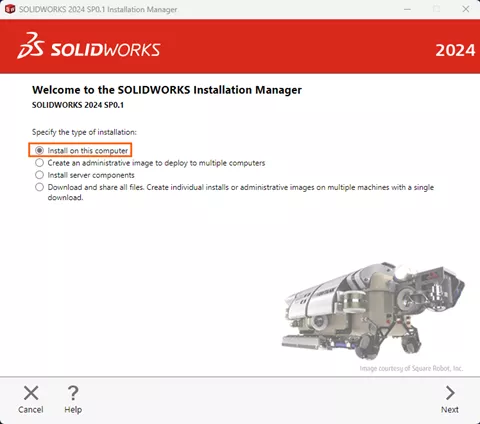
Select ‘Install on this computer’.
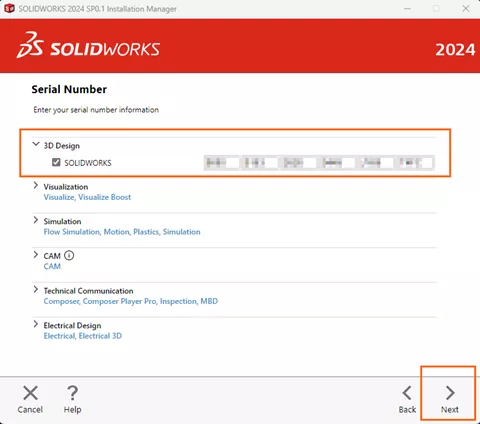
Enter your SOLIDWORKS serial numbers and any other product serial numbers required, then select Next.
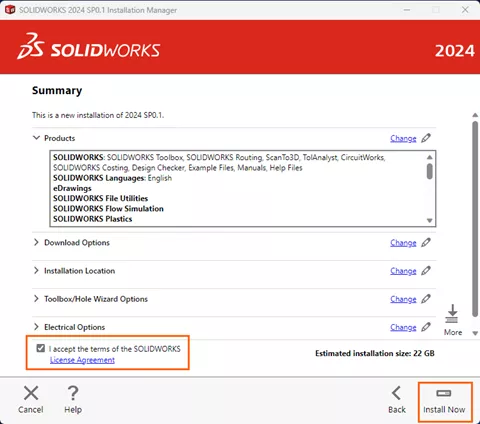
Select ‘I accept the SOLIDWORKS License Agreement’ and then ‘Install’.
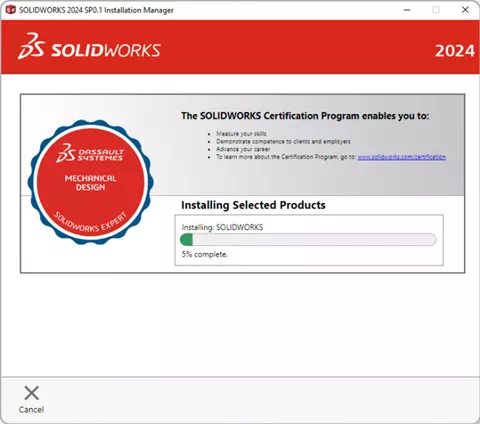
The installation should begin.
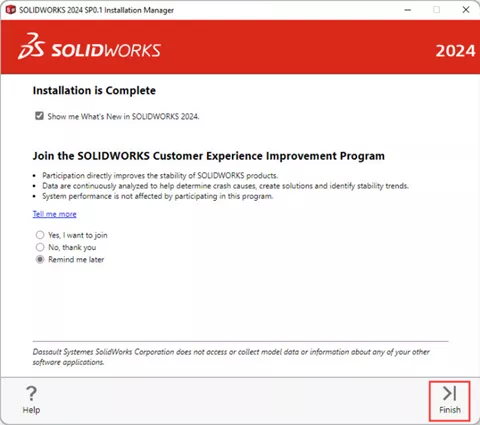
Once complete, be sure to perform a reboot before opening SOLIDWORKS.
HOW TO ACTIVATE SOLIDWORKS 2024
When attempting to open SOLIDWORKS for the first time, you will be greeted with the Activation Wizard. This is a simple and straightforward process and will grant you access to SOLIDWORKS.
Choose to activate ‘Automatically over the internet’ and enter your email address.
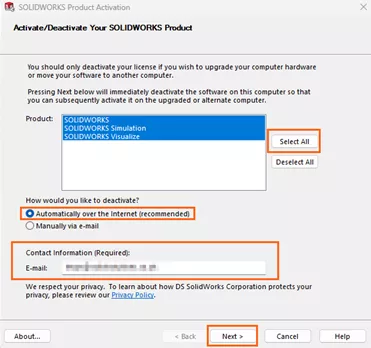
Click Next to activate the license on this machine.
Once the activation process completes, you should receive a success message.
Select ‘Finish’ to complete the activation.
Categorised as: SOLIDWORKS Design
Get a SOLIDWORKS Quote
Interested in SOLIDWORKS? Contact us for questions, trials, or demos by clicking the button below or call 01926 333777. Our experts will help you find the perfect solution.

Related Posts

How to Find Reaction Forces in SOLIDWORKS Simulation
SOLIDWORKS helps us to find resultant forces through simulation studies. These virtual tests reduce the need for physical prototypes and give us an accurate answer.

Setting number of decimal places in a table on a drawing
When creating an equation in a drawing general table, is it possible to define the…

SOLIDWORKS Smart Fasteners
SOLIDWORKS Smart Fasteners is a really useful time saving tool, allowing you to automatically insert toolbox fasteners such as bolts and screws into an assembly providing there is a standard hole.

Why is my Flat Pattern not showing in SOLIDWORKS Drawings?
This may be linked to how the drawing is saved or it can be related to how sheet metal parts are displayed in drawings, read on to find out how to fix it.

SOLIDWORKS Tips: Are you Making this Common Mistake in Fatigue Analysis?
Simulation is a vital and complex engineering need. Fortunately, SOLIDWORKS makes it easy to test, correct mistakes and obtain accurate results.

How to Recover SOLIDWORKS Files After a Crash
SOLIDWORKS has two different methods to help you recover from an unexpected crash or loss of data in the form of auto-recovery and back-up settings.

Redesigning Santa’s Sleigh in SOLIDWORKS
Every year Father Christmas has to fly in his sleigh to deliver presents to boys and girls all over the world in just one night. To put this into perspective, it takes a little under 24 hours to fly from London (UK) to Sydney (Australia) in a streamlined Boeing 747, whereas Father Christmas’ mode of transport is believed to be a rather non-aerodynamic sleigh.

SOLIDWORKS Grid Systems – hidden away, but very useful!
Rory Niles provides an insight into the uses for Grid Systems within SOLIDWORKS 2018

Furniture Design Made Easy with SOLIDWORKS
Calling all furniture and interior designers: the days of creating square cabinets are over. What if we told you there’s a much easier way to bring your products to life?
Here’s 10 reasons why we feel SOLIDWORKS is better than any other software, especially if you’re designing furniture:
Making 3D Textures from Images on SOLIDWORKS
Turn images into 3D geometry with brand new SOLIDWORKS 3D Textures Feature