











What’s New in the Functional Delivery 02 Update | SOLIDWORKS Design & 3DEXPERIENCE Platform
Written by: Sophie Dranfield
Published: Jun 3, 2026
| View All Blogs
SOLIDWORKS 2026x FD02 continues the cycle of Functional Deliveries, introducing a new set of enhancements across AI-driven workflows, collaboration, modelling, drawings, visualisation, and user experience.
Building on the foundations introduced in FD01, this release focuses on intelligence, automation, and workflow efficiency, helping users reduce manual effort, improve performance, and gain better insight into their designs earlier in the process.
This blog covers all the latest updates in SOLIDWORKS 2026x FD02, grouped by workflow to help you quickly find what’s relevant.
FD02 Highlights: Full Feature Update List (SOLIDWORKS 2026x FD02)
AI‑Driven Enhancements
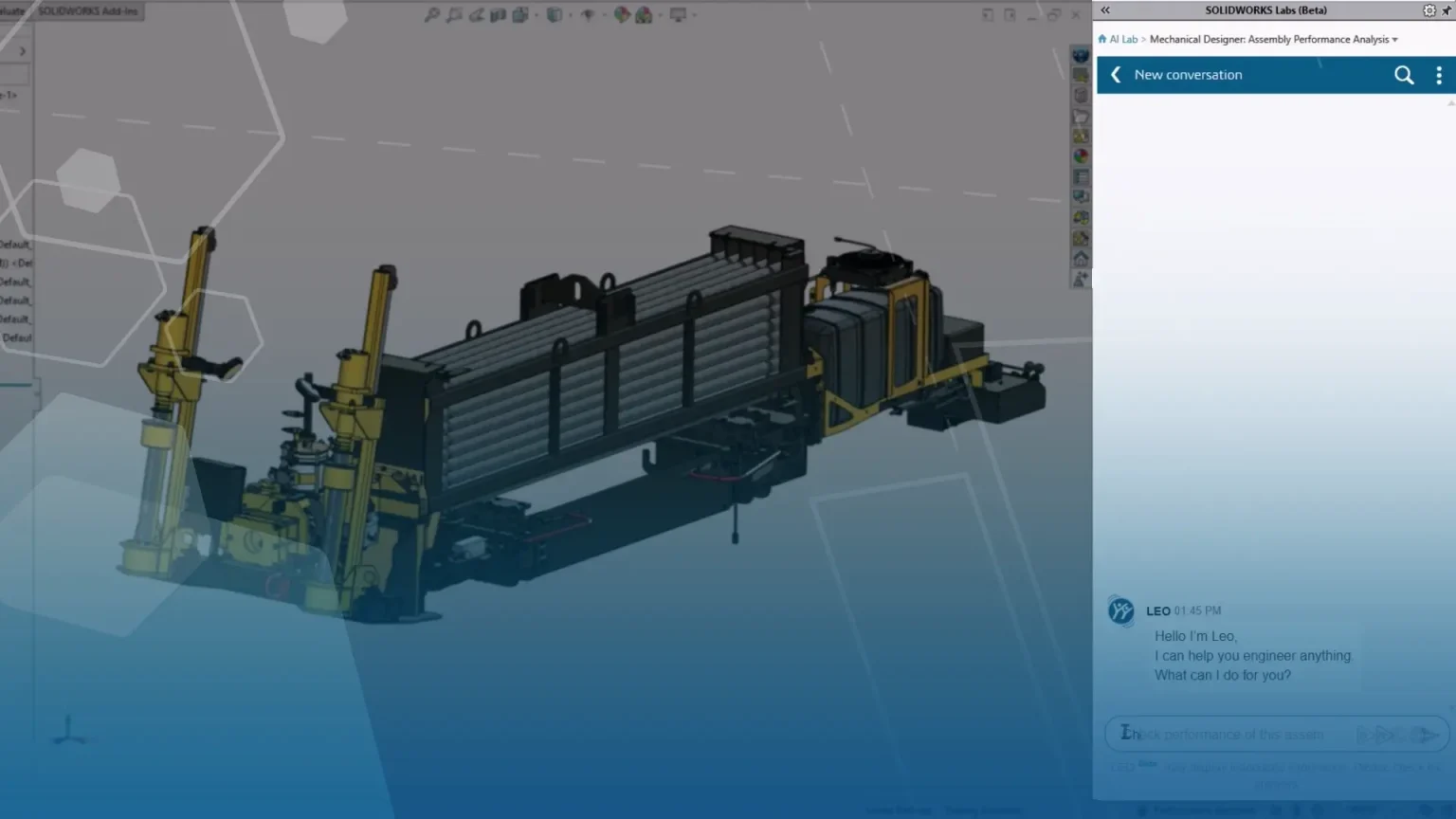
SOLIDWORKS 2026x FD02 introduces a major expansion in AI-driven capabilities across design, assemblies, and data workflows, helping engineers make smarter decisions faster while reducing manual effort.
These enhancements allow users to interact with their data more intelligently, with AI-powered tools that analyse assembly performance, assess the impact of design changes, and automate traditionally time-consuming tasks.
New functionality includes:
- AI-powered assembly performance evaluation, identifying bottlenecks in large or complex datasets.
- Change impact analysis, helping teams understand which parts, assemblies and downstream processes are affected before committing.
- Greater control over auto-generated drawings, with the ability to customise outputs using natural-language prompts.
- Intelligent suggestions for fastener simplification, reducing performance overhead in large assemblies.
- Streamlined material appearance management, ensuring consistent visuals across models.
- Faster access to PLM data through a conversational interface, reducing time spent navigating complex menus.
Together, these improvements position SOLIDWORKS 2026x FD02 as a more intelligent design environment, enabling users to reduce rework, improve performance and make more informed engineering decisions earlier in the process.
Collaboration & Data Management
Collaboration continues to evolve in SOLIDWORKS 2026x FD02, with enhancements designed to simplify data access, improve organisation, and reduce duplication across the 3DEXPERIENCE Platform.
Users can now browse, organise, and open platform data directly inside the SOLIDWORKS interface, thanks to improved Content Explorer integration. This creates a more seamless workflow by removing the need to switch between applications.
Key improvements include:
- Direct access to bookmark folders and collaborative spaces from the Open dialog
- Smarter batch save behaviour, preventing duplicate toolbox components and maintaining clean datasets.
- Enhanced search functionality, with improved filtering visibility and control
- Automatic material mapping between SOLIDWORKS and the 3DEXPERIENCE Platform, ensuring consistency across environments.
These updates help teams working in SOLIDWORKS 2026x FD02 maintain cleaner data structures, reduce manual intervention, and improve collaboration efficiency across distributed design teams.
Drawings & Documentation
SOLIDWORKS 2026x FD02 introduces targeted improvements to drawing and documentation workflows, helping users create clearer, more efficient technical outputs.
These enhancements focus on reducing repetitive actions and improving visual clarity when communicating design intent.
Key updates include:
- The ability to save frequently used drawing symbols for quick access, reducing time spent navigating symbol libraries.
- New highlighted notes functionality, allowing critical information to stand out clearly within drawings.
While simple, these improvements have a meaningful impact on day-to-day productivity, helping teams produce more readable, consistent, and efficient documentation across projects.
Part Modelling
SOLIDWORKS 2026x FD02 introduces enhancements to part modelling workflows, focusing on improving flexibility, efficiency, and intelligent guidance during design creation.
The Intelligent Assistant now plays a greater role in helping users choose the most effective modelling approach. For example, when working with assembly-level features, the system can recommend switching to a multibody part workflow, which often provides greater control and performance.
Additional improvements include:
- Direct execution of Make Multibody Part from assistant recommendations.
- Enhanced control over sheet metal bend radius settings during and after conversion
- The ability to edit individual bends independently without affecting the entire feature.
These capabilities give users more precise control over part geometry, reducing the risk of unintended changes and improving the efficiency of iterative design workflows in SOLIDWORKS 2026x FD02.
xDesign Enhancements (3DEXPERIENCE)
SOLIDWORKS 2026x FD02 continues to enhance xDesign, the browser-based CAD application within the 3DEXPERIENCE Platform, with improvements to usability, accessibility, and workflow control.
New features focus on making design interaction more intuitive while improving access to project data.
Highlights include:
- Support for custom fonts in sketch text, enabling more accurate branding, engraving, and product marking.
- A new auto-start projected view toggle, creating a smoother drawing workflow.
- Improvements to the xDesign homepage, with faster access to recent files, content, and bookmarks
- Enhanced bookmark editor functionality, including filtering by column and improved project navigation.
These enhancements make xDesign in SOLIDWORKS 2026x FD02 more efficient and user-friendly, particularly for teams working in cloud-based design environments.
Visualisation & Rendering
SOLIDWORKS 2026x FD02 introduces new capabilities in SOLIDWORKS Visualize, allowing users to create more realistic and visually compelling render outputs with less effort.
The addition of volume-based effects enables atmospheric elements such as fog, haze, and mist to be applied directly within the rendering environment.
Key benefits include:
- More realistic and cinematic visuals
- Greater control over lighting and atmosphere
- Reduced reliance on post-processing tools
These improvements help users produce higher-quality visual content directly within SOLIDWORKS Visualize, making it easier to communicate design intent to stakeholders, customers, and marketing teams.
User Experience & Productivity
SOLIDWORKS 2026x FD02 delivers a wide range of user experience enhancements, aimed at improving performance, simplifying workflows, and reducing friction across everyday design tasks.
Key updates include:
- Support for GLTF and GLB import/export, maintaining material fidelity when transferring models.
- Enhanced assembly performance diagnostics, with the Intelligent Assistant identifying bottlenecks such as circular references, flexible assemblies, and graphics issues.
- Improvements to the Isolate command, allowing progressive isolation for more flexible display states.
- A streamlined BREP to parametric conversion workflow, keeping the entire process within SOLIDWORKS.
- Greater control over Parasolid import configuration handling.
- Direct eDrawings export and batch automation, simplifying data sharing.
- Improved handling of suppressed components and external references, reducing errors when saving and reusing assemblies.
Together, these enhancements make SOLIDWORKS 2026x FD02 a more responsive and resilient design environment, helping users maintain performance and minimise disruption throughout the product development process.
Key Takeaways
If you only have a few minutes, here are the most important updates in SOLIDWORKS 2026x FD02:
AI is now embedded across workflows
From assembly performance analysis to automated drawing creation and PLM data access, AI is now actively helping users make decisions, not just execute tasks.
Stronger platform integration
Improvements to Content Explorer, search behaviour and material mapping make working with the 3DEXPERIENCE Platform more seamless and reliable inside SOLIDWORKS.
Faster, cleaner documentation workflows
Small but impactful updates to drawings, like favourite symbols and highlighted notes, help teams reduce repetitive actions and improve clarity.
Smarter modelling guidance
The Intelligent Assistant continues to evolve, enabling better decisions around multibody workflows, assembly performance, and geometry control.
xDesign continues to mature
Enhancements to usability, navigation and sketch tools make xDesign a more complete and practical cloud-based CAD solution.
Improved visual output
New volumetric rendering capabilities in Visualize allow users to create more realistic, cinematic results directly within SOLIDWORKS.
Productivity and performance gains across the board
From assembly diagnostics to import/export improvements, FD02 helps users work faster, reduce errors, and maintain stable datasets.
Guide to Understanding DS Release Types (FD, SP & GA)
To help you understand where SOLIDWORKS 2026x FD02 fits within the overall update cycle, here is a quick guide to Functional Deliveries, Service Packs and General Availability releases.
SOLIDWORKS Desktop – Updated with Service Packs (SPs)
Service Packs (SPs) are incremental updates for the locally installed desktop version of SOLIDWORKS Design.
They introduce new functionality, fix issues, and improve performance throughout the year, with around five SPs released per annual version.
SPs can be installed whenever it suits your workflow.
For guidance on updating SOLIDWORKS to the latest Service Pack, click here.
3DEXPERIENCE Platform – Updated with Functional Deliveries (FDs)
Functional Deliveries (FDs) are scheduled update packages for the 3DEXPERIENCE Platform and cloud‑connected SOLIDWORKS apps.
FDs introduce new functionality, enhancements, and fixes, and are required to ensure every cloud workspace remains on the same version.
These updates are automatically applied by Dassault Systèmes as part of a controlled global release cycle.
GA – General Availability
General Availability (SP0 for SOLIDWORKS Design) marks the release of the major annual SOLIDWORKS version (e.g., 2026 GA).
This is the starting point for the year’s update cycle, with Service Packs (SPs) and Functional Deliveries (FDs) building on this foundation throughout the year.
What’s Next?
SOLIDWORKS 2026x FD02 continues to build momentum in the Functional Delivery model, providing incremental improvements throughout the year rather than waiting for a single annual release.
By focusing on:
- AI‑driven decision support
- Platform integration
- Workflow efficiency
- User experience improvements
FD02 reinforces the value of staying up to date with the 3DEXPERIENCE Platform and cloud-connected SOLIDWORKS roles.
As further Functional Deliveries are released, we will continue to break down each update in the same structured format, helping you stay informed and make the most of the latest enhancements.
Categorised as: AI | Automation | Data Management | SOLIDWORKS xDesign
What's New in SOLIDWORKS?
Explore the latest innovations in SOLIDWORKS with our exclusive breakdown of live webinar, giving you on-demand access to the insights that matter most to your workflow.
Related Posts

How to Find Reaction Forces in SOLIDWORKS Simulation
SOLIDWORKS helps us to find resultant forces through simulation studies. These virtual tests reduce the need for physical prototypes and give us an accurate answer.

Setting number of decimal places in a table on a drawing
When creating an equation in a drawing general table, is it possible to define the…

SOLIDWORKS Smart Fasteners
SOLIDWORKS Smart Fasteners is a really useful time saving tool, allowing you to automatically insert toolbox fasteners such as bolts and screws into an assembly providing there is a standard hole.

Why is my Flat Pattern not showing in SOLIDWORKS Drawings?
This may be linked to how the drawing is saved or it can be related to how sheet metal parts are displayed in drawings, read on to find out how to fix it.

SOLIDWORKS Tips: Are you Making this Common Mistake in Fatigue Analysis?
Simulation is a vital and complex engineering need. Fortunately, SOLIDWORKS makes it easy to test, correct mistakes and obtain accurate results.

Series 1 Land Rover Pedal Car – Made Easy with Solidworks!
The Series1 began production in 1948 designed to help get Britain farming after the war effort. It grew extremely popular and today enthusiasts are prepared to throw their life savings at restoring originals from that period.

SOLIDWORKS Visualize. Why go pro? – 6 Post Processing
In this blog we will be look at the post-processing options that can be found in SOLIDWORKS Visualize

SOLIDWORKS Visualize. Why go pro? – 7 Lighting
SOLIDWORKS Visualize uses a non-biased rendering engine, which allows for physically accurate lighting within a scene. It generates images with high amount of realism and correct set up can replicate photo studio lighting.

How to Get Your Serial Number for SOLIDWORKS Visualize Standard
Want to download Visualize to make photorealistic renders? Follow this guide for accessing your Visualize serial number that comes bundled in with SolidWorks Professional and Premium.

How to Recover SOLIDWORKS Files After a Crash
SOLIDWORKS has two different methods to help you recover from an unexpected crash or loss of data in the form of auto-recovery and back-up settings.