











What’s New in the Service Pack & Functional Delivery 01 Update | SOLIDWORKS Design & 3DEXPERIENCE Platform
Written by: Terry O'Reilly
Published: Mar 19, 2026
| View All Blogs
SOLIDWORKS 2026x SP/FD 01 introduces a broad set of enhancements across design, modelling, assemblies, drawings, user experience, visualisation, XR, and collaboration. These updates deliver new capabilities and quality-of-life improvements that enhance productivity across the full design-to-manufacture workflow.
This blog summarises all updates included in 2026x SP/FD 01, grouped by category for clarity. Each feature listed here has been reviewed and approved by our Product Managers and Technical Specialists.
Note: Some enhancements in SP/FD 01 apply specifically to cloud-based SOLIDWORKS roles such as xDesign and xMotion. Features labelled with “(xDesign)” or “(xMotion)” are part of the 3DEXPERIENCE ecosystem and do not appear in desktop SOLIDWORKS.
SP/FD 01 Highlights: Full Feature Update List
Part & Assembly Design
Convert Imported BREP (xDesign)
Convert imported BREP geometry into standard, editable SOLIDWORKS features so designs from external tools are easier to repair, modify and reuse without manual reconstruction. This significantly improves workflows involving supplier models and legacy datasets.
Quick Measure (xDesign)
A quicker, more responsive measuring tool that displays distances, angles, and clearances instantly, reducing clicks and speeding up design evaluation (especially useful in large assemblies).
Background Import
Large or complex models can now be imported in the background, freeing you to continue working while data loads. This shortens downtime and enhances multitasking.
Relation Groups
Create logical relation groups in sketches to manage constraints more clearly, making troubleshooting easier and preserving design intent as geometry changes.
Save in LDR (Large Design Review)
Save assemblies directly in LDR mode for faster handling of large datasets, enabling edits and reviews without fully resolving assemblies.
3D Motion
Clearance Visualization (xMotion)
Realtime clearance visualisation during motion studies helps detect interferences earlier, supporting better mechanism validation and reducing redesign cycles.
UserDefined X Axis (xMotion)
Define a custom X axis for motion studies, improving consistency in simulations and making results easier to interpret.
Drawings & Annotation
SOLIDWORKS 2026x FD01 introduces several improvements to drawing and annotation workflows, helping teams produce clearer, more accurate documentation.
Dynamic Sectioning
Apply section views interactively while dimensioning, making internal geometry clearer and enabling more accurate placement of dimensions.
Representation Panel
A simplified panel for controlling dimension appearances that speeds up detailing while maintaining documentation standards.
Smart Alignment
Dimensions align intelligently as you place them, producing cleaner, more readable drawings and reducing manual formatting time.
Automatic View Labels
View labels generate automatically based on orientation and standards, eliminating repetitive annotation tasks.
Component Instance Reference
Reference repeated components in drawings more clearly for improved readability and traceability.
Export Blocks
Export drawing views as sketch blocks for reuse in templates, libraries, and standard layouts.
Graphic Body Visibility
Improved control over graphic body display ensures imported or simplified geometry appears correctly in drawings.
MBD 3D Ordinate Dimensions
Apply ordinate dimensions directly in 3D views to strengthen model based definition workflows.
Thread Descriptions
Clearer, standards-aligned thread descriptions improve communication with manufacturing teams.
Weld Symbol AWS A2
Updated weld symbol capabilities aligned to AWS A2 standards enhance fabrication documentation.
Image Support for Tables
Insert images (like BOM thumbnails) into drawing tables for fast component identification.
Electrical & Routing
CircuitWorks Panel
A more efficient CircuitWorks panel improves ECAD–MCAD collaboration performance and workflow clarity.
Uniform Coverings
Apply consistent coverings to routed elements for clearer documentation and more accurate manufacturing outputs.
Extended Reality (XR)

Free Drag
Freely move components in XR for intuitive spatial assessments and clearer ergonomic evaluations.
Measure
Take accurate measurements inside XR environments during design reviews.
Visualisation & Rendering
DSPBR Enhancements
Improved DSPBR material support enhances realism in renders by refining material behaviour and lighting interactions.
Flatten Floor
Automatically aligns models to a virtual floor plane for more natural-looking renderings and XR scenes.
Collaboration & Data Management (3DEXPERIENCE)
Collaboration and data workflows receive significant updates in SOLIDWORKS 2026x SP/FD 01, especially for teams working on the 3DEXPERIENCE Platform.
3DEXPERIENCE Material Definition
Standardise material definitions across designers, simulation engineers, and manufacturing teams.
Batch Upload
Upload multiple files simultaneously with improved reliability for faster project onboarding.
Bookmark Setting Admin
Admins can now enforce consistent bookmark structures across the platform.
Content Explorer
Improved content browsing helps teams locate files faster and reduce duplication.
Display Data Mark
Clear indicators for lifecycle and maturity state help avoid using outdated data.
Email Reminder
Automated reminders ensure processes such as activation and approvals stay on track.
Enterprise Item Number Tab
Centralised part numbering improves consistency across assemblies.
Keep Previous Iteration Option
Retain earlier iterations for stronger audit trails and rollback options.
Link PLM to BOM
Link PLM attributes directly to BOM columns, reducing errors and rework.
Opening Latest Revision Reference
Automatically open the latest revision to ensure you are always working on current data.
Unified Date Format
A single date standard across the platform reduces confusion in global teams.
User Experience & Performance
AI Assembly Structure Generation (BETA)
AI automatically assists in structuring assemblies from selected geometry, reducing manual setup time and helping teams configure models more efficiently.
AI Drawing Generation with Prompts (BETA)
Use natural-language prompts to generate drawing views and proposed dimensions, dramatically speeding documentation.
Contextual Notifications
Smarter notifications surface information only when relevant, reducing noise and improving focus.
Escape to Cancel Import and Mirror
Cancel long-running import or mirror operations instantly using the Esc key.
Find and Open Filters
Enhanced search filters within the Open dialog allow faster and more targeted file discovery.
Multi-Version Install
Install and manage multiple SOLIDWORKS versions side-by-side for smoother testing and phased deployment.
What’s Wrong Virtual Companion (BETA)
A more capable companion provides real-time guidance and recommended fixes for errors or warnings.
Improved Home Screen
A modernised home screen improves access to recent files, filters, and tools, making navigation faster and more intuitive.
Guide to Understanding DS Release Types (FD, SP & GA)
To help you understand where SOLIDWORKS 2026x SP/FD 01 fits within the overall update cycle, here’s a quick guide to FDs, SPs and GA.
SOLIDWORKS Desktop – Updated with Service Packs (SPs)
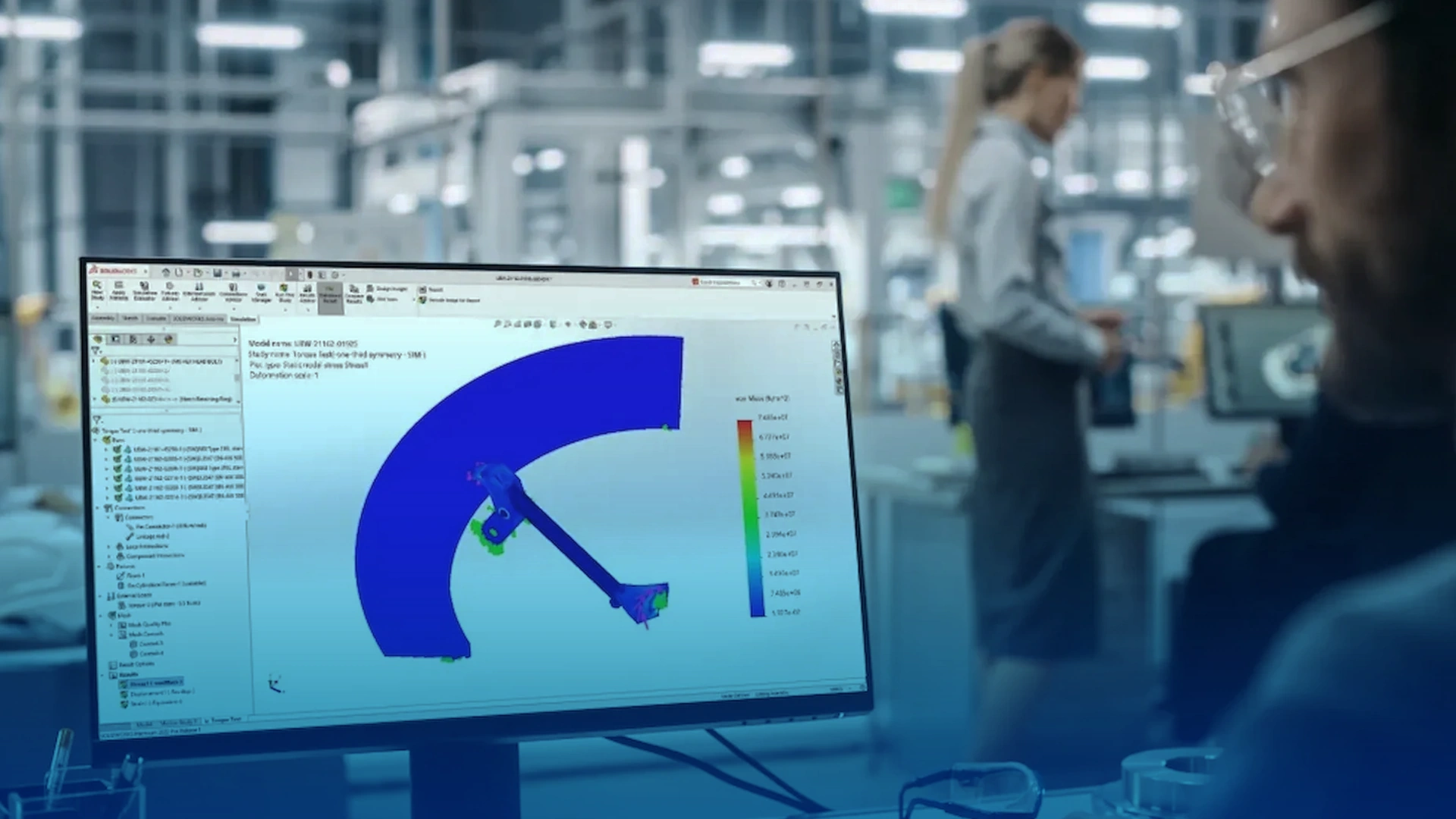
- Service Packs (SPs) are incremental updates for the locally installed desktop version of SOLIDWORKS Design.
- They introduce new functionality, fix issues, and improve performance throughout the year, with around five SPs released per annual version.
- They can be installed whenever convenient.
For guidance on updating SOLIDWORKS to the latest Service Pack, click here.
3DEXPERIENCE Platform – Updated with Functional Deliveries (FDs)

- Functional Deliveries (FDs) are scheduled update packages for the 3DEXPERIENCE Platform and cloud‑connected SOLIDWORKS apps.
- FDs introduce new functionality, enhancements and fixes and are required to ensure every cloud workspace remains on the same version.
- These updates are automatically applied by Dassault Systèmes as part of a controlled global release cycle.
GA – General Availability
- General Availability (SP0 for SOLIDWORKS Design) marks the release of the major annual SOLIDWORKS version (e.g., 2026 GA).
- SPs and FDs then build on this foundation throughout the year.
Future Updates
SPs and FDs are often released at the same time, so SP/FD 01 is the first update in the 2026 cycle, with SP/FD 02 and future deliveries following the same structured rollout.
Links to SP/FD 02 and subsequent releases will be added here once available:
Categorised as: News | Software | What's New
What's New in SOLIDWORKS?
Explore the latest innovations in SOLIDWORKS with our exclusive breakdown of live webinar, giving you on-demand access to the insights that matter most to your workflow.
Related Posts

How to Find Reaction Forces in SOLIDWORKS Simulation
SOLIDWORKS helps us to find resultant forces through simulation studies. These virtual tests reduce the need for physical prototypes and give us an accurate answer.

Setting number of decimal places in a table on a drawing
When creating an equation in a drawing general table, is it possible to define the…

SOLIDWORKS Smart Fasteners
SOLIDWORKS Smart Fasteners is a really useful time saving tool, allowing you to automatically insert toolbox fasteners such as bolts and screws into an assembly providing there is a standard hole.

Why is my Flat Pattern not showing in SOLIDWORKS Drawings?
This may be linked to how the drawing is saved or it can be related to how sheet metal parts are displayed in drawings, read on to find out how to fix it.

SOLIDWORKS Tips: Are you Making this Common Mistake in Fatigue Analysis?
Simulation is a vital and complex engineering need. Fortunately, SOLIDWORKS makes it easy to test, correct mistakes and obtain accurate results.

SOLIDWORKS Visualize. Why go pro? – 6 Post Processing
In this blog we will be look at the post-processing options that can be found in SOLIDWORKS Visualize

SOLIDWORKS Visualize. Why go pro? – 7 Lighting
SOLIDWORKS Visualize uses a non-biased rendering engine, which allows for physically accurate lighting within a scene. It generates images with high amount of realism and correct set up can replicate photo studio lighting.

How to Get Your Serial Number for SOLIDWORKS Visualize Standard
Want to download Visualize to make photorealistic renders? Follow this guide for accessing your Visualize serial number that comes bundled in with SolidWorks Professional and Premium.

How to Recover SOLIDWORKS Files After a Crash
SOLIDWORKS has two different methods to help you recover from an unexpected crash or loss of data in the form of auto-recovery and back-up settings.

Redesigning Santa’s Sleigh in SOLIDWORKS
Every year Father Christmas has to fly in his sleigh to deliver presents to boys and girls all over the world in just one night. To put this into perspective, it takes a little under 24 hours to fly from London (UK) to Sydney (Australia) in a streamlined Boeing 747, whereas Father Christmas’ mode of transport is believed to be a rather non-aerodynamic sleigh.