









Visualize SP3: UV Unwrap – The key to seamless textures
Written by: Talulah Pani
Published: Sep 28, 2026
| Last Updated: September 10, 2026
| View All Blogs
UV unwrapping is here, but what is it…
UV unwrapping is the process of flattening a 3D model’s surface into a 2D map so 2D textures (like labels, wood grain, or fabric) wrap smoothly and seamlessly without stretching or distorting.
In SOLIDWORKS Visualize, UV coordinates tell the software exactly how to apply textures onto complex surfaces.
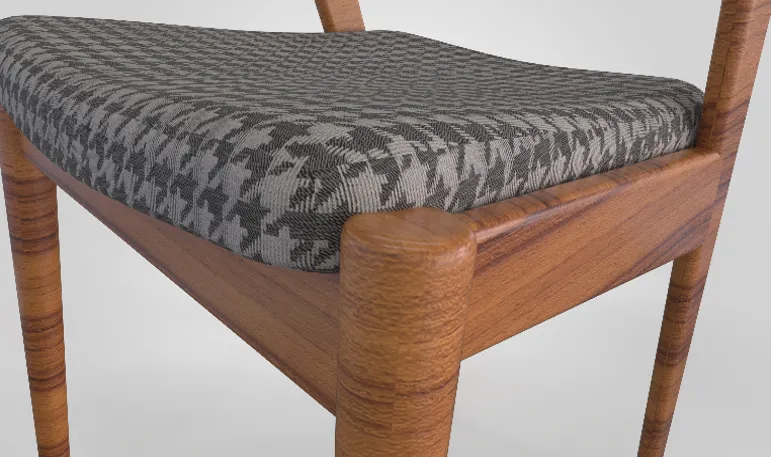
Without Wrapping
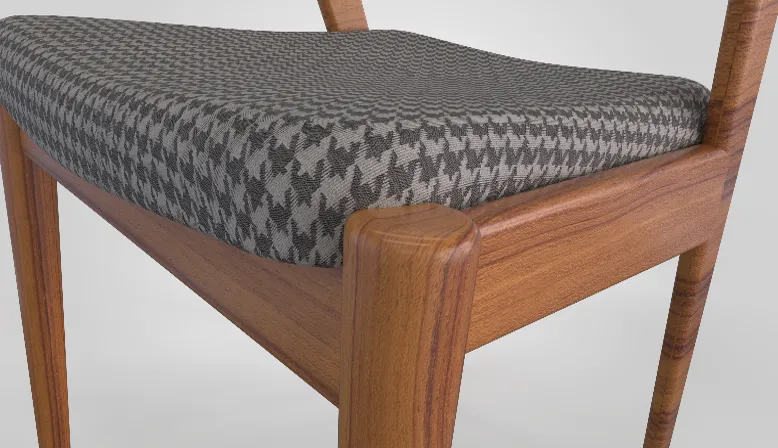
With Wrapping
How it works:
When you import CAD models, Visualize usually reads their native UV coordinates or relies on automatic geometric projections (like Box, Sphere, or Cylinder mapping):
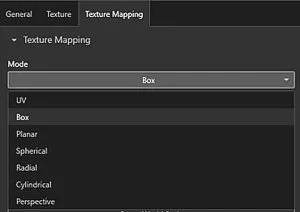
Geometric projection options
If your imported geometry has complex curves and you need to apply a custom texture or logo without distortion, you can utilize the UV Texture Mapping mode.
This tells Visualize to retain and use the UV coordinates present on your imported part.
Introducing UV Unwrap in Visualize SP3
With Visualize SP3, users can now generate UV coordinates directly inside Visualize using the new UV Unwrap feature.
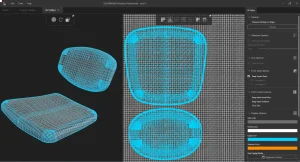
UV Unwrap automatically creates a flattened representation of the model’s surface, generating the UV data needed for accurate texture placement.
This gives users much greater control over how materials and graphics are applied, even when the original model contains no UV mapping information.
The workflow is simple:
- Select the appearance that requires UV mapping.
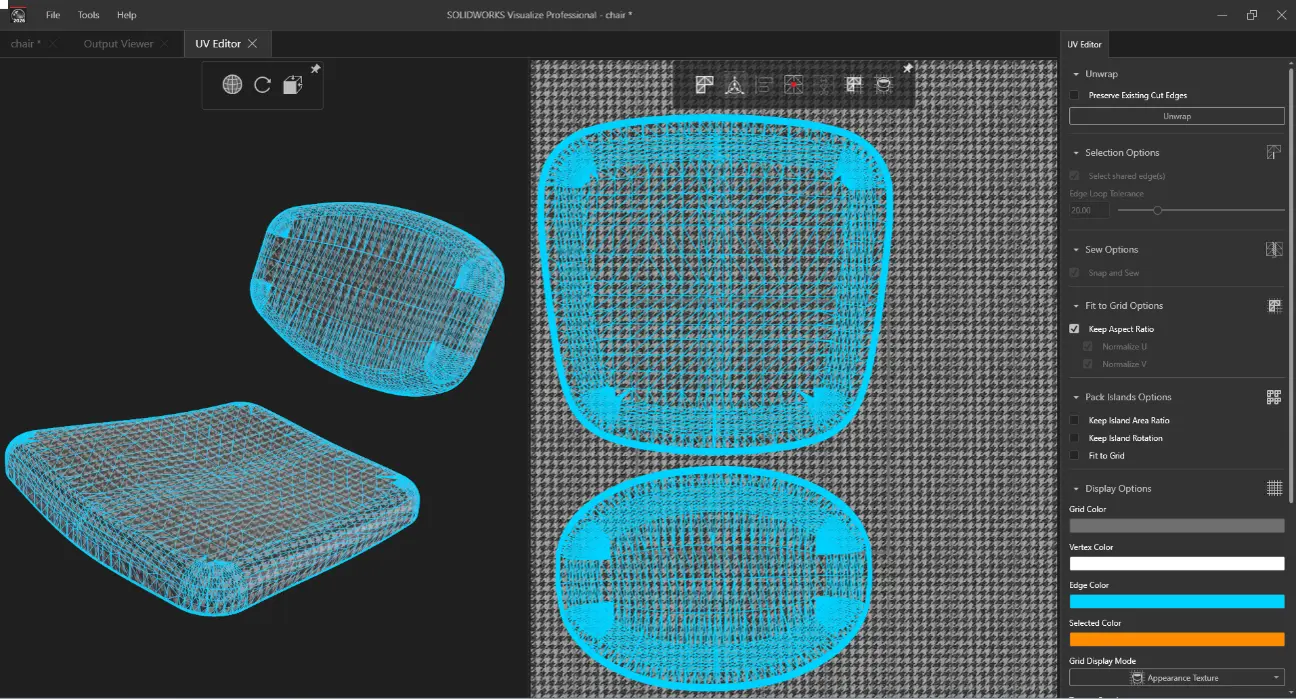
- Navigate to the Texture Mapping tab and change the mapping mode to UV, then click ‘Edit UV’s’. (The UV Editor tab will open in Visualize as a new tab.)
- Select the geometry required and click ‘Unwrap’.
- Adjust the scaling and orientation of the unwrapped faces on the textures.
- Return to the model and check the seamless edges of the unwrapped surface.
Why it matters
The new UV Unwrap capability makes it significantly easier to create high-quality renderings of products with complex shapes.
Users can:
- Apply logos and graphics without distortion.
- Create more realistic material appearances for fabrics, wood grains, carbon fibre, and other directional textures.
- Reduce the need for external modelling or texturing software.
- Improve rendering quality and visual consistency.
- Accelerate project workflows by keeping more of the process inside Visualize.
Real-world examples
UV Unwrap is particularly useful for products such as:
- Consumer goods packaging with printed artwork.
- Bottles and containers with wrap-around labels.
- Sporting equipment featuring graphics and branding.
- Furniture with detailed wood grain textures.
- Soft goods and textiles where fabric patterns need accurate alignment.
Key Takeaways:
The new UV Unwrap feature in Visualize SP3 removes one of the biggest barriers to applying custom textures on complex geometry.
By generating UV coordinates directly within Visualize, users can achieve more accurate texture placement, create higher-quality renderings, and spend less time moving between different software tools.
Whether you’re adding a simple logo or creating a highly detailed material finish, UV Unwrap gives you the flexibility and control needed to bring your products to life with greater realism than ever before.
Categorised as: SOLIDWORKS Visualize | Visualisation
Discover our SOLIDWORKS Subscription
Get the most from your tools and the best from your designers with a SOLIDWORKS subscription package that is designed to help you succeed.

Related Posts

SOLIDWORKS Visualize. Why go pro? – 6 Post Processing
In this blog we will be look at the post-processing options that can be found in SOLIDWORKS Visualize

SOLIDWORKS Visualize. Why go pro? – 7 Lighting
SOLIDWORKS Visualize uses a non-biased rendering engine, which allows for physically accurate lighting within a scene. It generates images with high amount of realism and correct set up can replicate photo studio lighting.

How to Get Your Serial Number for SOLIDWORKS Visualize Standard
Want to download Visualize to make photorealistic renders? Follow this guide for accessing your Visualize serial number that comes bundled in with SolidWorks Professional and Premium.
Creating Interactive Animations with SOLIDWORKS Visualize
Interactive Images are a great export option within Visualize Professional, allowing you to view the model in a series of 360 orbital spins within a web browser.
However, what happens if I want to use this interactive method to demonstrate a mechanism or animation instead?
How to Create 360VR Video using SOLIDWORKS Visualize
Virtual Reality(VR) videos provide one of the most immersive methods of viewing a design concept and can be used to bring your product showcases to the next level. Recently VR has become a valuable tool for many companies when it comes to design reviews and interactive product training. Check out this short blog to learn how to export 360VR videos using SOLIDWORKS Visualize.
Creating a Kicking Tee for the Rugby Lions Series – Modelling Walkthrough
As the Rugby Lions Series continues Solid Solutions and MECAD are continuing to compete off the pitch using SOLIDWORKS. Our second challenge was to create a Kicking Tee, a small yet key piece of equipment that is used almost every game. Various designs exist but we decided to model an adjustable kicking tee. Read on for some SOLIDWORKS tips and an overview of our modelling process.
How to Create Animations in SOLIDWORKS
3D animations are a great way to display your designs, no matter what stage of the design process you are at and can provide companies of almost any industry with huge leverage in improving their operational efficiency. Animated marketing videos are a fantastic way to communicate a message that may be difficult or costly to explain other than by using conceptual animations. They are very flexible with the only limitation being your imagination.
Below is an example of a marketing video of an GoPro gimbal.
SOLIDWORKS Visualize Import Modes – Updated for 2022
If you have been using SOLIDWORKS Visualize 2022 you may have noticed some subtle changes on the import geometry tab from previous versions. These changes weren’t listed in the What’s New documentation and were introduced a little under the radar. In this blog we’ll explain what has changed and how it can save you time.

How to Create Realistic Lighting in SOLIDWORKS Visualize
SOLIDWORKS Visualize is equipped with some simple tools to help you get realistic lighting for your product renders.
SOLIDWORKS Tips: How to Animate Rotations in SOLIDWORKS Visualize
Pivot points hold the key to unlocking awesome animations in SOLIDWORKS Visualize. Check out this walkthrough to learn how to create them easily!