











What are the Best Settings for Saving SOLIDWORKS Animations?
Written by: Solid Solutions Marketing
Published: Aug 8, 2023
| View All Blogs
If you need to quickly save out an animation from SOLIDWORKS, then it’s worth checking through the animation settings before you hit save.
SOLIDWORKS animations are a convenient and fast way to produce presentable video content. They aren’t as flashy as the photorealistic rendered videos you’ll get from using SOLIDWORKS Visualize Pro, but they still look great and don’t take long to save.
We often use them in our tutorial videos to give a little more visual appeal and add dynamics to an otherwise static screen, but you may wish to use them in PowerPoint presentations, quick demonstrations, or on your websites too.
So how do you save out an animation in SOLIDWORKS? And what are the best settings to use?
Let’s take a look at some of the common issues we find and the settings we recommend using for your animations.
HOW TO SAVE SOLIDWORKS ANIMATIONS AS .MP4 FILES
By default, SOLIDWORKS wants to save out your animation as an .AVI file. These files are typically used in motion graphic design when background transparency is required.
However, as you can’t remove the background within SOLIDWORKS, there’s no real need to use this file type.
Save yourself some time and hard drive space and save your animations as .MP4 files instead.
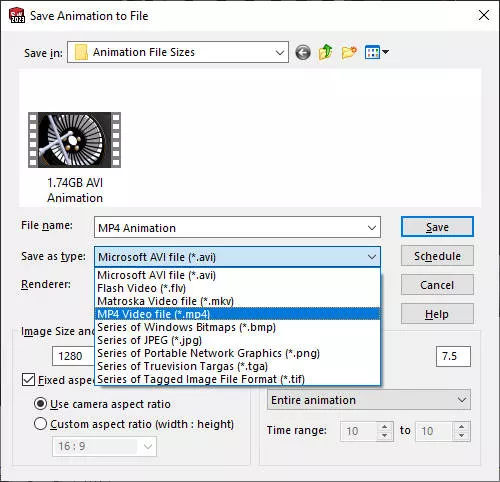
To save as an .mp4 file, click the Save Animation button and drop down Save as type to .mp4.
There is a slight trade off in quality when saving as MP4 rather than AVI , but unless you have the eyes of a hawk, you probably won’t notice.
Before you hit save, there are a few more settings to check on.
HOW TO REDUCE SOLIDWORKS ANIMATION FILE SIZE
You might have saved out some animations and received warnings that your hard drive space is low…
There are a few key contributors to animation file sizes. These are:
- File Type
- Resolution
- Frame rate
Firstly, AVI files can take up gigabytes of space!
By saving your animations to MP4 files instead, you’re already going to be reducing the file size by a huge percentage.
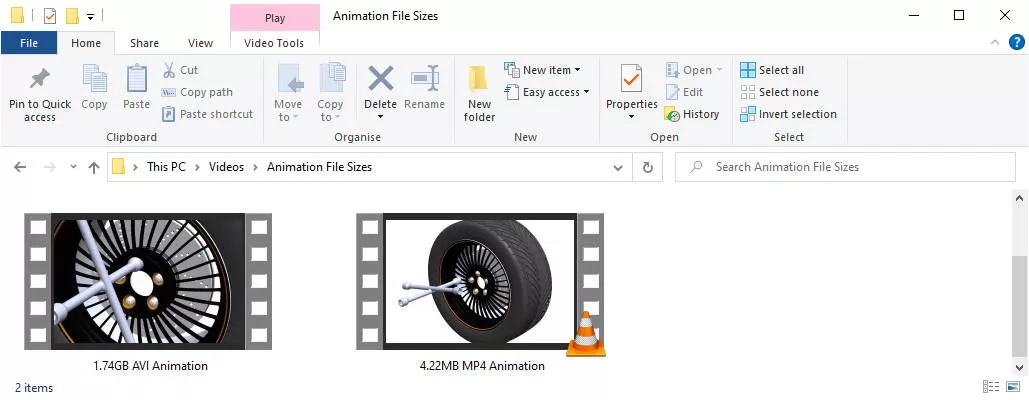
You can see here that simply swapping the file type has reduced the file size by 99.8%!
When it comes to resolution, the greater the resolution, the larger the file size will be. A standard HD resolution is 1080p – that’s a screen size of 1920 x 1080 pixels.
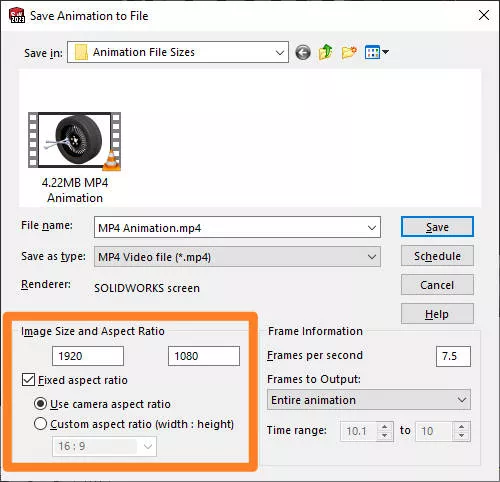
Typically most people won’t be viewing your animation at a greater resolution, so we’d recommend 1080p as a minimum resolution. However, you may wish to enhance the resolution to Ultra High Definition or 4K – that’s a screen size of 3840 x 2160 pixels.
This will dramatically increase the file size as there is 4x the amount of information being captured.
If your files are still too big at 1080p, you can reduce the resolution to 720p, 480p, and further to 240p. Bear in mind image quality reduces with decreasing resolution so use these as a last resort.
The frame rate indicates how many images (frames) make up a second of video footage. A standard frame rate is 30 fps in the US and 25 fps in the UK.
As you increase the frame rate, you increase the amount of information being saved, and so increase the file size.
Consider 12 fps the absolute minimum frame rate you can use. This will likely cause stuttering in the video, which we’ll look at resolving shortly.
HOW TO SAVE ANIMATIONS WITH TRANSPARENT BACKGROUND
Unless you are rendering with SOLIDWORKS Visualize Pro, you won’t be able to save your animation with a transparent background.
The best you can hope for saving animations directly from SOLIDWORKS is a plain background.
Check out how to change your SOLIDWORKS background colour and modify it to be plain white. This will blend in nicely with PowerPoint backgrounds.
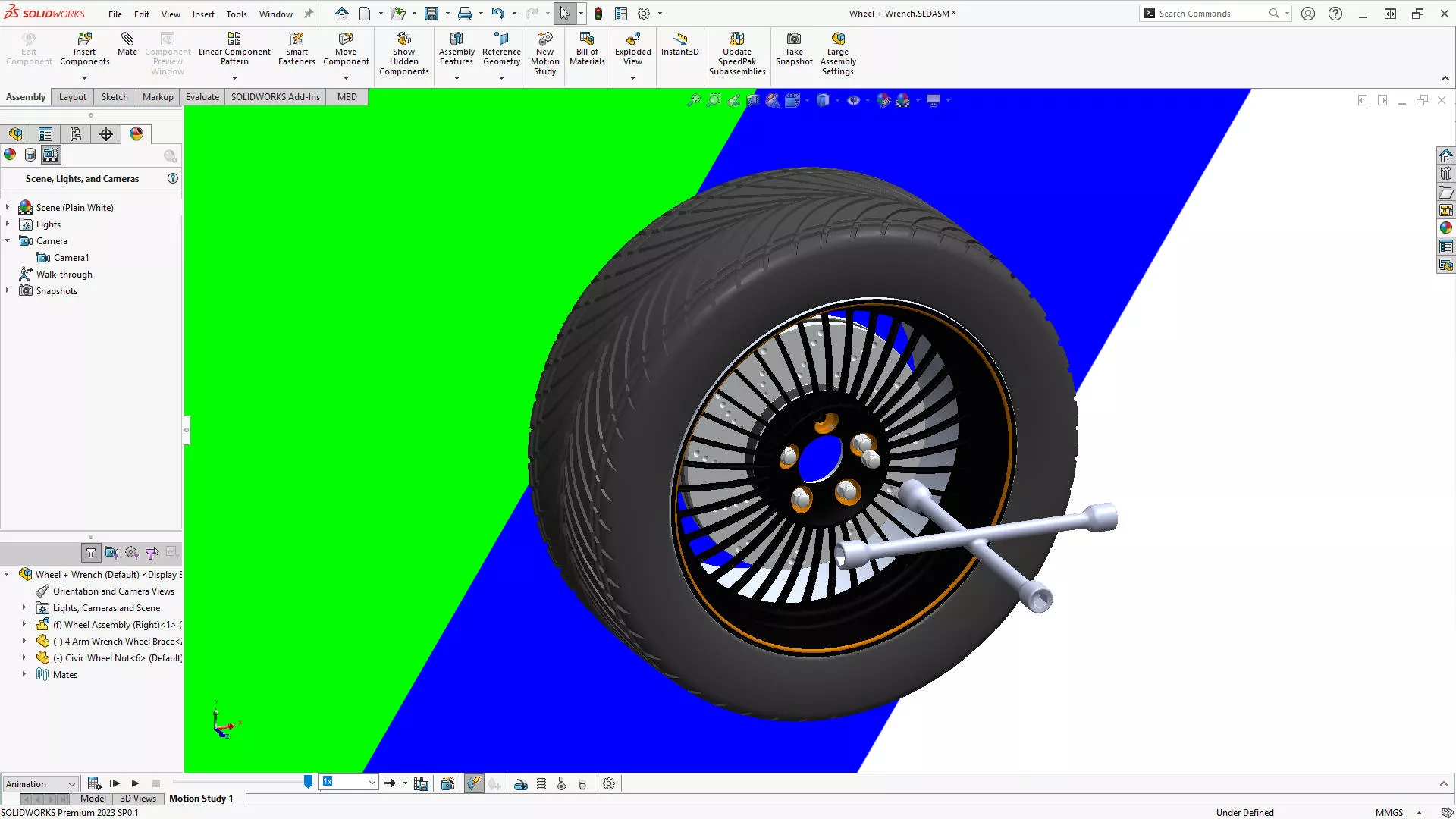
If you really need to eliminate the background, then we strongly suggest using SOLIDWORKS Visualize Pro, for maximum benefit or, alternatively, you can employ a green or blue screen through a chroma key effect in video editing software like Adobe Premiere Pro.
Change the SOLIDWORKS background to a contrasting shade of green or blue (or a colour which is not present in the model) and save the animation to import into external video editing software.
Did you know? Our SOLIDWORKS Visualize Pro training course covers exporting videos with transparent backgrounds. Attend online or find a course near you today!
HOW TO CHANGE THE CAMERA ASPECT RATIO IN SOLIDWORKS
In the save window, we have the option to modify the aspect ratio alongside the resolution.
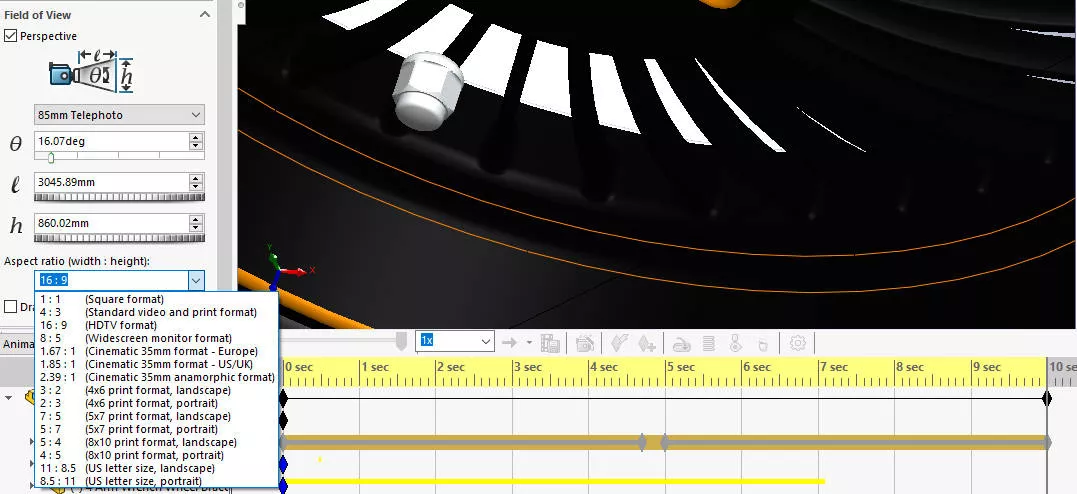
The best aspect ratio for you will depend on how the video will be used. We’d recommend setting this up in the camera while you are creating the animation, as you can clearly see what part of the screen you are capturing.
Standard aspect ratio is 16:9, square is 1:1, and social media tends to like 4:5.

To change the aspect ratio, edit the camera, and under Field of View, modify the aspect ratio in the drop-down menu at the bottom of the property manager.
HOW TO STOP SOLIDWORKS ANIMATION STUTTERING
Stuttering in a video is usually caused by a low frame rate. The default animation in SOLIDWORKS is 7.5 fps.
For a smooth video, we recommend a frame rate of 30 fps. Doubling the frame rate makes for an even smoother video, and helps if you ever want to do ‘slow-mo’ footage.
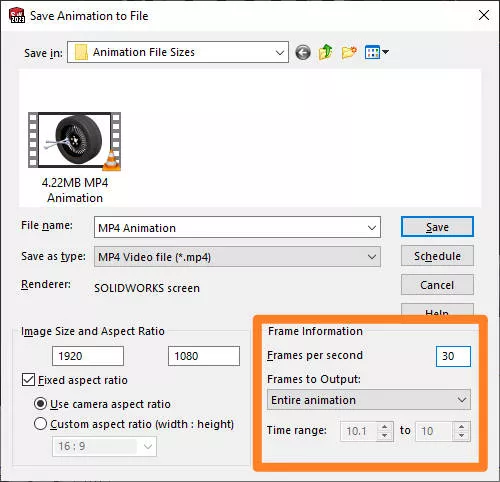
For slow motion, 60 fps is the minimum recommended, but 120 fps is ideal.
Don’t forget to make sure that the entire animation is selected under Frames to Output to export the full timeline.
Now that you’ve modified your settings, you can then save the animation.
Categorised as: SOLIDWORKS Design | Tutorials
Get a SOLIDWORKS Quote
Interested in SOLIDWORKS? Contact us for questions, trials, or demos by clicking the button below or call 01926 333777. Our experts will help you find the perfect solution.

Related Posts

How to Find Reaction Forces in SOLIDWORKS Simulation
SOLIDWORKS helps us to find resultant forces through simulation studies. These virtual tests reduce the need for physical prototypes and give us an accurate answer.

Setting number of decimal places in a table on a drawing
When creating an equation in a drawing general table, is it possible to define the…

SOLIDWORKS Smart Fasteners
SOLIDWORKS Smart Fasteners is a really useful time saving tool, allowing you to automatically insert toolbox fasteners such as bolts and screws into an assembly providing there is a standard hole.

Why is my Flat Pattern not showing in SOLIDWORKS Drawings?
This may be linked to how the drawing is saved or it can be related to how sheet metal parts are displayed in drawings, read on to find out how to fix it.

SOLIDWORKS Tips: Are you Making this Common Mistake in Fatigue Analysis?
Simulation is a vital and complex engineering need. Fortunately, SOLIDWORKS makes it easy to test, correct mistakes and obtain accurate results.

Series 1 Land Rover Pedal Car – Made Easy with Solidworks!
The Series1 began production in 1948 designed to help get Britain farming after the war effort. It grew extremely popular and today enthusiasts are prepared to throw their life savings at restoring originals from that period.

How to Recover SOLIDWORKS Files After a Crash
SOLIDWORKS has two different methods to help you recover from an unexpected crash or loss of data in the form of auto-recovery and back-up settings.

Redesigning Santa’s Sleigh in SOLIDWORKS
Every year Father Christmas has to fly in his sleigh to deliver presents to boys and girls all over the world in just one night. To put this into perspective, it takes a little under 24 hours to fly from London (UK) to Sydney (Australia) in a streamlined Boeing 747, whereas Father Christmas’ mode of transport is believed to be a rather non-aerodynamic sleigh.

SOLIDWORKS Grid Systems – hidden away, but very useful!
Rory Niles provides an insight into the uses for Grid Systems within SOLIDWORKS 2018

Furniture Design Made Easy with SOLIDWORKS
Calling all furniture and interior designers: the days of creating square cabinets are over. What if we told you there’s a much easier way to bring your products to life?
Here’s 10 reasons why we feel SOLIDWORKS is better than any other software, especially if you’re designing furniture: