











5 NEW Updates to SOLIDWORKS Drawings for 2024!

Written by: Terry O'Reilly
Published: Nov 27, 2023
| View All Blogs
SOLIDWORKS drawings helps designers and engineers produce accurate documentation quickly.
As the industry standard, there’s a lot riding on SOLIDWORKS’ ability to interpret 3D CAD data and convert it into 2D technical drawings and assembly manuals, then pass it through quality assurance checks, while also providing the option for drawingless manufacturing.
SOLIDWORKS 2024 is the latest release of the popular 3D CAD software and offers some great enhancements to help you document and approve designs more efficiently to get your products to manufacture even more rapidly.
There are some really useful enhancements coming to 2D technical in SOLIDWORKS drawings 2024.
It’s true that engineering drawings can sometimes go underappreciated, but we know there’s a real art form in creating readable, concise, and precise technical documentation.
So to help you pursue precision, each of the following features will help you reduce clicks and save you time when detailing and documenting your designs.
1. DIMENSION ENHANCEMENTS
Much like the new preview dimension added during sketching, SOLIDWORKS 2024 boosts 2D technical drawings with several handy enhancements to dimensioning:
- Collinear Chain Dimensions
Chain dimensions are now automatically aligned on creation, and annotated where there are gaps too small for the text to fit. - Overridden Dimensions Colour
Any dimensions that are overridden will now be more obvious. Overridden dimensions in a SOLIDWORKS drawing will be highlighted by default in a palatial shade of purple. This can be changed in Colors tab of the System Options.

- X Marks the Spot
Dangling dimensions are indicated with a big red ‘X’ in SOLIDWORKS 2024. It’s safe to say we can expect this feature to hang around for all future releases of SOLIDWORKS, as it’s quite a handy upgrade to the previously small red square, meaning you’ll be able to spot the offending entities much more easily.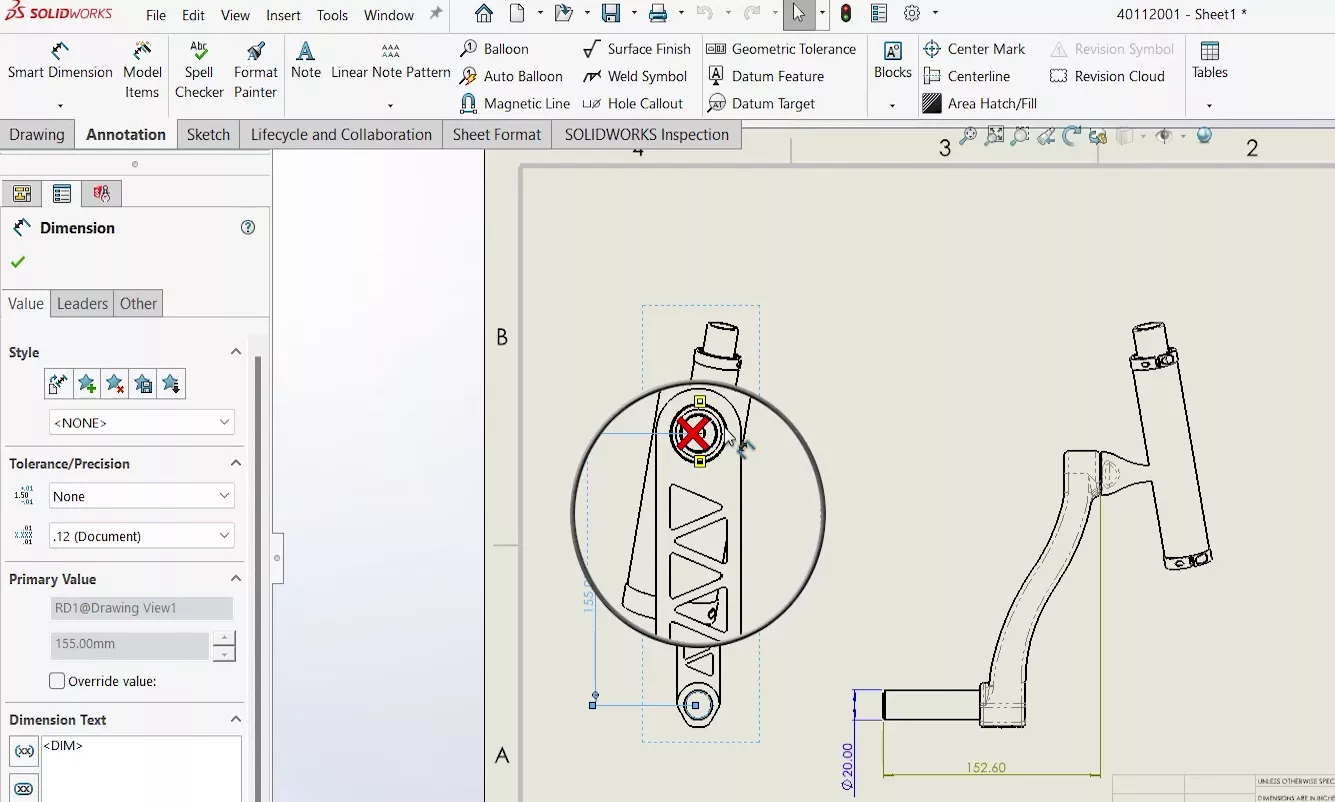
- Referenced Dimensions on Hover
Hovering over entities in a drawing view will highlight any dimensions that are referencing it. So rather than clicking around various dimensions on a cluttered drawing, trying to find what’s what, it’s easy enough to hover over a line or vertex and display the associated dimensions.
2. SAVE AS PREVIOUS
This new feature permeates through parts, assemblies, and drawings too!
SOLIDWORKS Drawings 2024 allows you to save documents as previous versions (up to 2 years prior) to open in the relevant version. So if you have suppliers or clients who are working in SOLIDWORKS 2022 or 2023, then you can send them files from SOLIDWORKS 2024 that are saved in accessible versions.

Be aware that this is a benefit of active SOLIDWORKS subscriptions, and the files must not contain features that cannot be recreated in previous versions, e.g. sheet metal parts with new stamp tool features.
3. EXCLUDE HIDDEN SKETCHES FROM DXF/DWG EXPORT
Hidden sketches can now be excluded from DXF exports when exporting sketches with a sheet metal part.
Previously, hidden sketches were lumped in with all the sketches and would pull through on a DXF/DWG. Now an extra tick box means these can be excluded more easily, without having to suppress sketches or modify your design intent.
Every SOLIDWORKS 2024 Update
Discover all the enhancements to SOLIDWORKS 2024!
We’ve picked out our top 10 favourite enhancements across the whole of SOLIDWORKS and feature the updates coming to simulation, data management, visualisation and more on our dedicated page.
Check out What’s New in SOLIDWORKS 2024 to find out about all the latest updates to SOLIDWORKS 2024.
4. DETAILING MODE OPEN
A new system option allows SOLIDWORKS drawings to be opened in detailing mode by default.
This should come in handy when working with large drawings to open them more quickly. This option can be found under System Options > Drawings > Performance.
5. SELECT MULTIPLE LAYERS
I’ll be honest, this one got me a little more excited than it perhaps should have…
But it’s often been a frustration that you cannot select multiple layers in the layer manager to modify line styles, thicknesses, or visibility.
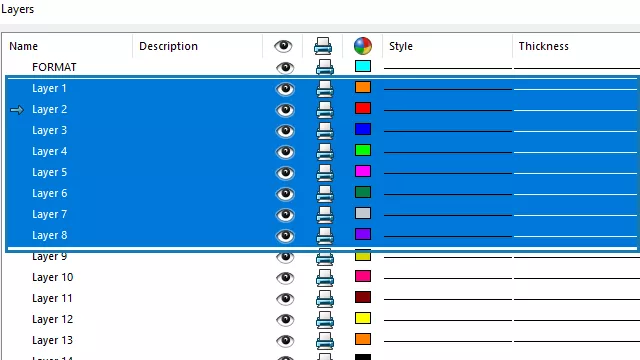
SOLIDWORKS Drawings2024 lets you manage multiple layers at once, in the usual Windows way: CTRL + select multiple individual layers, or SHIFT + select a range.
Simple, effective, and lovely.
To find out what’s new in SOLIDWORKS MBD for 2024, watch the full video at the top of the page to discover new options for drawingless manufacturing.
Categorised as: SOLIDWORKS Design
Get Expert SOLIDWORKS Training
Get hands-on SOLIDWORKS training in-person or online, led by certified experts with real industry experience. With venues across the UK & Ireland, it’s easy to start learning today.
Related Posts

How to Find Reaction Forces in SOLIDWORKS Simulation
SOLIDWORKS helps us to find resultant forces through simulation studies. These virtual tests reduce the need for physical prototypes and give us an accurate answer.

Setting number of decimal places in a table on a drawing
When creating an equation in a drawing general table, is it possible to define the…

SOLIDWORKS Smart Fasteners
SOLIDWORKS Smart Fasteners is a really useful time saving tool, allowing you to automatically insert toolbox fasteners such as bolts and screws into an assembly providing there is a standard hole.

Why is my Flat Pattern not showing in SOLIDWORKS Drawings?
This may be linked to how the drawing is saved or it can be related to how sheet metal parts are displayed in drawings, read on to find out how to fix it.

SOLIDWORKS Tips: Are you Making this Common Mistake in Fatigue Analysis?
Simulation is a vital and complex engineering need. Fortunately, SOLIDWORKS makes it easy to test, correct mistakes and obtain accurate results.

How to Recover SOLIDWORKS Files After a Crash
SOLIDWORKS has two different methods to help you recover from an unexpected crash or loss of data in the form of auto-recovery and back-up settings.

Redesigning Santa’s Sleigh in SOLIDWORKS
Every year Father Christmas has to fly in his sleigh to deliver presents to boys and girls all over the world in just one night. To put this into perspective, it takes a little under 24 hours to fly from London (UK) to Sydney (Australia) in a streamlined Boeing 747, whereas Father Christmas’ mode of transport is believed to be a rather non-aerodynamic sleigh.

SOLIDWORKS Grid Systems – hidden away, but very useful!
Rory Niles provides an insight into the uses for Grid Systems within SOLIDWORKS 2018

Furniture Design Made Easy with SOLIDWORKS
Calling all furniture and interior designers: the days of creating square cabinets are over. What if we told you there’s a much easier way to bring your products to life?
Here’s 10 reasons why we feel SOLIDWORKS is better than any other software, especially if you’re designing furniture:
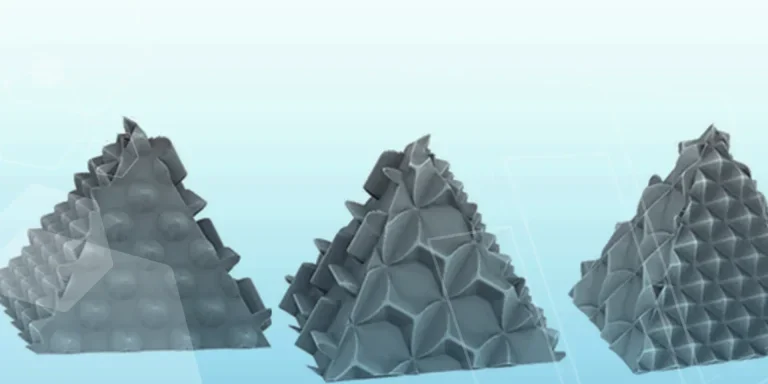
Making 3D Textures from Images on SOLIDWORKS
Turn images into 3D geometry with brand new SOLIDWORKS 3D Textures Feature