











Chaining Thermal and Structural Analysis with MSC Nastran & MSC Patran

Written by: Tom McHale
Published: Apr 25, 2024
| View All Blogs
Thermal stress analysis is where we examine the stress and distortion in our model when subjected to a temperature change.
If your model is made of multiple materials or is constrained in a way so that free expansion is not possible, changes in temperature will result in stresses being induced.
Some requirements are very simple, for example, “What does a 100K increase in temperature result in?” But if you have a more complex temperature distribution, you might need to simulate it first to derive the temperatures to apply to your model.
We have two routes to this in the MSC world through MSC Patran and MSC Nastran.
WHICH ROUTE IS BEST?
The older route involves mapping the temperature results from one analysis to another as a temperature load.
The other is chained analysis where we run a two-step simulation in MSC Nastran that solves the thermal problem first and uses the temperatures predicted as a load in a second step.
It’s worth us looking at the older method, because the mapping capability in MSC Patran can be extended to map results from one type of simulation to another, even accounting for a dissimilar mesh.
This might not be a simple thermal analysis. You could, for example, have used the superplastic forming capability in MSC Marc to predict the local thickness of a formed part which you then wish to map to different mesh for running a vibration analysis in MSC Nastran.
STEP 1 – THE THERMAL PROBLEM
We set up and run a thermal steady state analysis. Our model comprises a copper cylinder supported by two steel plates initially at room temperature of 296 K.
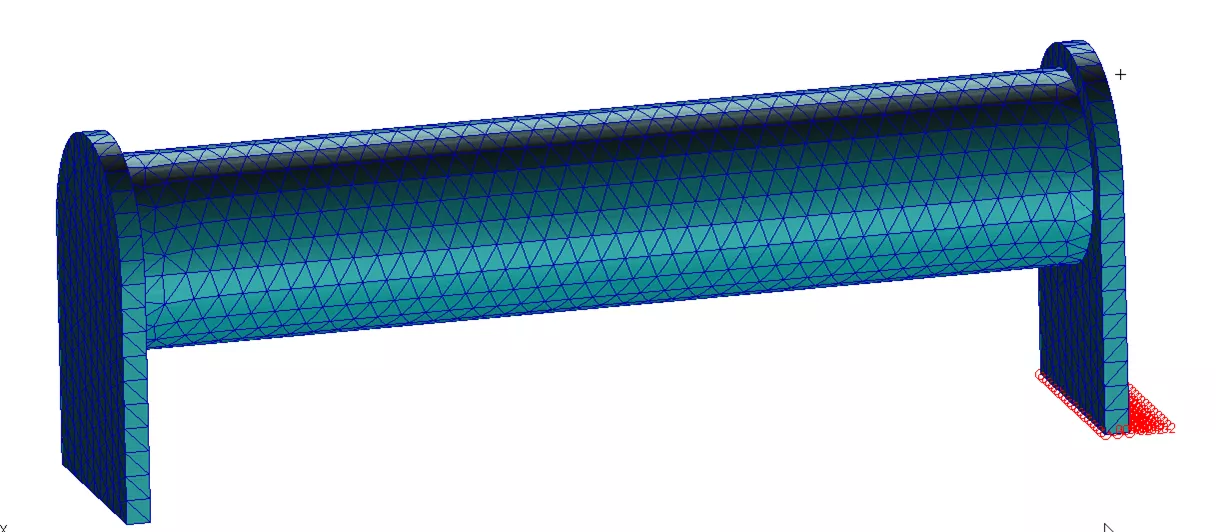
We have a convection coefficient to ambient on all surfaces and a fixed temperature of 400 K at one end. We’ll run a steady state analysis to understand what the temperature distribution will be.
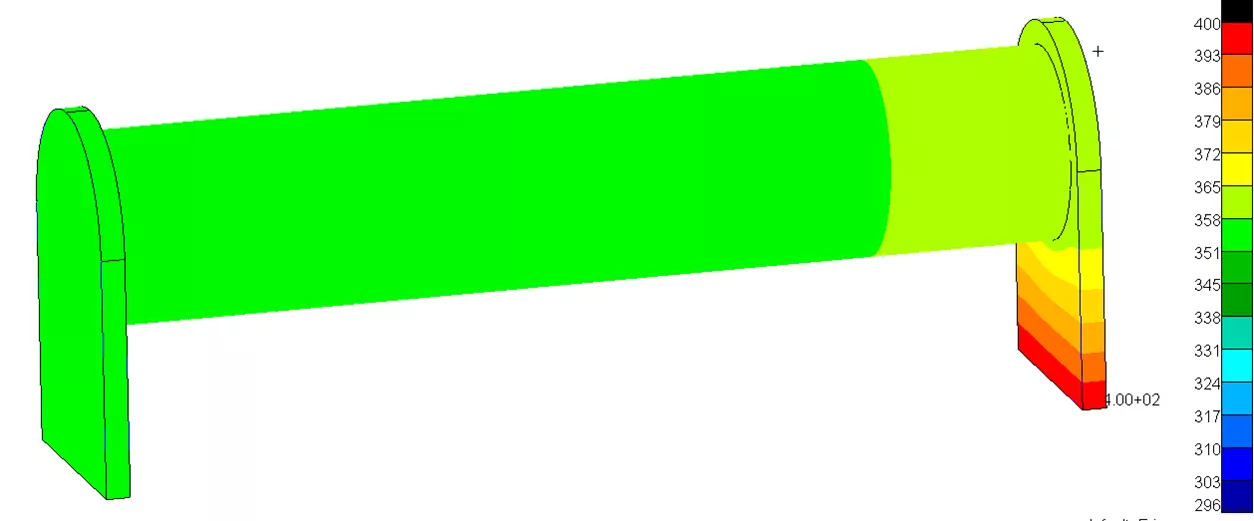
We now want to assess the stress in this model due to the thermal expansion if both end plates are fixed at the bottom.
Find the workstation that’s right for you with our range of Dell hardware optimised for CAD and Simulation. Compare products and balance price with performance so you can be modelling more efficiently in as little as 48 hours!
STEP 2 – THE STATICS PROBLEM
We need to map this temperature result to a field so we can apply it as a load.
In MSC Patran we use a ‘Continuous Scalar Field’ for this. This basically constructs a field that relates the XYZ co-ordinate of each node to a scalar value, in this case Temperature.
We then create a temperature load, but instead of a scalar value for the temperature change, we can select the field.
When it comes to write out the model for the solution, Patran will look at each node in turn, find its location in the field, and interpolate a temperature value for the load. This means that we could have used a completely different mesh for the thermal analysis providing it was to the same scale and within the same co-ordinate frame.
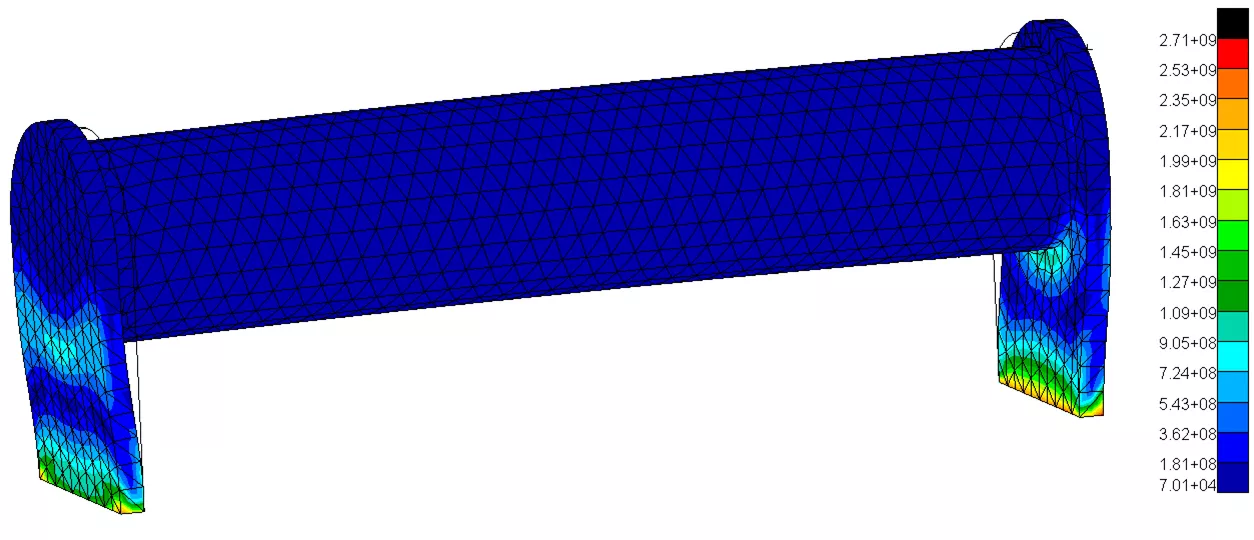
We now have a mapped thermal load and can run a static analysis to look at the stress resulting from the constrained expansion of the model.
We can see the displacement magnitude is about 0.8 mm.
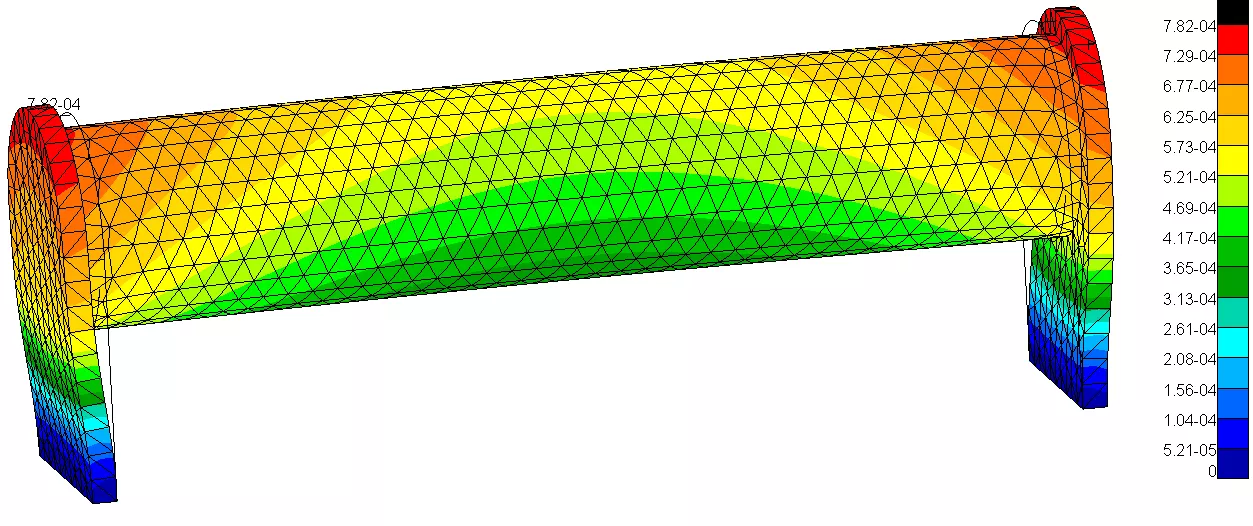
With the corresponding stress result:
STEP 3 – EFFICIENCY EVALUATION
Could we do this more efficiently? Well, if a Nastran linear steady state simulation satisfies all your thermal needs, then yes, we can.
The HEATSTAT parameter in Nastran will allow you to run a two subcase SOL101 analysis that solves the thermal problem first and then the static afterwards.
This is set up quite simply in Patran using the Structural Heat Analysis option in the thermal preference by selecting the two cases in sequence.
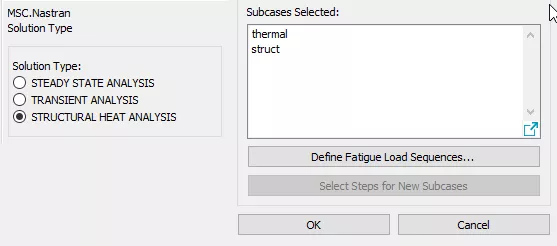
This creates the necessary job. If you are using a more ‘traditional’ text pre-processor then the Case Control will look more like the text below…
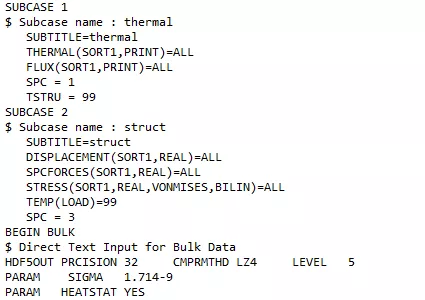
The benefits of this technique are twofold:
- We have eliminated a manual step where we map one result to another. For a huge model this is otherwise likely time-consuming, even though it’s automated in Patran.
- We have our thermal and structural results in the same input and output files, eliminating potential errors where the wrong thermal results are used with the wrong structural model.
There is a limitation to be aware of. As this method forces a linear solution of the steady state thermal analysis, no temperature dependency of materials or boundary conditions can be used, as they rely on an iterative solution to update.
For more information about using the MSC software suite or for enquiries about our Simulation Services, get in touch via the form below.
Categorised as: Simulation
Get a SOLIDWORKS Quote
Interested in SOLIDWORKS? Contact us for questions, trials, or demos by clicking the button below or call 01926 333777. Our experts will help you find the perfect solution.

Related Posts

How to Find Reaction Forces in SOLIDWORKS Simulation
SOLIDWORKS helps us to find resultant forces through simulation studies. These virtual tests reduce the need for physical prototypes and give us an accurate answer.

SOLIDWORKS Tips: Are you Making this Common Mistake in Fatigue Analysis?
Simulation is a vital and complex engineering need. Fortunately, SOLIDWORKS makes it easy to test, correct mistakes and obtain accurate results.

Redesigning Santa’s Sleigh in SOLIDWORKS
Every year Father Christmas has to fly in his sleigh to deliver presents to boys and girls all over the world in just one night. To put this into perspective, it takes a little under 24 hours to fly from London (UK) to Sydney (Australia) in a streamlined Boeing 747, whereas Father Christmas’ mode of transport is believed to be a rather non-aerodynamic sleigh.

Radiation in Flow Simulation – Part 1 : Reflection
Technical Manager Andy Fulcher explores ‘Radiation in Flow Simulation, Part 1 : Reflection’
Radiation in Flow Simulation – Part 2 : Refraction
Technical Manager Andy Fulcher explores ‘Radiation in Flow Simulation, Part 2 : Refraction’
The Coanda Effect in Flow Simulation
Can you take advantage of the Coanda Effect & can SOLIDWORKS Flow simulate it? Applications Engineer Romel Cumare investigates in his latest blog post.
So how accurate is SOLIDWORKS Simulation?
How accurate is SOLIDWORKS Simulation? Elite Applications Engineer Chris Boyles investigates.
Set Your Fluids Free with SOLIDWORKS Flow Simulation
A look at the new Free Surface feature coming in SOLIDWORKS Flow Simulation 2018.
Finding a Good Mesh Fast in SOLIDWORKS Flow Simulation
‘How do I know when to stop my calculation?’ and ‘How do I know my mesh is good enough?’ are questions often asked when running SOLIDWORKS Flow Simulation studies.
The answer is to ensure the solution reached is both fully converged AND mesh independent. In practice this can take a bit of trial and error as well as some experience in the process. However, SOLIDWORKS Flow can help us do both of these at once! Here’s how…

Free Surface Evaluation & Validation – SOLIDWORKS Flow Simulation
In 2018 SOLIDWORKS introduced a new capability to their Flow software. This is called ‘Free Surface’ and opens up many more applications for users who need to simulate fluid behaviour where a gas and a liquid (or two immiscible liquids) share the same region of space without an intervening solid