






Global Collaboration with PDM Professional
Written by: Wayne Marshall
Published: Sep 3, 2026
| Last Updated: September 3, 2026
| View All Blogs
In businesses large and small, no Engineer is an island. Bringing a product to life requires collaboration across engineering, manufacturing, quality, procurement, and service teams. But collaboration only works when everyone has access to the same accurate product information. Without a shared digital definition, errors creep in, decisions are made on outdated data, and efficiency suffers. The key challenge is keeping every stakeholder connected to a single source of truth.
As engineering teams become increasingly distributed, maintaining a consistent and accurate view of product data becomes more challenging. SOLIDWORKS PDM Professional addresses this by providing a secure, centralized repository for design information, ensuring that validated users have access to the latest approved files. This helps eliminate version confusion, prevents rework, and keeps global teams aligned throughout the product development process.
In this blog, I will aim to address some of the most common questions we are asked about using SOLIDWORKS PDM Professional for global collaboration.
What is Replication in SOLIDWORKS PDM and do I need it?
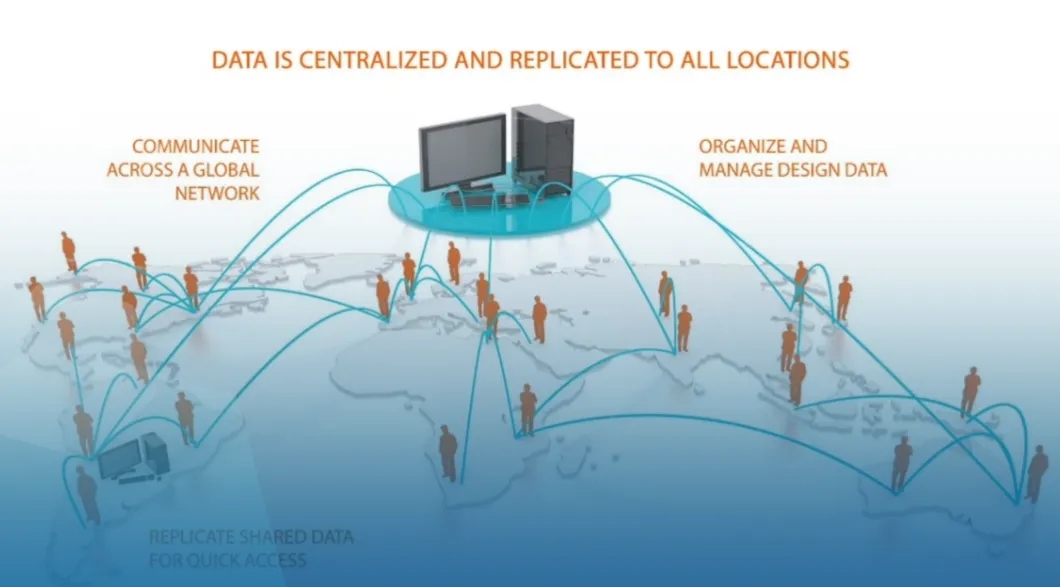
SOLIDWORKS PDM replication works by configuring at least one a secondary server in an additional location accessible to a remote workforce or collaborator. Once set up and configured, files in the Vault can be automatically synced (both ways) based on a defined interval (hourly, daily, or on demand) so that users are pulling data from the closest location to them.
SOLIDWORKS PDM Professional supports Replication of both the Archive (File Store) and Database (Metadata) servers to increase performance for users / offices located a large distance from the main hub.
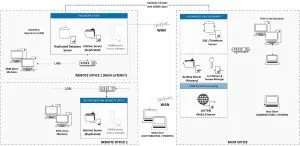
Figure 2: Multisite Deployment with Archive and Database Replication plus Web Server
For occasional remote workers, within the same region, creating / and or consuming data within the Vault a VPN connection to the office hosting the Database and Archive is generally all that is required.
For small offices, within the same region, with up to 3 ‘creators’ may also find that a VPN between the Remote and Primary office is also suitable for collaboration. For more than 3 creators, or many consumers of Data, Archive Replication should be considered.
Archive Replication
Archive Replication is the most common Replication used in a multi-site setup as it typically requires no additional add-on costs (apart from additional User Licenses if required). The database remains centralised at the Primary location, but complete, or partial, physical file stores (Archives) are created at local offices.
- How it works: When you carry out any action that requires a “Latest Version” from the Archive PDM pulls the file from your local server instead of pulling it across the WAN from headquarters.
- Replication methods: You can schedule synchronization overnight to pre-populate files or allow on-demand replication where the first user to request a file pulls it across the WAN, caching it in the local Archive so that it’s available for everyone else.
- Limitation: If you have a high ping (latency), clicking through folders or searching will still feel slow because every folder click must communicate back to the primary SQL database.
If the requested Version is not already replicated to the local Server, on-demand Replication will be triggered, meaning the file will be copied from the Primary Archive to the Local Archive before it is made available on the client. Whilst replicating more often than once in the day may be beneficial, doing so ‘too often’ could result in WAN saturation that actually impedes Vault access.
Database Replication
Network (WAN or LAN) Latency is often a bigger factor than bandwidth for SOLIDWORKS PDM performance. Latency in this sense is the time delay it takes for data (an SQL Query from the PDM Client) to travel from one point (Users desktop) to another on a network (SQL Server), usually measured in milliseconds (ms) and represents the gap between a user sending a request and receiving a response.
For PDM, whilst the SOLIDWORKS multi-site guidance states the minimum WAN bandwidth to be a very low 1 Mbit/s it does also state that PDM becomes unreliable around 150 ms latency. In our experience at that level the issues tend to be inconvenient but not destructive, however, around 180ms and higher these timeouts are less likely to recover in time meaning errors can be more persistent with the system at risk of becoming inoperable.
Database Replication can go some way to solve the lag that occurs even when just navigating the vault over long distances.
- How it works: PDM leverages Microsoft SQL Server Always On Availability Groups (AOAG) to keep local read-only copies of the database at satellite offices.
- Read vs. Write operations: Read-only actions—like searching, browsing folders, viewing variables, and checking the “Where Used” tab—happen instantly against your local secondary SQL database. Any action that needs to modify data (like checking in a file, changing states, or updating a data card) is automatically sent back to the primary SQL server.
- Limitation: It can be expensive to implement. Standard SQL licenses typically used with PDM Professional do not support this feature; to leverage AOAG, you must purchase standalone Microsoft SQL Enterprise licenses for all locations where a replicated Database will reside.
So, with the majority of database traffic being Read Only, switching that away from the Wide Area Network (WAN), to the local Area Network (LAN) can reduce the risk of saturation and alleviate some of the impact of that Latency.
In short: Whilst bandwidth determines how much data can move down the ‘pipe’, latency determines how responsive PDM feels. Archive replication can reduce file transfer delays, but SQL latency still governs how quickly users can browse, search, and interact with the vault.
Core Architectural Differences: Archive Replication vs Database Replication
| Feature | Archive Replication | Database Replication |
| What it copies | Physical CAD files and documents | SQL database tables and metadata |
| Primary purpose | Speeds up “Get” and “Check Out” operations | Speeds up browsing, searching, and opening data cards, where used and contains |
| Target bottleneck | Low bandwidth (slow downloads of large files) | High latency / ping times (usually >150ms to the main site) |
| Mechanism | PDM Archive Server service | Microsoft SQL Server Always On Availability Groups (AOAG) |
| Licensing cost | Included with SOLIDWORKS PDM Professional | Requires Microsoft SQL Server Enterprise Edition at each node |
| Operation types | Bi-directional (read and write files locally) | Read-Only at secondary sites; write actions route to primary |
Are there any other alternatives when Latency is high?
WAN Accelerators are Hardware or software appliances that optimize data transfer over a wide area network using techniques such as data deduplication, compression, and caching they can significantly reduce the amount of data sent over the wire. Dedicated hardware appliances, such as Riverbed SteelHead are often deployed between headquarters and remote sites to ensure centralized applications and large files load as if they are on a local LAN. Anecdotally, I have heard that these tools can improve performance of PDM even when remote sites are on the opposite side of the world.
Will moving PDM to the Cloud help with collaboration?
Yes, hosting SolidWorks PDM on the cloud can improve performance for global setups by centralizing data, eliminating office-to-office bottlenecks, and leveraging local file caching. However, its success still depends heavily on maintaining low network latency.
- Centralized Access: Provides a single source of truth so all global offices stop sending huge files back and forth.
- Local Caching: Not just a feature of cloud hosting. Engineers work on local copies after check-out, meaning routine modelling speed stays fast once files are downloaded to the user’s Cache.
- No Hairpin Routing: Direct connections to cloud virtual machines (on public providers like Microsoft Azure or Amazon Web Services, or private providers like iomart (via our Cloudsure service)) avoid sluggish data routes through a single primary physical office
Key Limitations and Requirements
- Latency Thresholds: Network ping between client machines and the cloud server must still be ideally stay under 50ms to 100ms to prevent lagging database operations.
- SQL Restrictions: Fully managed cloud database engines like AWS RDS or Azure SQL are not compatible with SolidWorks PDM; you must run standard Windows Server VMs with a supported SQL installation.
- Multi-Site Replication: For large global teams spread far apart, a purely centralized cloud server may still suffer high latency for remote regions, requiring a hybrid setup that also includes replicated archive servers.
Licensing
Can we use our PDM licenses outside the UK?
Yes, whilst a SOLIDWORKS CAD licence is only licensed for (permanent) usage within the country (or in some cases the region) it was bought, SOLIDWORKS PDM (STANDARD and PROFESSIONAL) and SOLIDWORKS Manage Licenses are not subject to the same restrictions and are Global Licenses by default.
How do users in different regions log in to PDM?
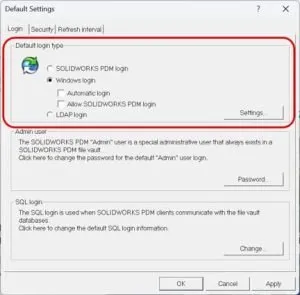
For Authentication, SOLIDWORKS PDM supports three log-in methods; PDM Users, Windows (AD) Users and LDAP. For the purposes of this blog, we shall focus on the most commonly deployed options, PDM Users and Windows (AD).
When PDM is installed the default method of Authentication is defined within the Archive Server Configuration Tool, but it can be changed ‘per vault’ if required. The three options are shown below along with the optional modifier when using Windows login, that means you can ALSO allow SOLIDWORKS PDM Logins too.
In a global setup with a single Archive Server / Database Server, mixing and matching PDM and Windows Users may be the best approach since it means you can attach the local Windows Users, whilst allowing the remote users (who may be on a separate domain) to log in using a PDM Account.
In a global setup with Replicated Archive servers, it may be preferable to attach AD groups local to each Archive Server avoiding the need for PDM Users.
Can we reserve / allocate licenses to specific teams / users?
Yes, you can reserve a SOLIDWORKS PDM network license for a specific user or group of users using a custom Options File in the SolidNetWork License Manager (SNL)
How to Set Up License Reservations
The most common approach is to create Groups that licences are reserved against.
- Open License Manager: Go to the server hosting your licenses, open the SolidNetWork License Manager, and go to the Server Administration tab to click Modify.
- Enable Options File: Select Activate/Reactivate a software license, click Next, and check the box for Options File to create or edit your text file (commonly named sw_d.opt).
- Define Groups: Add a group line in the text file using the format GROUP [group_name] [user_list] (listing the Windows usernames of the individuals).
- Add Reservation Rules: Use the RESERVE command syntax specifying the exact PDM feature name, the number of seats, and the user or group name.
- Feature names: swepdm_cadeditorandweb, swepdm_contributorandweb, swepdm_viewer
- Example: RESERVE swepdm_cadeditorandweb 5 GROUP UK_CAD
- Reactivate: Save the options file, browse to it in the SolidNetWork License Manager, and finish the activation steps to apply the changes.
Working with 3rd Parties with their own PDM Licenses
The Following statements are true.
- A SOLIDWORKS PDM License can only be activated once (at any one time)
- A SOLIDWORKS PDM Vault can be connected to multiple Network Licence Managers (SNL)
- A User logging into Multiple Vaults hosted on the same server will only take one license
- A User logging into Multiple Vaults hosted on separate servers will take multiple licenses
So, when working with a 3rd Party who has their own PDM License you have a couple of options.
- The 3rd Party provides you with their PDM Serial Number and you add it to your local SNL (increasing your license count)
- You may want to create / update your Options file in the SNL to reserve that license for that user only.
- You will need to deactivate and remove that Serial number when the collaboration ends.
- The 3rd Party who already has their own license activated on their own Server, provides the address of their SNL to you and you add it as a ‘second’ License Manager in PDM.
- If they have 1 license, they will lonely be able to log into Vaults one ‘one’ server at any one time
What are the capabilities of the Web2.0 client?
How often do you need input or approval from people outside your organisation? And how can you make that collaboration easier through the web?
Customer drawing approvals and supplier reviews can be handled more efficiently with the SOLIDWORKS PDM Professional Web2.0 interface. For example, a vendor may need to review preliminary models or drawings for a budget quotation, and you may need confidence that they are always working from the latest approved version rather than an outdated copy.
Web2.0 allows users on PC, iOS, Android and Linux devices to access the SOLIDWORKS PDM Professional vault through a web browser. You can assign customer or vendor credentials and restrict access to only the content they need. Their activity can then be tracked using SOLIDWORKS PDM Professional history and log files, removing the need for manual document transmittal sheets and making access records automatic.
| Capability | Supported | Role Restricted |
| Log into a PDM vault through a web browser | ✅ | |
| Browse folders and files | ✅ | ✅ |
| File previewing | ✅ | |
| Download files | ✅ | ✅ |
| Check out files | ✅ | ✅ |
| Upload (simple) files | ✅ | ✅ |
| Check in files | ✅ | ✅ |
| View PDM data cards | ✅ | |
| Display custom metadata columns | ✅ | ✅ |
| Customise web data card layouts | ✅ | ✅ |
| Windows Explorer integration
| ❎ | |
| SOLIDWORKS add-in functionality
| ❎ | |
| Administration capabilities
| ❎ |
The limitations described above explain why Web2.0 is not a suitable replacement for the Desktop Tool for most creators of data and certainly for CAD users using a CAD Tool with a PDM Pro Add-in.
Typical use cases for Web2.0 would be; Shopfloor / Production teams using tablets or shared terminals to access released drawings and download pdf’s / dxfs as needed, Project Managers who may need to review project documents, check the Status of CAD Data and update / upload other Project documents, Suppliers and Contractors, who may need to access controlled documentation to approve documents or even submit change requests.
Can Web2.0 be used by external users or only within the WAN?
Although primarily deployed within a WAN, Web2.0 can be deployed:
- Internally within a corporate network
- In a DMZ for external Internet access
- Over HTTPS using SSL certificates
Making the website externally facing however is something you would need to work with your ISP to do as it requires both an SSL certificate to be in place along with a redirect from a valid web address.
How do I control what people can see in PDM?
Granular Access
Granular access in SolidWorks PDM is controlled through folder permissions, Workflow State permissions, user/group permissions and File Based permissions. And SolidWorks PDM relies on an “additive” permission model, meaning a user’s total access is the sum of permissions granted to them individually and through any groups they belong to.
- Group-Based Permissions: Manages permissions primarily by creating functional groups (e.g., “Engineering,” “Quality,” “Purchasing”) rather than assigning rules to individual users.
- Group Membership is typically fixed by the Administrator, but if the option is enabled it is possible to override Group Membership at a folder level. This is typically used to allow Customers to assigned Project Teams / Approvers, but can also be allowed to permit / deny access to connected Suppliers / Contractors etc
- Folder-Level Security: Specific permissions can be applied to folder structures to restrict which users can see, read, or modify files within certain directories.
- 2026 introduced a new Permission “May see folders to navigate to subfolder” which allows users with access to files in a lower-level folder to browse the hierarchy of higher-level folders (without seeing any of their content) in order to reach the lower-level folder.
- Workflow State Security: Control access dynamically based on where a file is in its lifecycle (e.g., a file in an “Approved” state becomes read-only for designers but open for production)
- 2024 SP1 introduced a new behaviour such that unauthorize ed users who cannot view files in a particular folder or Workflow state will also no longer be able to view metadata for those files (referenced in structures you can view) in file reference dialog boxes. The warning message No rights to get latest or attached version displays
What happens if I revoke access to a group on a replicated server?
If the Data is already available on the remote server via a Replication Schema and those users access rights are subsequently revoked, the files will remain on that Server. For Companies collaborating with overseas partners who need an even more granular approach to access rights (file-based permission) and the ability to purge the remove Archive when those permissions are revoked, Solid Solutions can offer bespoke API solutions built around your specific requirements.
Categorised as: Data Management | Design | SOLIDWORKS PDM
Discover our SOLIDWORKS Subscription
Get the most from your tools and the best from your designers with a SOLIDWORKS subscription package that is designed to help you succeed.

Related Posts
Series 1 Land Rover Pedal Car – Made Easy with Solidworks!
The Series1 began production in 1948 designed to help get Britain farming after the war effort. It grew extremely popular and today enthusiasts are prepared to throw their life savings at restoring originals from that period.

Redesigning Santa’s Sleigh in SOLIDWORKS
Every year Father Christmas has to fly in his sleigh to deliver presents to boys and girls all over the world in just one night. To put this into perspective, it takes a little under 24 hours to fly from London (UK) to Sydney (Australia) in a streamlined Boeing 747, whereas Father Christmas’ mode of transport is believed to be a rather non-aerodynamic sleigh.
SOLIDWORKS Grid Systems – hidden away, but very useful!
Rory Niles provides an insight into the uses for Grid Systems within SOLIDWORKS 2018

Furniture Design Made Easy with SOLIDWORKS
Calling all furniture and interior designers: the days of creating square cabinets are over. What if we told you there’s a much easier way to bring your products to life?
Here’s 10 reasons why we feel SOLIDWORKS is better than any other software, especially if you’re designing furniture:
How to Create a Pack and Go in SOLIDWORKS
Pack and Go in SOLIDWORKS should be used when sending SOLIDWORKS files to another person. Use this simple guide to help you safely send entire SOLIDWORKS projects.
What is 3DSWYM? A 3DEXPERIENCE Platform Tutorial
3DSwym is the application at the heart of the 3DEXPERIENCE, allowing users to connect and collaborate across the platform.
Modelling an Archimedes’ Screw with SOLIDWORKS
Archimedean screws are often referred to as “water screws” since they are commonly used to transport water between different heights. We often see some of our customers do screw feeders and we thought it may be beneficial to create a blog documenting an effective modelling workflow to create your very own Archimedean screw.

How to come up with ideas for your design or engineering project – some helpful tips
We know coming up with an interesting and creative design or engineering project can be…
Microsoft SQL Server licensing for SOLIDWORKS PDM
October 2020 marks two important milestones for the SOLIDWORKS PDM family and SQL Server.
Part Numbering in SOLIDWORKS PDM Professional
When implementing a new PDM Professional Vault Customers will have the option to review their part numbering and classification requirements as they move to a system that allows them to, in most cases, automate the way the identify ‘parts’ within the Vault. Part Numbering is something that a lot of customers approach differently and this is often based on ‘how it’s always been done’ without necessarily considering what is the purpose of a Part Number within their organisations and wider within their supply chains. If we consider the humble part number. What is it’s purpose?