











How to Fix “A Sharing Violation Occurred while Accessing an Unnamed File” in SOLIDWORKS Simulation

Written by: Tom McHale
Published: Mar 12, 2025
| View All Blogs
One error that may pop up when running studies in SOLIDWORKS Simulation is the message ‘A sharing violation occurred while accessing an unnamed file’.
Which file? And where?!
Thankfully, this is an error which is less impactful than the effusive wording may lead us to believe. This blog will explore the causes of this error message, and how you can avoid the message all together.
What Causes the “Sharing Violation” Error in SOLIDWORKS Simulation?
The three most common causes which prompt SOLIDWORKS Simulation to display this error are:
- BR10000366012 – A known bug affecting SOLIDWORKS 2023 SP4.0 – 2024 SP1.0.
- Results Directory – Users may have insufficient privileges or network connection issues.
- Security Policies – Restrictive policies may prevent necessary executables from running.
Common Cause #1: A Known Bug
This message pops up most frequently for users of SOLIDWORKS 2023 SP4.0- 2024 SP1.0 due to a known bug that has been fixed by the SOLIDWORKS development team in SOLIDWORKS 2024 SP2.0 and later.
If one of the following workflows was carried out whilst a Simulation was running, the error would show.
- Open another SOLIDWORKS part or assembly document.
- Switch to an open document.
- Saving the file containing the study
- ‘Auto Recover’ saves backup information (Tools -> Options -> Backup/Recovery).
Fortunately, if the error populates due to this bug, the results have not been impacted and the message can be dismissed. Holding down the ‘Esc’ key can quickly clear the messages.
If you have a SOLIDWORKS subscription, you are entitled to download and install the latest release of the software. Follow the steps outlined in the guide or please contact our support team on 01926 333777 and a member of our Technical Support team can assist you.
Thinking about upgrading? Find the best CAD workstation for you with our range of Dell hardware.
Common Cause #2: Results Directory
Another reason you can encounter this message is when the working results location is set to a network drive, or a drive with insufficient permissions.
A user is required to have full privileges to the results location to avoid any potential issues. When working over a network drive, read/write permissions are more likely, which makes the issue more likely to appear.
If possible, we recommend working with locally saved files to improve stability with both SOLIDWORKS and Simulation projects.
Additionally, any network blips when solving can cause issues where the solver is unable to access the results location.
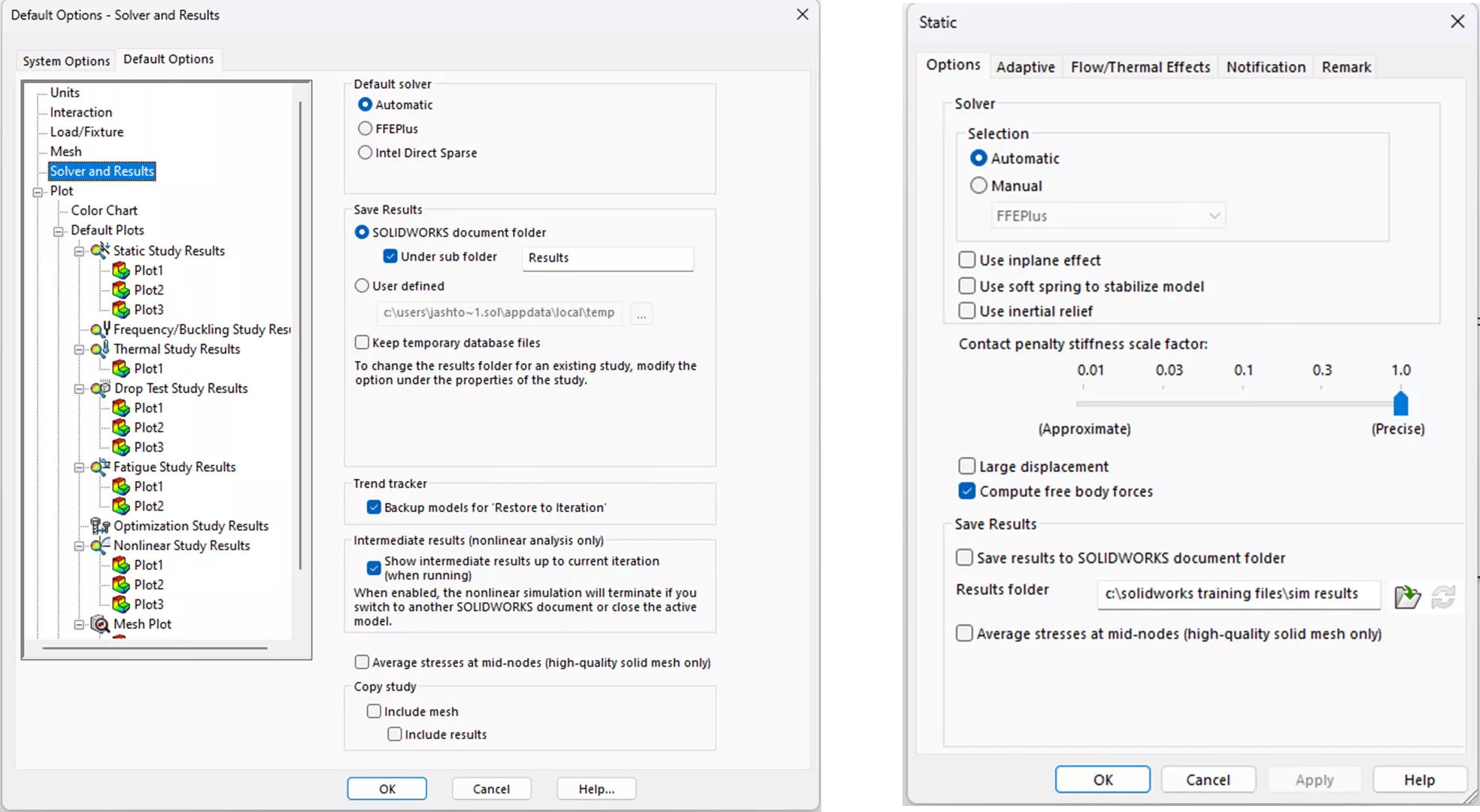
The default behaviour is for the results to be stored in the open document folder. This can be altered through the Simulation Default Options before creating a study, or from within the study properties.
It is recommended that the results folder is always local to the user, and they should have full privileges. Consider changing the directory, re-mesh and run the Simulation again if you encounter this error.
Common Cause #3: Security Policies
If you have confirmed the results directory is local, then it would be recommended to consult your IT. Your IT department should be able to review current security policies and add exceptions to the necessary Simulation executables.
Below is a list of executable files that should be added to the exceptions list if the issue is believed to be related to security policies:
- ghs3d.exe: Meshing uses this program for the volume filling process.
- star.exe: For static and drop test analysis.
- dstar.exe: For frequency and buckling analysis.
- hstar.exe: For thermal analysis.
- solidworks.exe: For the SOLIDWORKS application.
- nstar.exe: For nonlinear analysis.
- astar.exe: For dynamic analysis.
- cwanalysisproc.exe Every Simulation uses this program multiples time during the solve.
If you’re still having issues after following the steps above, then please reach out to our Technical Support team on 01926 333777, or email support@solidsolutions.co.uk.
Take the Next Steps
If you need to free up resources or help with predicting product performance, it’s worth considering the professional simulation services provided by our team of experience consultants.
Regardless of your industry or experience level, we can provide the expertise to optimise product performance and streamline your product development process.
Categorised as: Simulation | Troubleshooting
Looking to buy Hardware?
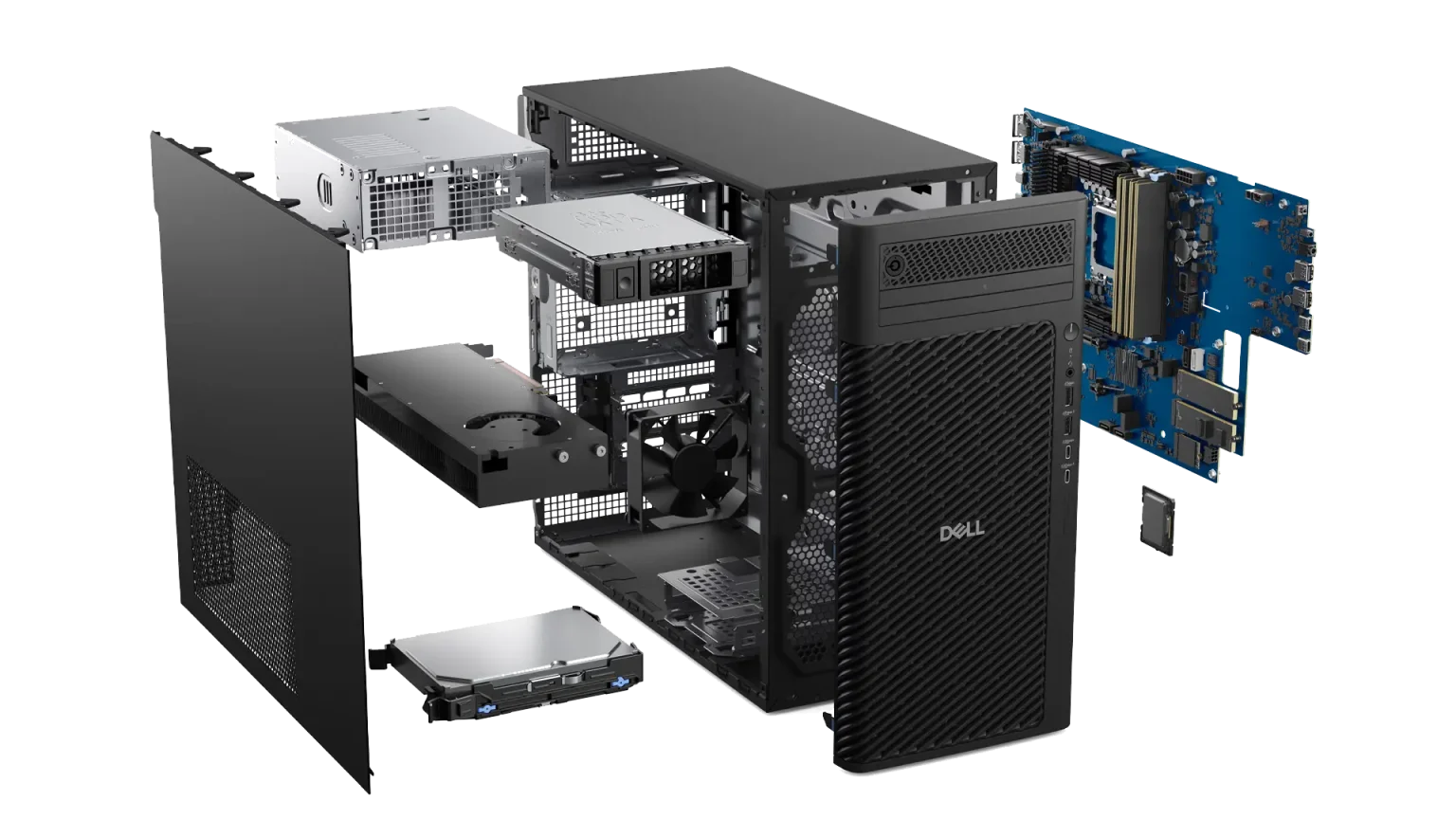
Having partnered with Dell for over 20 years, we can offer optimal SOLIDWORKS certified hardware at great value and with next business day delivery on most models.
Related Posts

How to Find Reaction Forces in SOLIDWORKS Simulation
SOLIDWORKS helps us to find resultant forces through simulation studies. These virtual tests reduce the need for physical prototypes and give us an accurate answer.

Why is SOLIDWORKS Crashing?
It’s one of the great mysteries of life – why is SOLIDWORKS crashing? Let’s explore how SOLIDWORKS crashes and how we can improve performance in SOLIDWORKS.

SOLIDWORKS Tips: Are you Making this Common Mistake in Fatigue Analysis?
Simulation is a vital and complex engineering need. Fortunately, SOLIDWORKS makes it easy to test, correct mistakes and obtain accurate results.

Tech Support Blog: Why are my SOLIDWORKS BOM Quantities Wrong?
Why are my SOLIDWORKS BOM Quantities Wrong? A support call cropped up this week which…

Redesigning Santa’s Sleigh in SOLIDWORKS
Every year Father Christmas has to fly in his sleigh to deliver presents to boys and girls all over the world in just one night. To put this into perspective, it takes a little under 24 hours to fly from London (UK) to Sydney (Australia) in a streamlined Boeing 747, whereas Father Christmas’ mode of transport is believed to be a rather non-aerodynamic sleigh.

Radiation in Flow Simulation – Part 1 : Reflection
Technical Manager Andy Fulcher explores ‘Radiation in Flow Simulation, Part 1 : Reflection’
Radiation in Flow Simulation – Part 2 : Refraction
Technical Manager Andy Fulcher explores ‘Radiation in Flow Simulation, Part 2 : Refraction’
The Coanda Effect in Flow Simulation
Can you take advantage of the Coanda Effect & can SOLIDWORKS Flow simulate it? Applications Engineer Romel Cumare investigates in his latest blog post.
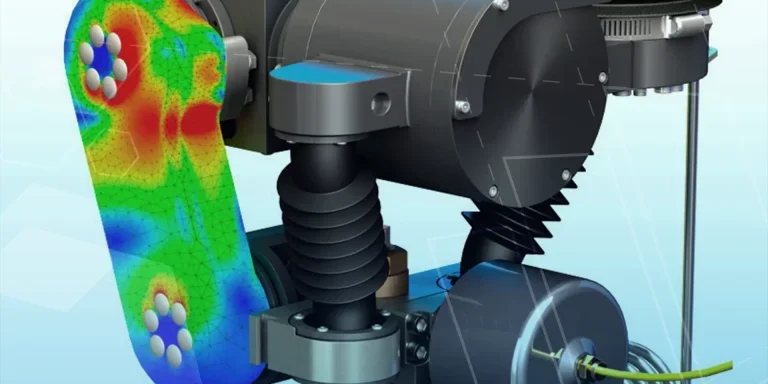
So how accurate is SOLIDWORKS Simulation?
How accurate is SOLIDWORKS Simulation? Elite Applications Engineer Chris Boyles investigates.
Set Your Fluids Free with SOLIDWORKS Flow Simulation
A look at the new Free Surface feature coming in SOLIDWORKS Flow Simulation 2018.