











How to Start Subdivision Modelling with 3D Sculptor | Basic Workflow Tutorial

Written by: Lewys Elvins
Published: Jan 23, 2024
| View All Blogs
Sometimes it can be difficult to find an appropriate starting point with subdivision modelling.
In this tutorial, we’ll show you how to use images to guide design with the 3D Sculptor role on the 3DEXPERIENCE platform.
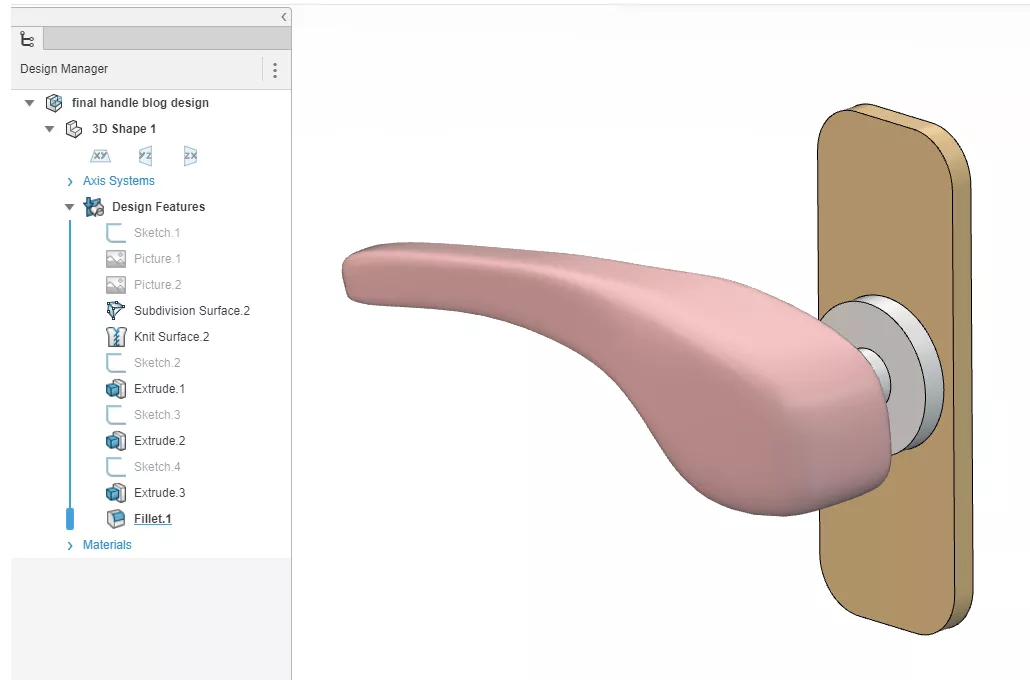
This will allow you to rapidly draft the overall design, so that you can spend more time perfecting the details within the xShape app.
If this is your first time encountering subdivision modelling, the 3D Sculptor role, or the xShape application, we suggest you check out our introduction to 3D Sculptor first.
Otherwise, log into the 3DEXPERIENCE platform, open up the xShape app, and follow the tutorial below to sculpt your very own door handle.
We recommend using 2D sketches or reference images to help with modelling in xShape, as this is one of the fastest ways to design in both SOLIDWORKS and xShape.
You’ll find that your models will more accurately follow your design intent compared to freeform sculpting. For this guide, we will start with some basic orthographic sketches and use them to guide the subdivision sculpting process.
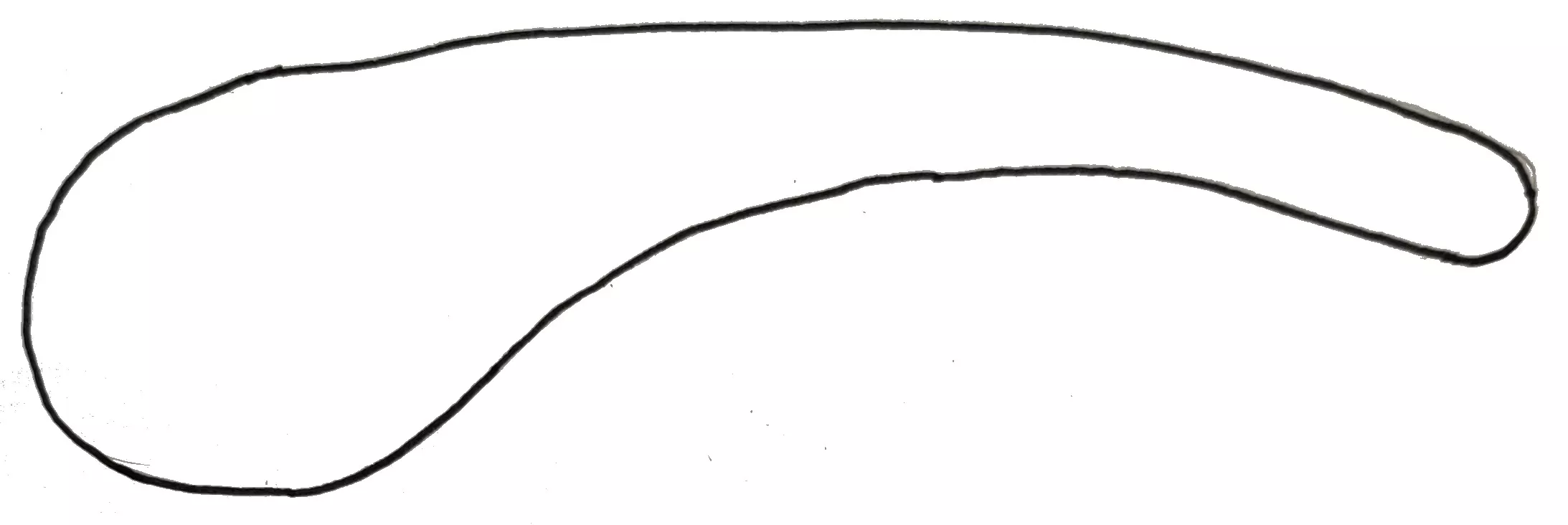 Front View
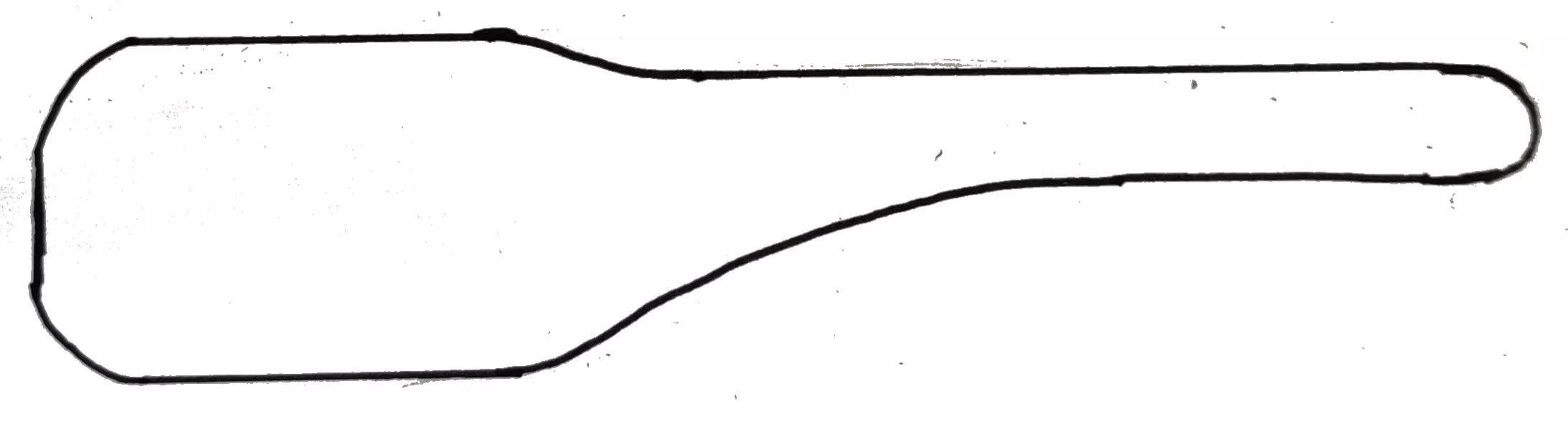 Top View
Feel free to save these images and follow along with the tutorial.
STEP 1 – SET UP YOUR MODELLING ENVIRONMENT
To help with image scaling, we will start by adding a dimensioned construction line sketch. This line represents the maximum length of our part and will allow us to easily align the images later.
Here, a new sketch is created on the XY plane by left-clicking on the plane and then clicking Create Sketch from the pop-up toolbar.
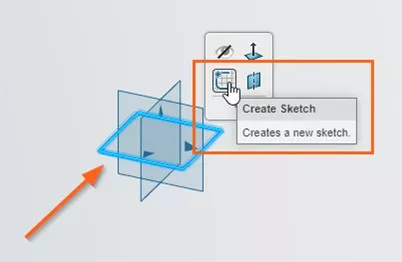
Then, we draw a horizontal sketch line, assign a dimension, and convert to construction geometry.
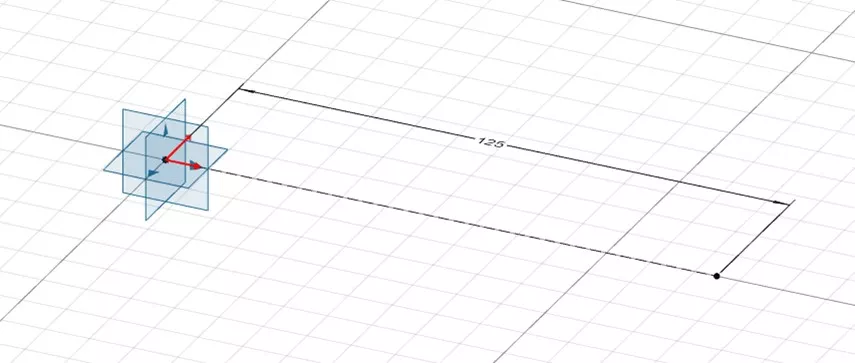
Exit the sketch and navigate to the Tools action bar. Here you will find the Insert Picture button.

Once selected, click the desired plane to attach the first image to. In this case, we select the XY plane for our top view sketch.
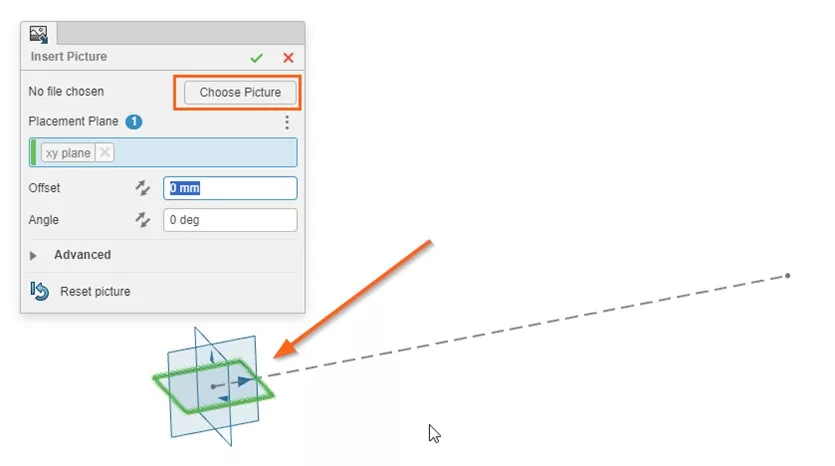
Selecting Choose Picture and browsing to the desired image will attach it to the plane.
Once imported, we use the robot to scale and move the image until it is aligned with the previously created construction line.
Use the corner handles to scale the image and the central robot to move it.
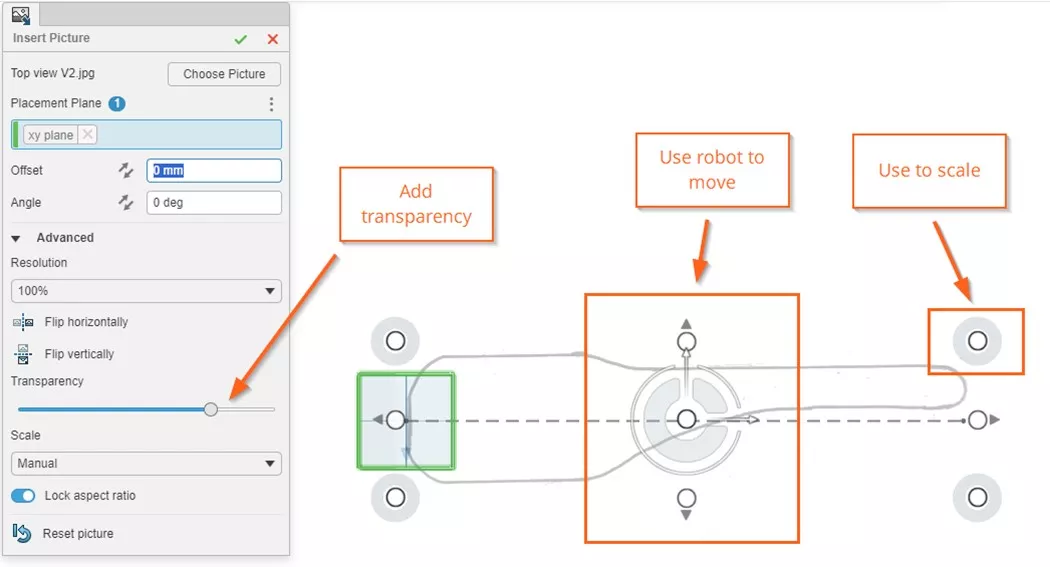
Once aligned, advanced options can be selected to increase the transparency of the sketch. This will make viewing the subdivision surface and sketch simultaneously easier.
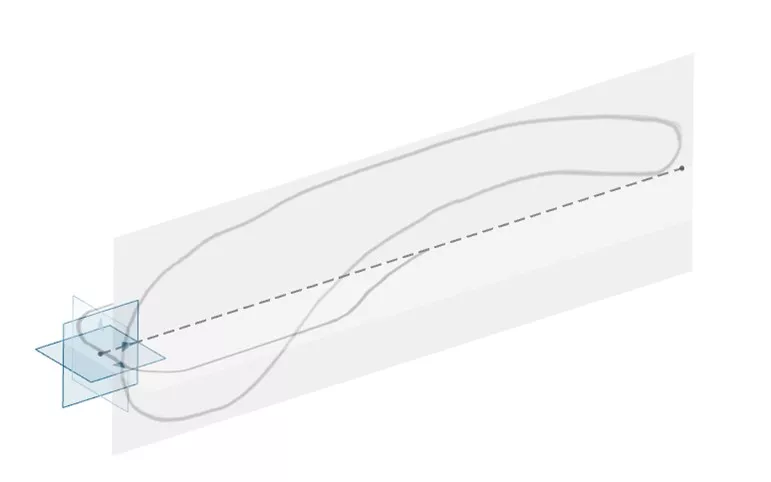
Repeating these steps for the front view image we get the result shown above.
STEP 2 – PLACE AND SCALE THE PRIMITIVE
Now we can insert our block to sculpt! We’ll start by adding an appropriate 3D primitive shape.
Approximate the overall geometry as best as possible with the first primitive to reduce further editing steps.
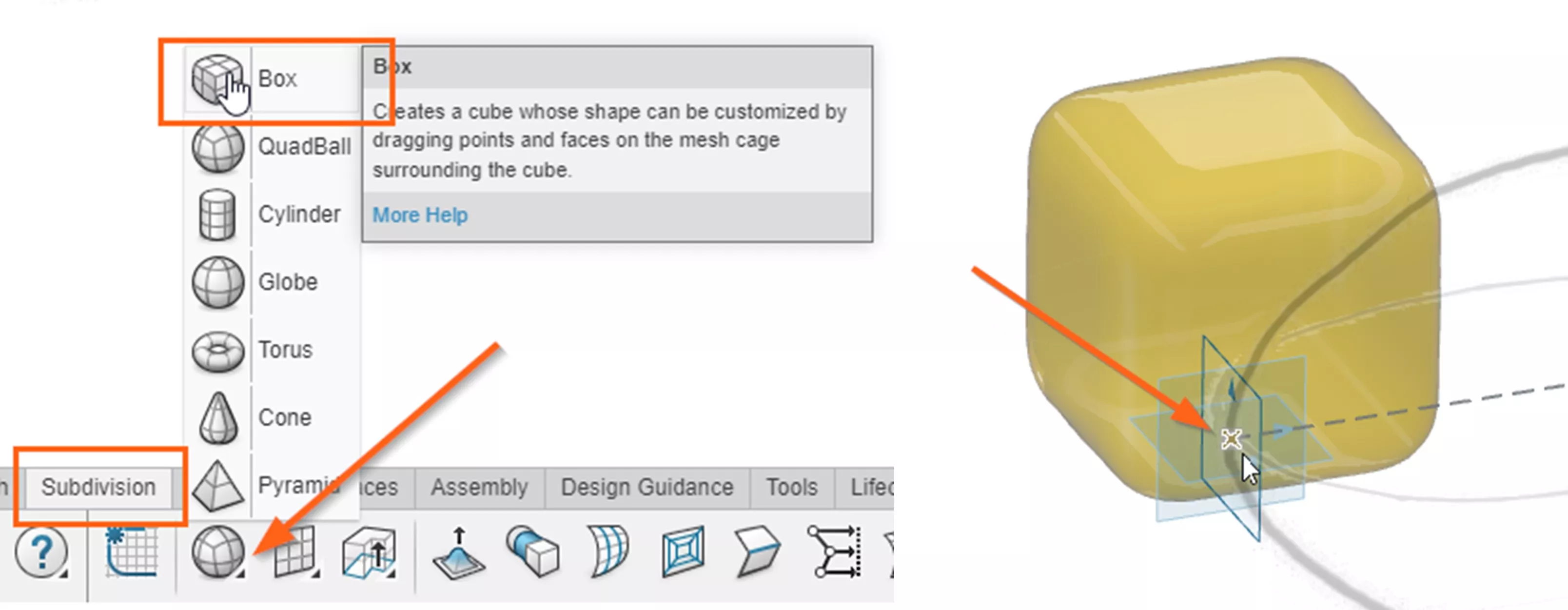
In this case, a Box primitive is used and placed on the origin to begin.
After selecting the origin, scaling is applied by clicking Scale by Bounding Box.
By clicking Scale Non-Uniform, the X, Y and Z dimensions can be individually modified.
Edge loops can also be increased or decreased. We recommend keeping the number of edge loops to a minimum at this stage and add them in later where extra detail is required.
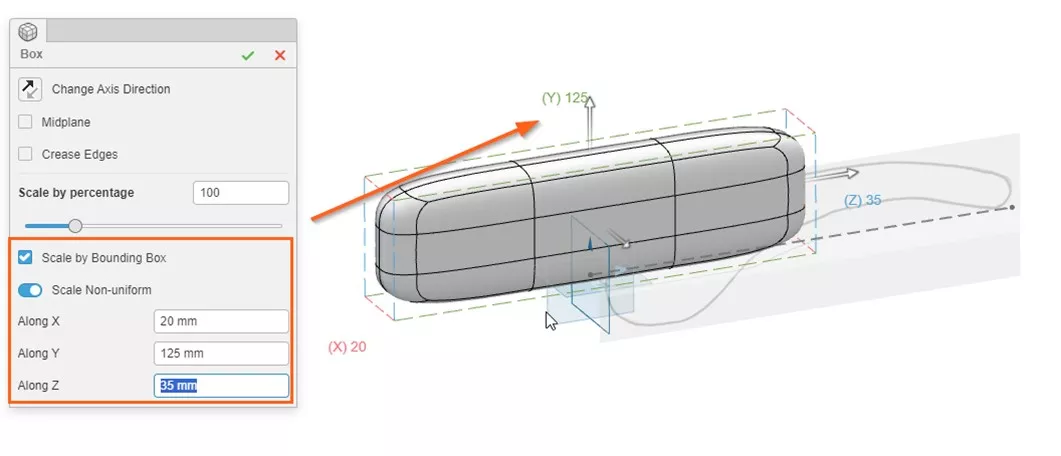
Once the green tick is selected to confirm the scale, we’ll move the overall geometry using the robot.
It is best to do this in a view that is normal to a face to ensure that the subdivision is still aligned near the origin.
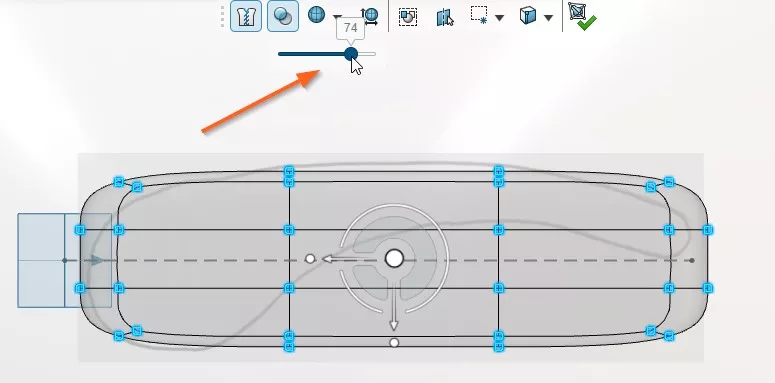
Then, we’ll increase the transparency of the surface so that the sketches behind become visible.
Have You Tried…
[DAM-VIDEO-36734]
Discover how the SOLIDWORKS Cloud Services open the door to seamless collaboration with intelligent tools.
For SOLIDWORKS users, these tools open up a huge range of possibilities and form a bridge to the advanced capabilities of the 3DEXPERIENCE platform.
STEP 3 – ALIGN GEOMETRY TO IMAGES
Our space is prepped, and our primitive roughly encompasses our images, so we are ready to start using push and pull methods to modify specific areas of geometry.
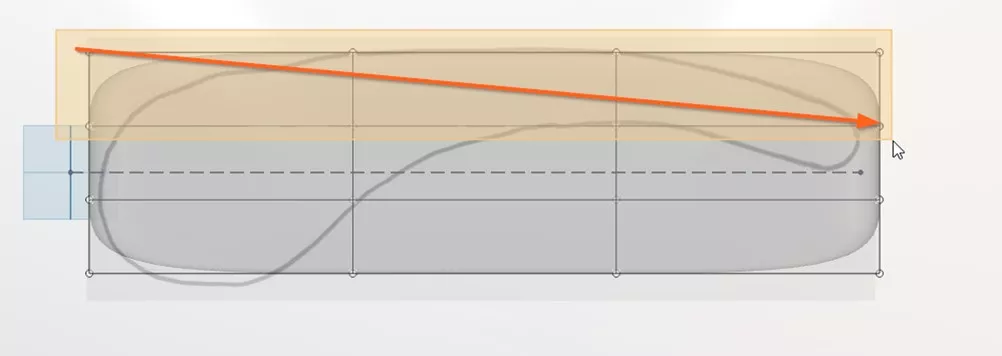
Again, it is best to work normal to a plane here to avoid accidentally selecting unwanted elements. Keep an eye on the View Selector in the top right corner as you work.
By default, box-selection of elements will select elements through the model. So we’ll box-select the upper elements normal to the front view by dragging and holding left click.
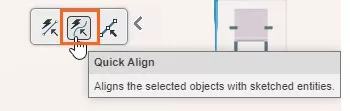
After letting go of left click, we’ll select Sketch Quick Align from the toolbar and draw a curve which roughly matches the upper shape of the sketch. The selected elements will then be roughly aligned with the drawn line.
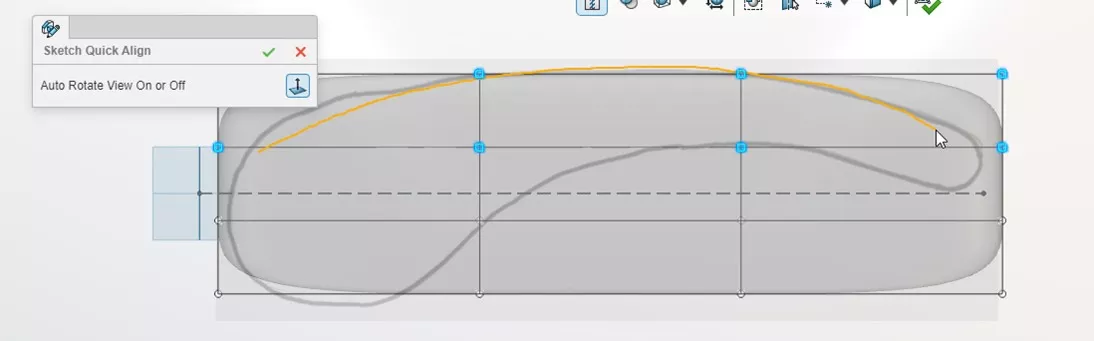
Repeat this process for the lower elements, and the model begins to roughly follow the shape of the sketch.
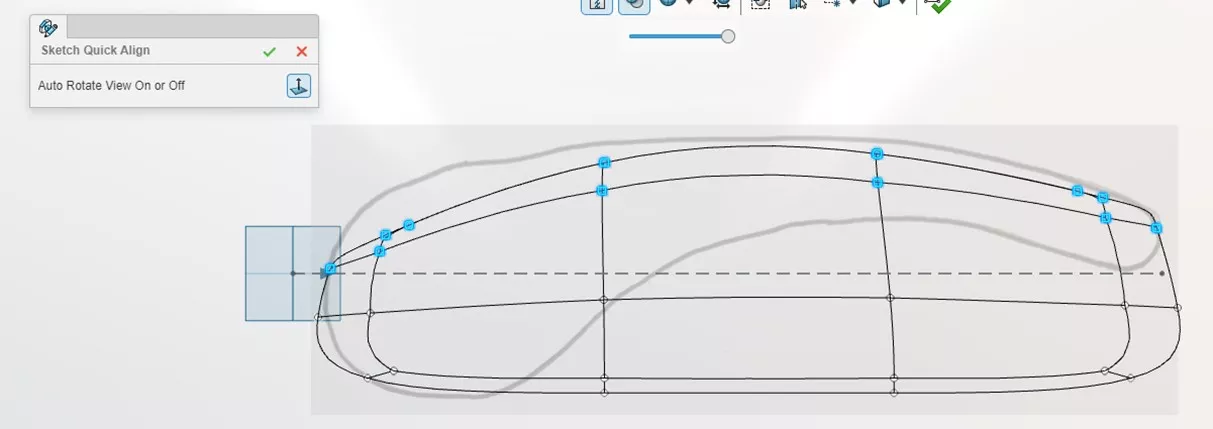
We will now modify groups and individual elements to match the sketch using the robot. By right clicking at the robot centre after making selections, the orientation can be changed to XYZ.
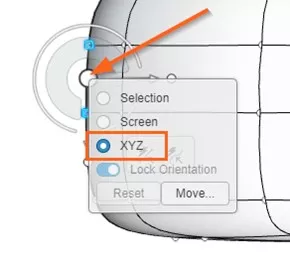
For more information on using the robot and its functionality, read our introduction to 3D Sculptor.
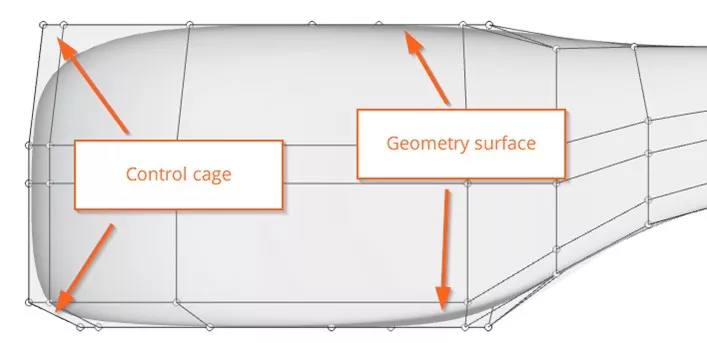
It can be helpful to show visibility for the Control Cage when editing with the robot. This allows for additional flexibility and options for controlling geometry.
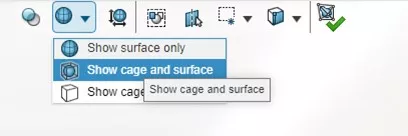
Control cage points can be modified like surface points but may give different sculpting results.
Sometimes the geometry does not behave as expected when it is being manipulated.
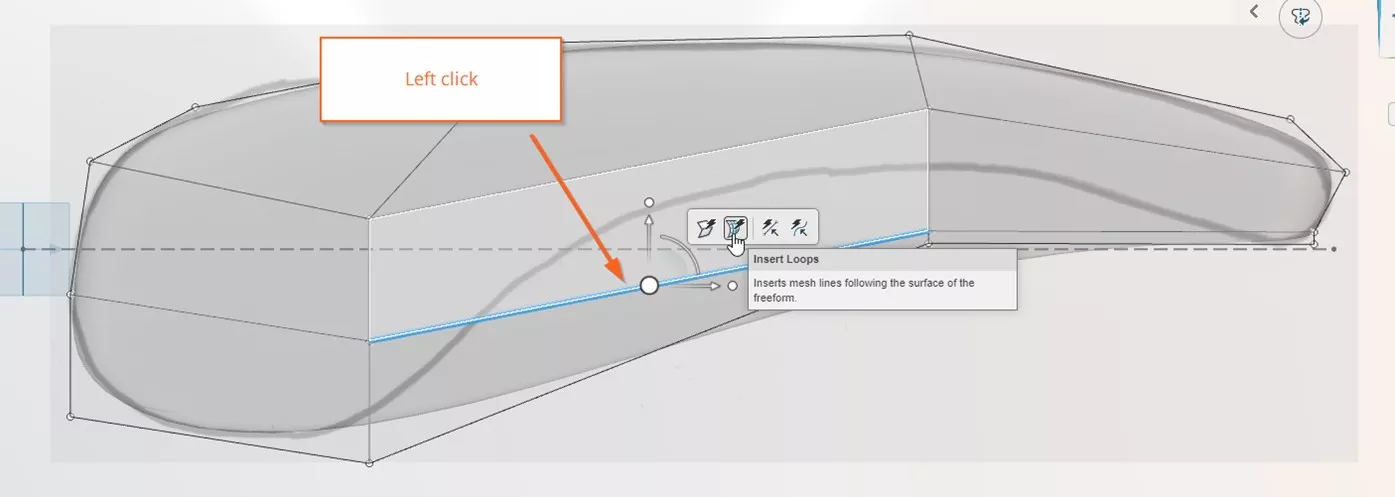
In such cases, it may be necessary to add additional edge loops to create new control points.
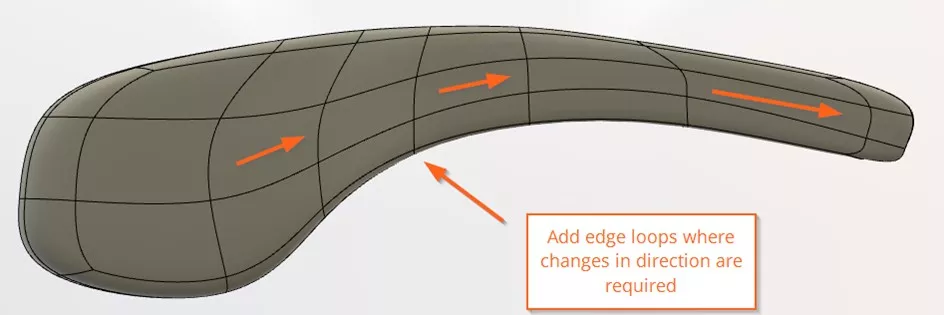
Like a sketch spline in SOLIDWORKS, new edge loops should generally be added in areas where geometry is changing direction to allow it to behave as intended.
Once finished with aligning geometry in the front view, we can move on to align the geometry in the top view.
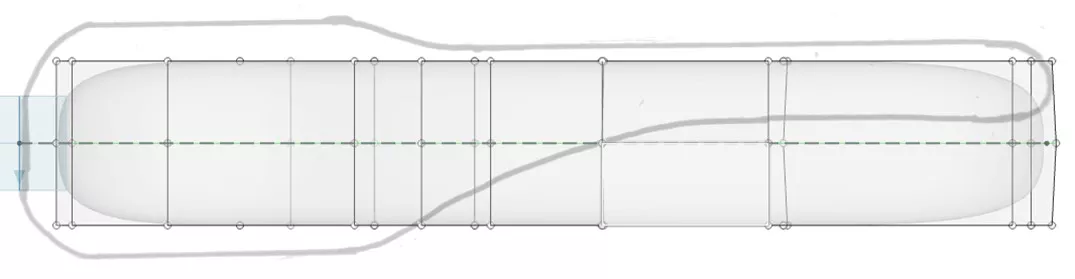
Once again, collections of vertices can be moved using the robot to align with the sketch more closely.
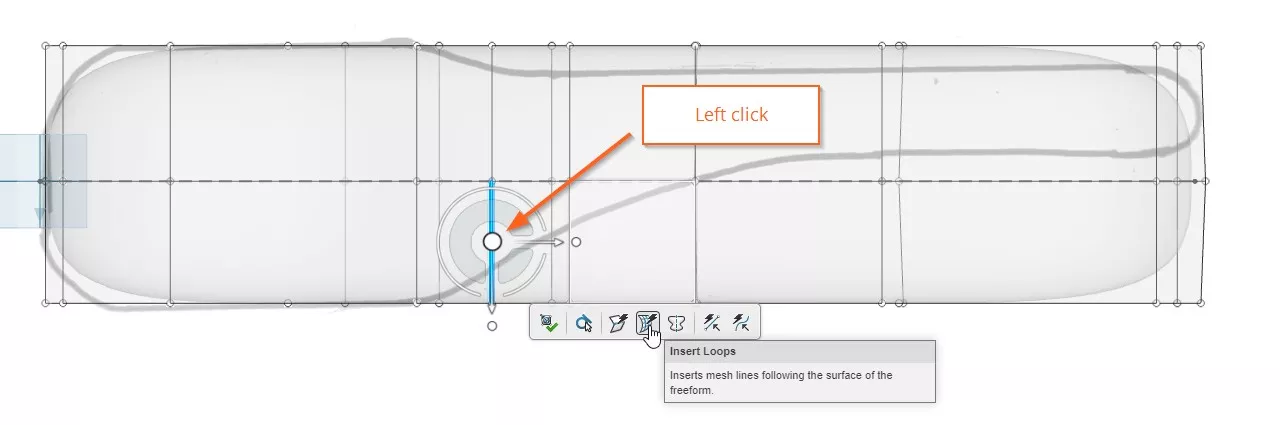
In areas where a direction change is needed, more edge loops will be added with the Insert Loops command.
Line Align is a tool which can be used when multi-selecting entities. It will force all selections to snap to a line, which can then be positioned and scaled.
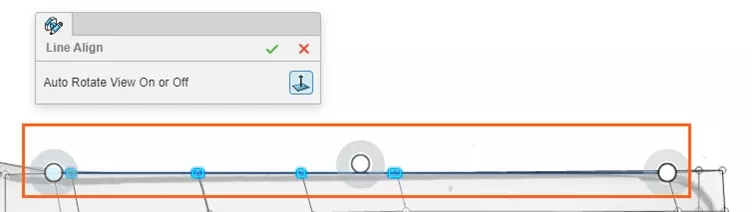
Access this tool from the pop-up menu after selecting multiple entities.
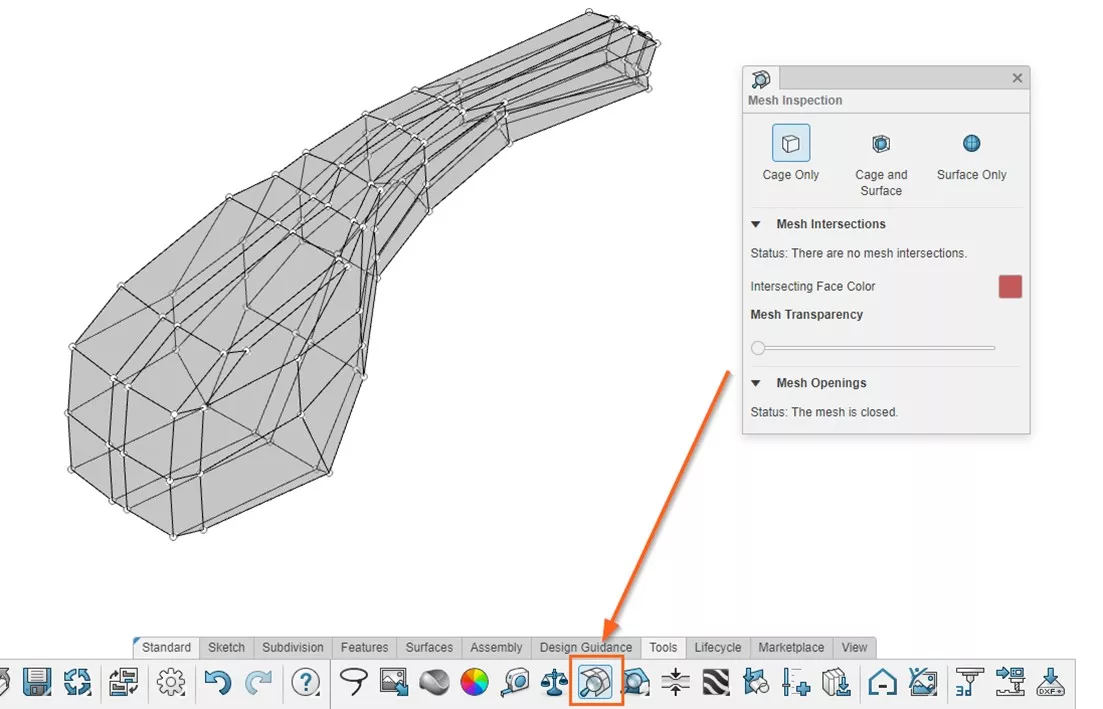
To examine the mesh and determine if there are any intersections or openings, we can use the Mesh Analysis Tool. Any intersecting faces will appear red. If there are any, we can fix intersecting faces by moving the vertices around until any overlaps are removed.
STEP 4 – GO BEYOND SUBDIVISION MODELLING
That’s the basic subdivision workflow finished. Now we’ll add some additional parametric geometry to add context to our design.
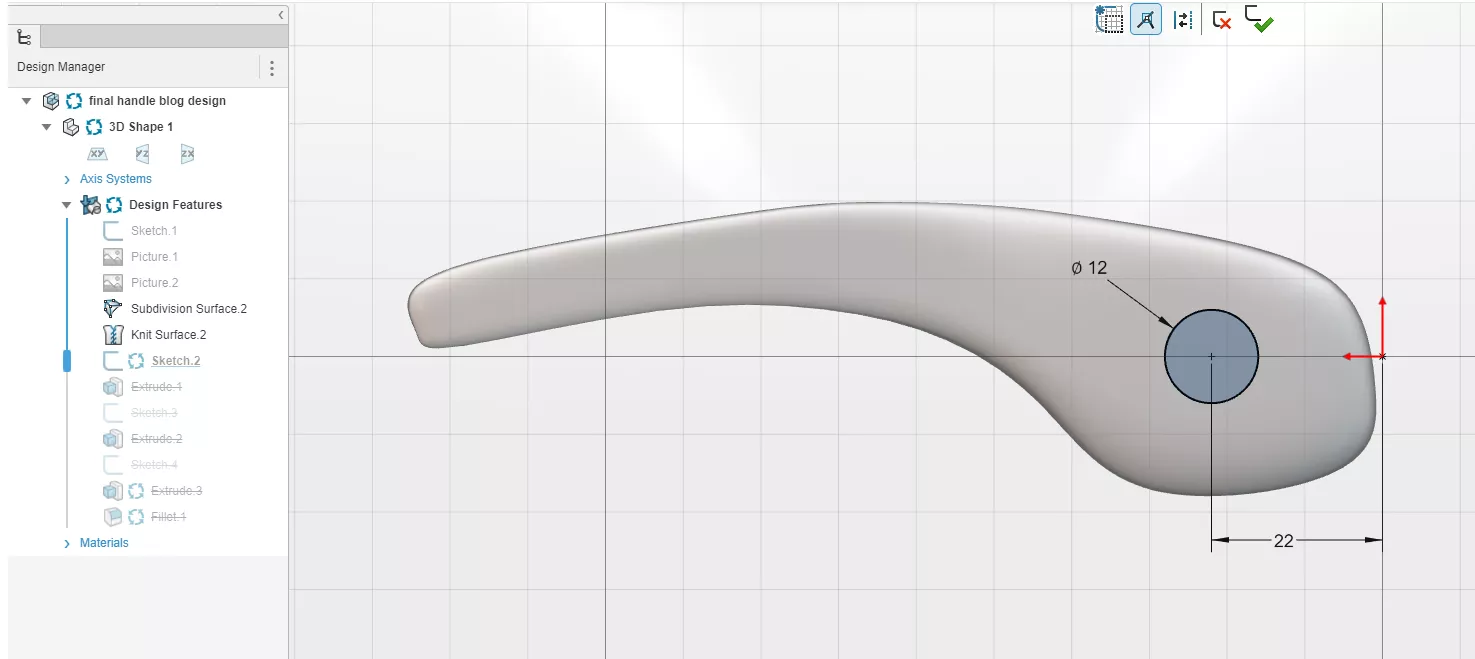
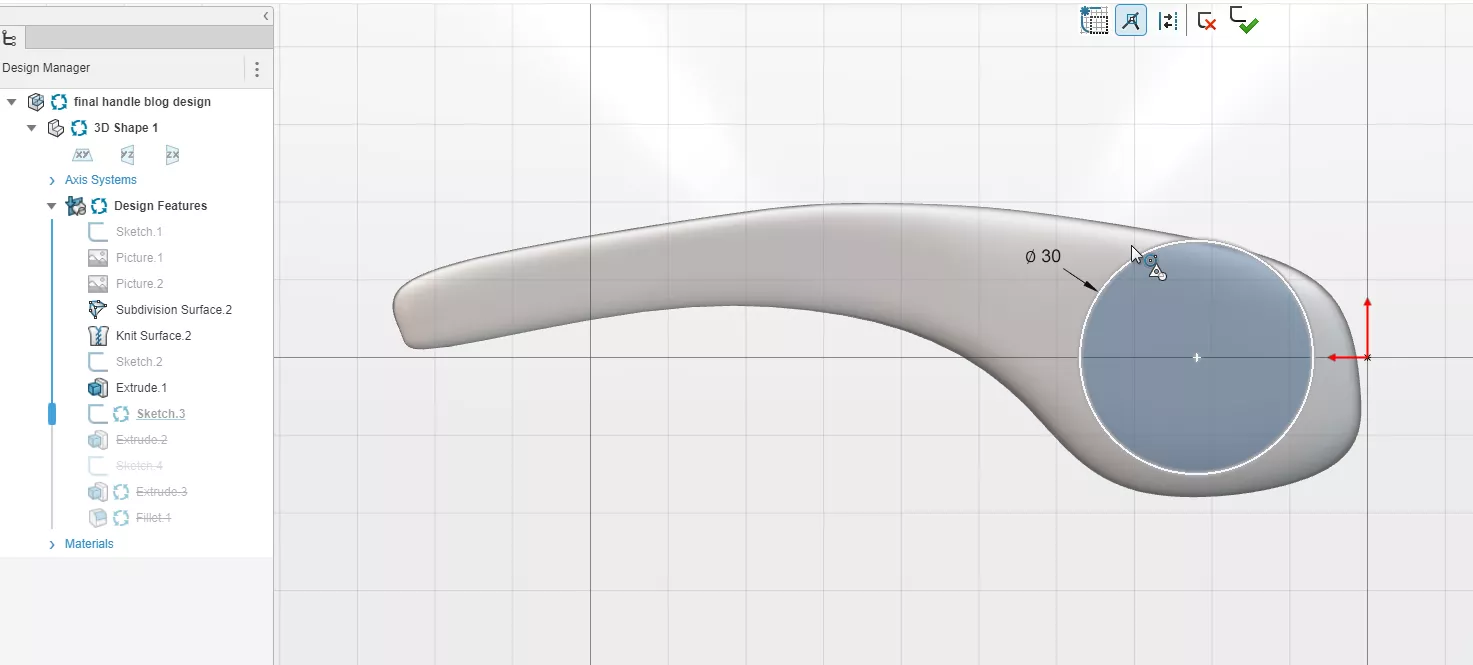
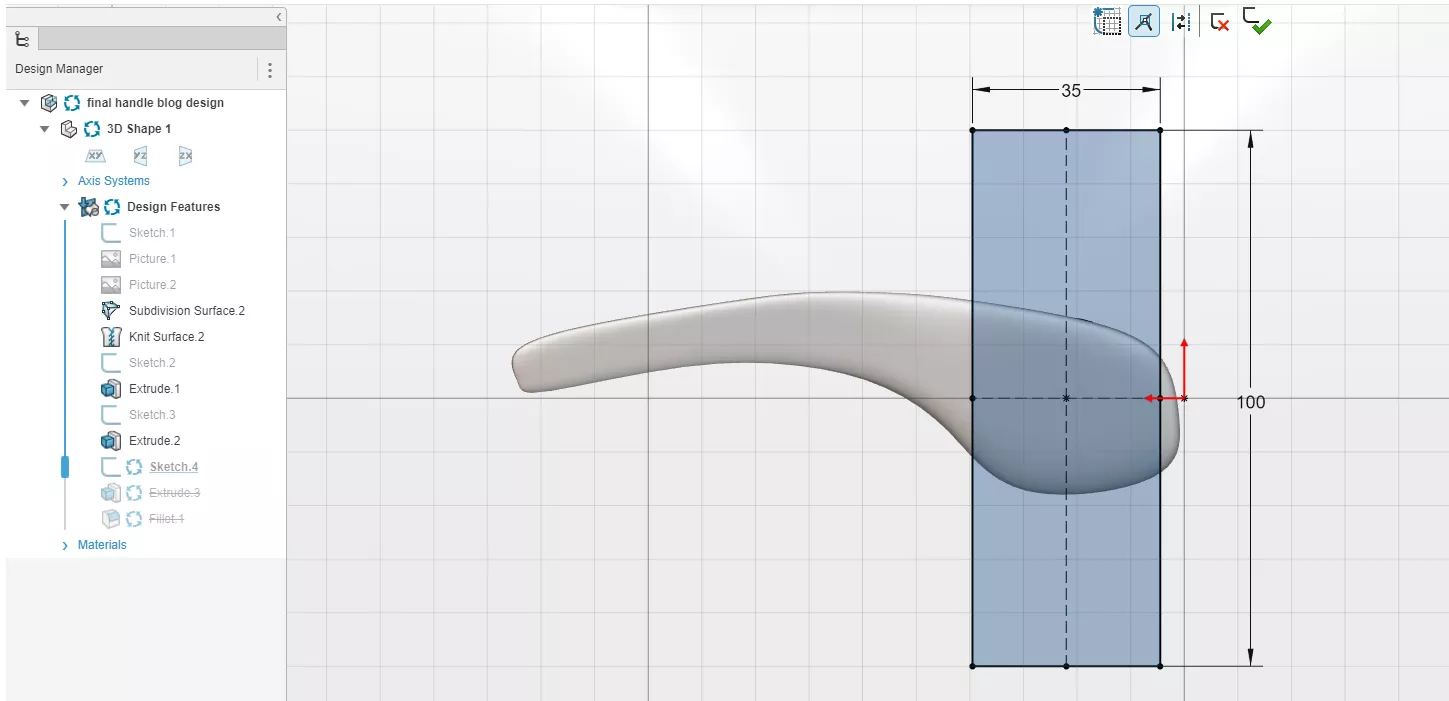
This is done with the basic tools found on the Sketch and Features tabs.
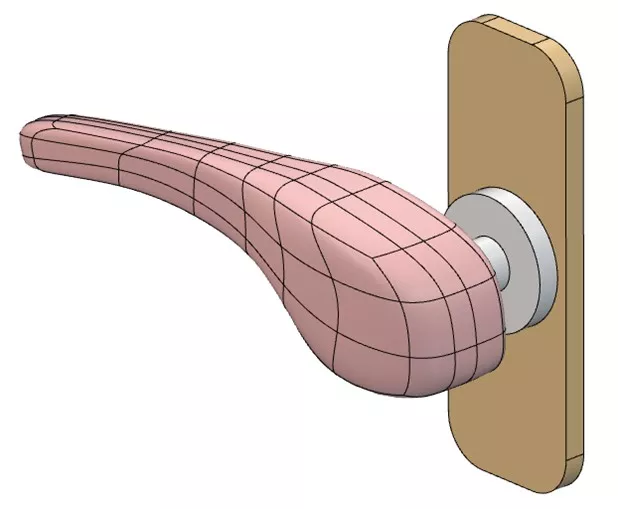
Model shading can be altered to hide the subdivision faces by accessing the View tab and choosing View Modes.
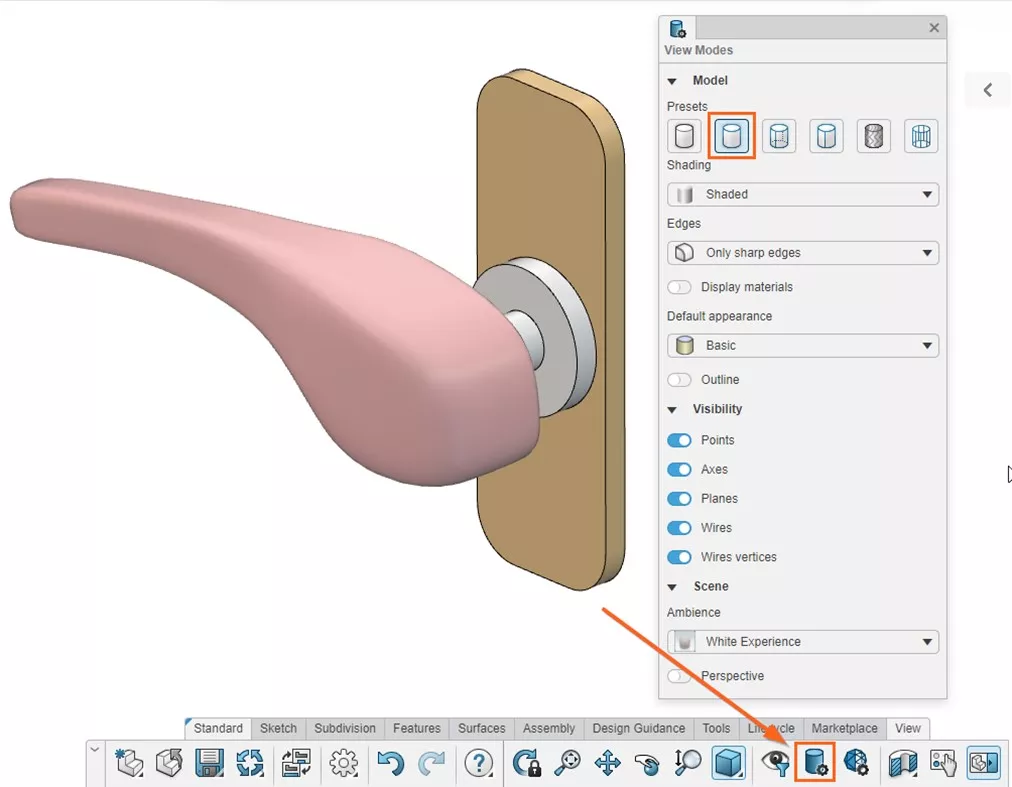
The 3D Sculptor role is an excellent tool to quickly draft new design ideas; any models produced can be edited to add further detail or imported into SOLIDWORKS to include within parts, assemblies, or drawings.
Categorised as: 3DEXPERIENCE | SOLIDWORKS Design
Get Expert SOLIDWORKS Training
Get hands-on SOLIDWORKS training in-person or online, led by certified experts with real industry experience. With venues across the UK & Ireland, it’s easy to start learning today.
Related Posts

How to Find Reaction Forces in SOLIDWORKS Simulation
SOLIDWORKS helps us to find resultant forces through simulation studies. These virtual tests reduce the need for physical prototypes and give us an accurate answer.

Setting number of decimal places in a table on a drawing
When creating an equation in a drawing general table, is it possible to define the…

SOLIDWORKS Smart Fasteners
SOLIDWORKS Smart Fasteners is a really useful time saving tool, allowing you to automatically insert toolbox fasteners such as bolts and screws into an assembly providing there is a standard hole.

Why is my Flat Pattern not showing in SOLIDWORKS Drawings?
This may be linked to how the drawing is saved or it can be related to how sheet metal parts are displayed in drawings, read on to find out how to fix it.

SOLIDWORKS Tips: Are you Making this Common Mistake in Fatigue Analysis?
Simulation is a vital and complex engineering need. Fortunately, SOLIDWORKS makes it easy to test, correct mistakes and obtain accurate results.

How to Recover SOLIDWORKS Files After a Crash
SOLIDWORKS has two different methods to help you recover from an unexpected crash or loss of data in the form of auto-recovery and back-up settings.

Redesigning Santa’s Sleigh in SOLIDWORKS
Every year Father Christmas has to fly in his sleigh to deliver presents to boys and girls all over the world in just one night. To put this into perspective, it takes a little under 24 hours to fly from London (UK) to Sydney (Australia) in a streamlined Boeing 747, whereas Father Christmas’ mode of transport is believed to be a rather non-aerodynamic sleigh.

SOLIDWORKS Grid Systems – hidden away, but very useful!
Rory Niles provides an insight into the uses for Grid Systems within SOLIDWORKS 2018

Furniture Design Made Easy with SOLIDWORKS
Calling all furniture and interior designers: the days of creating square cabinets are over. What if we told you there’s a much easier way to bring your products to life?
Here’s 10 reasons why we feel SOLIDWORKS is better than any other software, especially if you’re designing furniture:
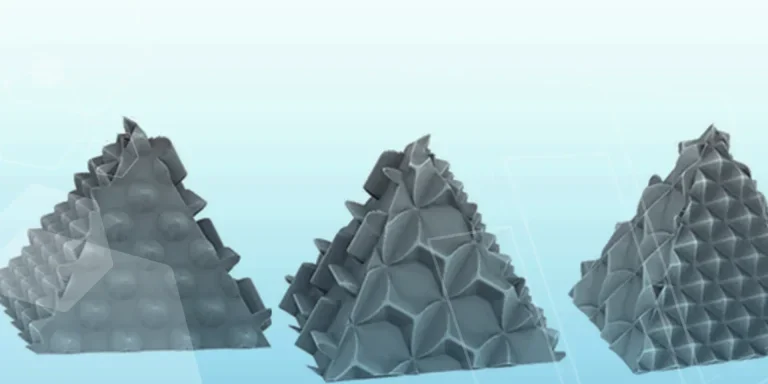
Making 3D Textures from Images on SOLIDWORKS
Turn images into 3D geometry with brand new SOLIDWORKS 3D Textures Feature