









Top 5 SOLIDQ Features You Should Be Using for SOLIDWORKS Batch Processing

Written by: Eoghan MacGearailt
Published: May 27, 2026
| View All Blogs
SOLIDQ is the ultimate batch processing tool and is designed to save time by customising, automating, and programming key sections of your workflow, delivering a faster return on your SOLIDWORKS investment.
If your day-to-day workflow in SOLIDWORKS feels a bit repetitive and you are looking to reduce time, minimise errors, and cut costs, then SOLIDQ could be the answer. It has a range of helpful features, but there are five that make SOLIDQ the standout solution to SOLIDWORKS batch processing.
1. Batch Export to Different File Types
Exporting SOLIDWORKS files, whether that be part, drawing, or assembly files, is something every SOLIDWORKS user does, but when you have hundreds of files to export, this can get repetitive.
SOLIDQ allows you to batch export countless SOLIDWORKS files to various other file types, including PDFs for drawings, STEP files for manufacturing, or DXFs for laser cutting.
How does it work?
Instead of spending loads of time going through each file and exporting them individually, you can use SOLIDQ to do this for you in the background and automate the entire process whilst also reducing the risk of missing files or incorrectly exporting files.
To batch export SOLIDWORKS files:
- Select the files to export.
- Choose the required output format.
- Let SOLIDQ get to work.
The batch export process requires minimal input but has a huge payoff, resulting in time saved in the long run.
2. Custom Property Management
When dealing with custom properties, things can quickly become confusing and time-consuming. Whether it’s updating part numbers, descriptions, materials, or revision data, doing this manually can take a lot of time and allows room for mistakes.
SOLIDQ simplifies that by allowing you to edit, add, and standardise custom properties across multiple files in one go.
With just a few clicks, you can:
- Add or remove consistent property values across multiple files
- Rename custom properties without opening any files
- Copy properties between files
By automating this process, SOLIDQ ensures your custom properties remain accurate and consistent without the usual manual effort.
3. Detailing Drawings
Manually adding watermarks to drawings requires opening drawings, applying the watermark, and saving the drawing. Multiplying this effort across as many drawings as you need to watermark means that you’re spending more time on administrative work than engineering.
With SOLIDQ, you can apply this change across multiple drawings in a single operation, removing the need to open and close multiple drawing files. Watermarking drawings is just one of the ways that SOLIDQ can automate SOLIDWORKS drawings.
By using SOLIDQ for drawing automation, you can:
- Add watermarks, notes, BOM tables, and more
- Dimension drawing views
- Automatically create drawings of part files
- Replace sheet formats
These are just a few of the different tasks that SOLIDQ can automate to help create and detail drawings in one streamlined process.
4. Model Modification
SOLIDQ can also be used to modify part files and assembly files in various ways, whether you want to delete features, change document units, create Pack and Go packages, or update material properties. SOLIDQ allows you to apply changes across multiple models, once again removing the need to open and edit each file manually.
One of the more common occurrences when working in SOLIDWORKS assemblies is being blocked from inserting components when the rollback bar is in use. When working in larger assemblies, you might spend more time hunting for the blocking components than doing regular engineering work.
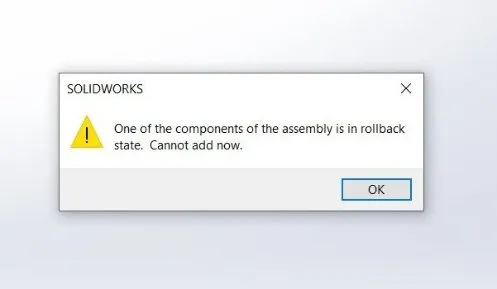
The SOLIDWORKS error message that blocks insertion
SOLIDQ can be used to reset the position of the rollback or freeze bars to their home positions for each component, letting you get back to work quickly.
5. Appearance Adjustments
When it comes to presenting your models, the appearance plays a massive role, but adjusting appearances is often a repetitive task. Having to apply the same colour, finish, or material appearance across dozens or even hundreds of parts could take hours.
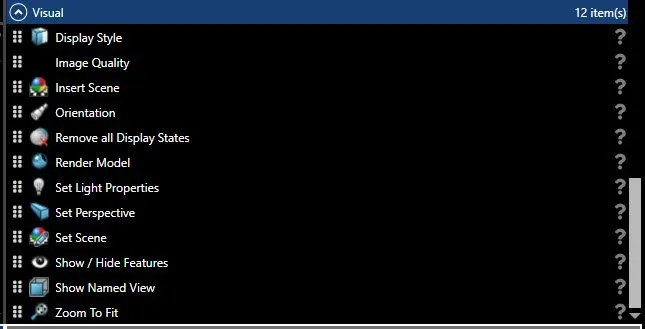
Adjusting visual properties with SOLIDQ
These tasks are made simple with SOLIDQ, as we can apply and modify appearances across multiple files in one go. Instead of making the changes manually, leverage automation where you can to make your job easier.
Making SOLIDWORKS Batch Processing Work For You
SOLIDQ isn’t supposed to replace your design work, but it is meant to remove the repetitive tasks that take up valuable time. From batch exporting files and managing custom properties to updating drawings, modifying models, and altering appearances, SOLIDQ helps streamline some of the most time-consuming parts of SOLIDWORKS.
Categorised as: Automation | Design | SOLIDWORKS Design
Get a SOLIDWORKS Quote
Interested in SOLIDWORKS? Contact us for questions, trials, or demos by clicking the button below or call 01926 333777. Our experts will help you find the perfect solution.

Related Posts

How to Find Reaction Forces in SOLIDWORKS Simulation
SOLIDWORKS helps us to find resultant forces through simulation studies. These virtual tests reduce the need for physical prototypes and give us an accurate answer.

Setting number of decimal places in a table on a drawing
When creating an equation in a drawing general table, is it possible to define the…
SOLIDWORKS Smart Fasteners
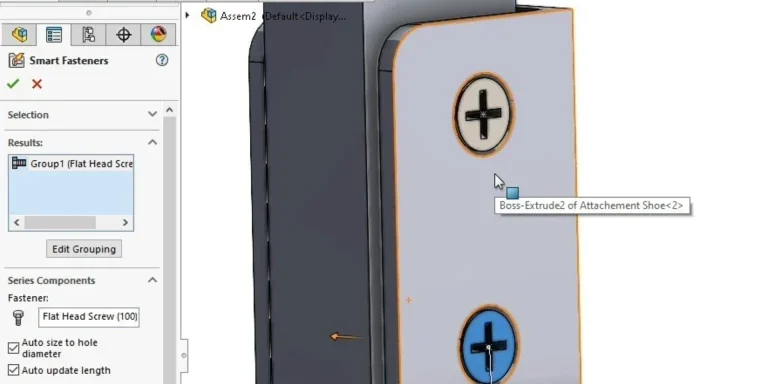
SOLIDWORKS Smart Fasteners is a really useful time saving tool, allowing you to automatically insert toolbox fasteners such as bolts and screws into an assembly providing there is a standard hole.
Why is my Flat Pattern not showing in SOLIDWORKS Drawings?
This may be linked to how the drawing is saved or it can be related to how sheet metal parts are displayed in drawings, read on to find out how to fix it.

SOLIDWORKS Tips: Are you Making this Common Mistake in Fatigue Analysis?
Simulation is a vital and complex engineering need. Fortunately, SOLIDWORKS makes it easy to test, correct mistakes and obtain accurate results.
Series 1 Land Rover Pedal Car – Made Easy with Solidworks!
The Series1 began production in 1948 designed to help get Britain farming after the war effort. It grew extremely popular and today enthusiasts are prepared to throw their life savings at restoring originals from that period.

How to Recover SOLIDWORKS Files After a Crash
SOLIDWORKS has two different methods to help you recover from an unexpected crash or loss of data in the form of auto-recovery and back-up settings.

Redesigning Santa’s Sleigh in SOLIDWORKS
Every year Father Christmas has to fly in his sleigh to deliver presents to boys and girls all over the world in just one night. To put this into perspective, it takes a little under 24 hours to fly from London (UK) to Sydney (Australia) in a streamlined Boeing 747, whereas Father Christmas’ mode of transport is believed to be a rather non-aerodynamic sleigh.

SOLIDWORKS Grid Systems – hidden away, but very useful!
Rory Niles provides an insight into the uses for Grid Systems within SOLIDWORKS 2018
Furniture Design Made Easy with SOLIDWORKS
Calling all furniture and interior designers: the days of creating square cabinets are over. What if we told you there’s a much easier way to bring your products to life?
Here’s 10 reasons why we feel SOLIDWORKS is better than any other software, especially if you’re designing furniture: